Exit
  • Global community
    • Language:
      • Deutsch
      • English
      • Español
      • Français
      • Português
  • 日本語コミュニティ
  • 한국 커뮤니티
0

A connector between shapes?

Explorer ,
May 27, 2024 May 27, 2024

Hello all,


Is it possible to make a connector between two shapes, so that if we move a shape, it remains linked to the other shape?


For example:
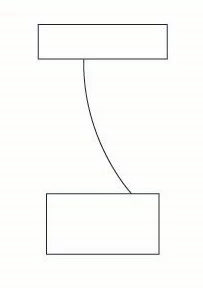
 

Untitled-1-01.jpg


Best regards,

TOPICS
How-to
611
Translate
Report
Community guidelines
Be kind and respectful, give credit to the original source of content, and search for duplicates before posting. Learn more
community guidelines
Adobe
Community Expert ,
May 27, 2024 May 27, 2024

That would need to be hacked and then it might not be very stable. Such as this: https://youtu.be/Pr4_k6y9TNY

Translate
Report
Community guidelines
Be kind and respectful, give credit to the original source of content, and search for duplicates before posting. Learn more
community guidelines
Explorer ,
May 29, 2024 May 29, 2024

Thank you so much for your tutorial.

I hope to find another simple and stable solution.

Translate
Report
Community guidelines
Be kind and respectful, give credit to the original source of content, and search for duplicates before posting. Learn more
community guidelines
Community Expert ,
May 29, 2024 May 29, 2024

I don't know if the plugin Datylon has flowcharts.


Translate
Report
Community guidelines
Be kind and respectful, give credit to the original source of content, and search for duplicates before posting. Learn more
community guidelines
Explorer ,
May 29, 2024 May 29, 2024

Many thanks and appreciation.

Translate
Report
Community guidelines
Be kind and respectful, give credit to the original source of content, and search for duplicates before posting. Learn more
community guidelines
Community Expert ,
May 30, 2024 May 30, 2024

Yala,


If compatible with your workflow, there is a simple way which would be quite easy to use for straight connectors, whereas curved connectors would/could need adjustment of shape (Handles), and it can also be used for multiple connectors starting/ending in the same shape(s), the key being that each connector is actually unconnected to the shapes that it connects.


1) Create each connector as an open path starting/ending exactly on (the boundaries of) the shapes that it is to visually connect; Smart Guides are your friends saying path when you are within snapping distance (or anchor if you wish to snap it to Anchor Points); maybe you actually have done that already; you can ClickDrag with the Line Segment Tool or Click with the Pen Tool Pen Tool (remember to create a new path each time, you can press P), or ClickDrag with the Pen tool for curved ones;


2) For each shape you wish to move, first deselect everything (you can click an empty spot somewhere), then with the Direct Selection Tool simply ClickDrag over the shape including the start/end Anchor Point of the connector(s) on the shape, then let go of the mouse/whatever to select, then ClickDrag the selection to the desired position.


This will move the shape along with (all) the start/end point(s) of the connector(s), (each of) which will retain its position on (the boundary of) the shape, keeping the connexion(s).


Translate
Report
Community guidelines
Be kind and respectful, give credit to the original source of content, and search for duplicates before posting. Learn more
community guidelines
Explorer ,
May 30, 2024 May 30, 2024

Thank you so much Jacob for your nice solution.

Translate
Report
Community guidelines
Be kind and respectful, give credit to the original source of content, and search for duplicates before posting. Learn more
community guidelines
Community Expert ,
May 30, 2024 May 30, 2024
LATEST

You are welcome, Yala.


Translate
Report
Community guidelines
Be kind and respectful, give credit to the original source of content, and search for duplicates before posting. Learn more
community guidelines
