


johnw49810379
Participant
February 14, 2018
Question

A partial shadow

  • February 14, 2018
  • 3 replies
  • 1295 views

I'm sorry if this has been discussed but iv been searchin for 3 hours with no answers, I want to strike out a shaow around text so its partial I will try add photos

I type my text copy past and offset them layered and add a stroke and get the effect I want but I want to take out the stroke and as I'm cutting to vinyl I just want to shadow shapes that are seen to be cut, its driving me mad

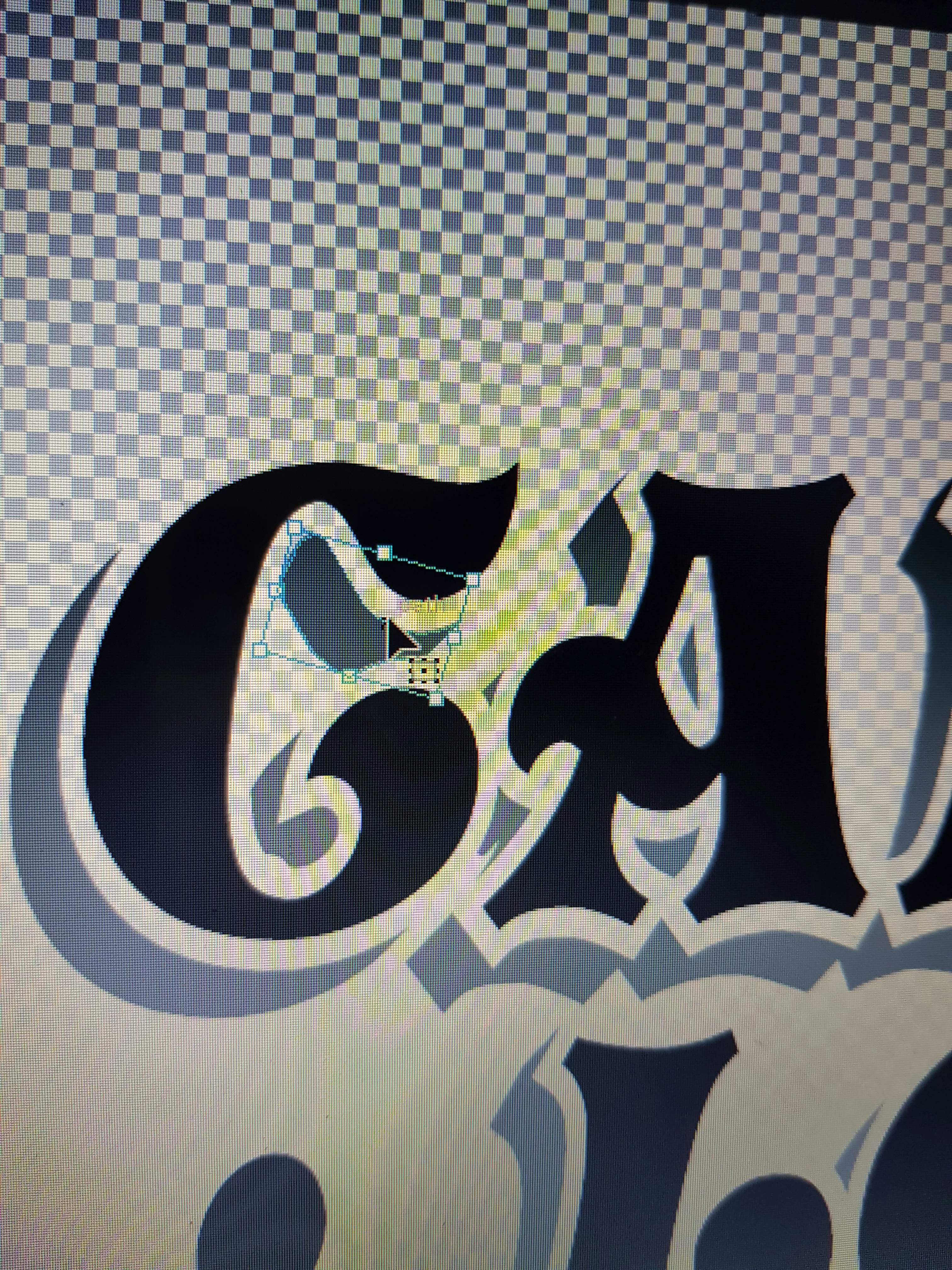
this is the effect I want to get and how I want the final design to be like for plotting.

this image is how I need my text, it was a logo that a customer already had made, as u can see all the grey partial shadow is separate so will cut separate in plotter
This photo is what I achieve when I layer and add a stroke, but when I try and make the stroke transparent it doesn't work will work fine if I test it with shapes, but even converting to outline etc nothing works, as
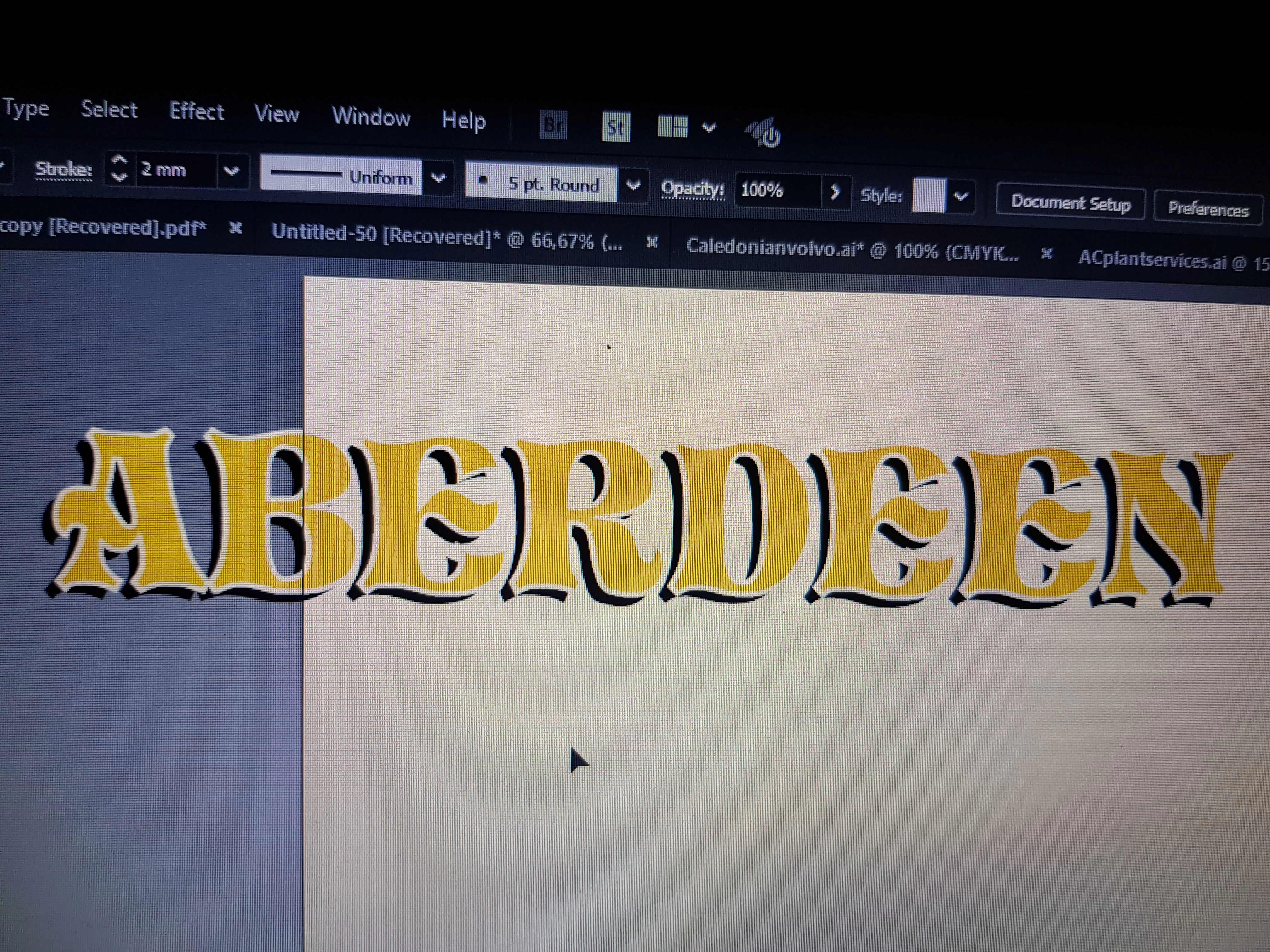
please help I'm goin out my mind, or even if anyone knows a way to get that partial shadow another way,as I can tell from the pics i.e the A the shadow used by whoever made the company logo is not the same shadow if I offset layer it like iv done, thanks

    This topic has been closed for replies.

    3 replies

    Anna Lander
    Inspiring
    February 16, 2018

    To illustrate Monika's answer:

    1. Add the needed appearance to your text (fills, strokes, additional transformed fill as shadow etc.)

    2. Outline the text (Type -> Create Outlines, Ctrl/Cmd+Shift+O)

    3. Expand Appearance

    this will convert all your appearance elements to objects

    4. Outline stroke to convert it into the object (I used white stroke but it could be of any color, doesn't matter)

    5. The main thing: use Merge option of Pathfinder palette to unite all contiguous same-color elements and delete all overlapped ones.

    6. Select and delete all elements with Stroke color.

    Now you have only normal objects, ready for the plotter.

    pixxxelschubser
    Community Expert
    Community Expert
    February 15, 2018

    Hi johnw49810379​,

    use a knockoutgroup and a second fill and stroke in the appearence panel (instead of a second object) for editable shadow.

    set transparency of stroke to 0%

    if the shadow is correct in size and position > save > then flatten transparency and clean your artwork for the plotter.

    Have fun

    johnw49810379
    Participant
    February 15, 2018

    pixel many thanks for your answer I try this but my new fill doesn't show would you be able to tell me how to do it in words rather than pictures, iv tried it few times I must be doin something wrong as still only getting one layer from 2 fills thanks

    pixxxelschubser
    Community Expert
    Community Expert
    February 15, 2018

    Perhaps the ai is more helpful than an extensive explanation

    Dropbox - Aussparungsgruppe_Textkontur2_CC.ai

    select the text frame and open the appearance panel

    Monika Gause
    Community Expert
    Community Expert
    February 15, 2018

    You want this in a way that can be plotted?

    Then outline the text, outline the stroke, use the pathfinder "Merge" ( from the pathfinder panel) and then delete all the white objects.