I adjusted to the -.5, but unfortunately, those lines are real. I tried a test by exporting it to Photoshop as a jpg, and the lines appear there, too. Therefore, they would probably show up on the finished product. The screenshot I have here is from Photoshop. Maybe there is a way to do this outside of the swatch? Like with another tool or something?
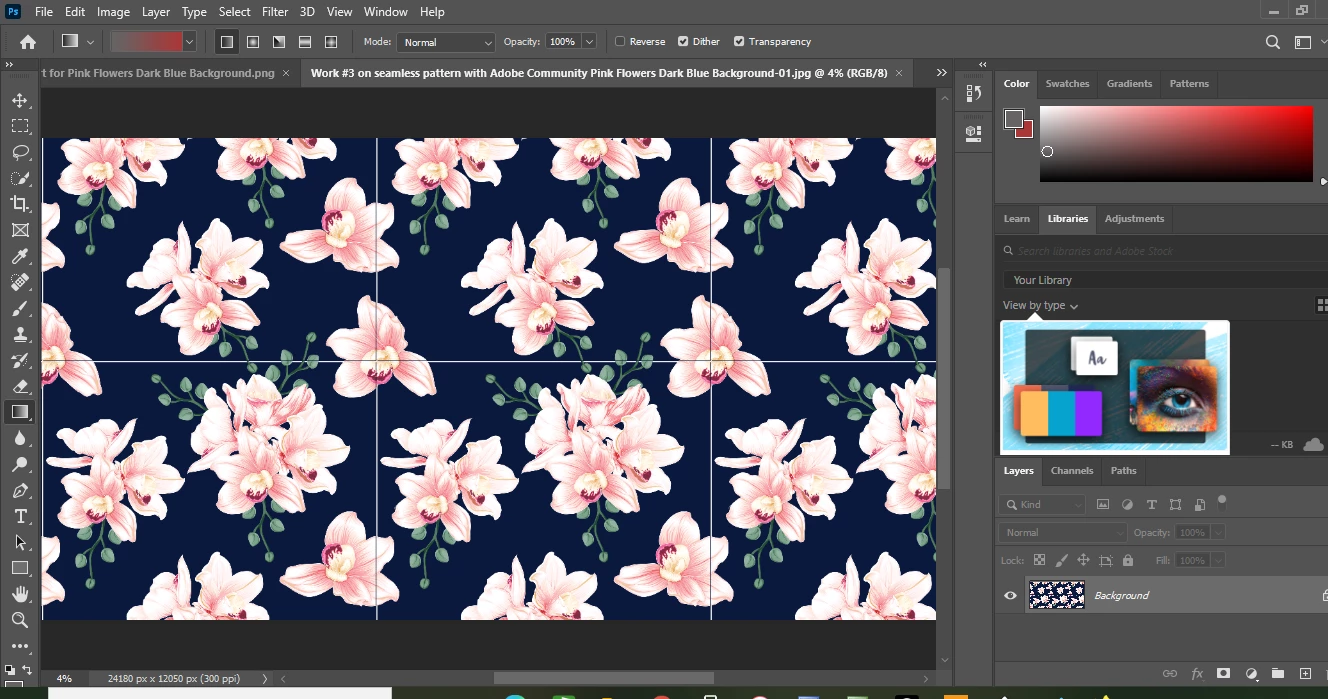
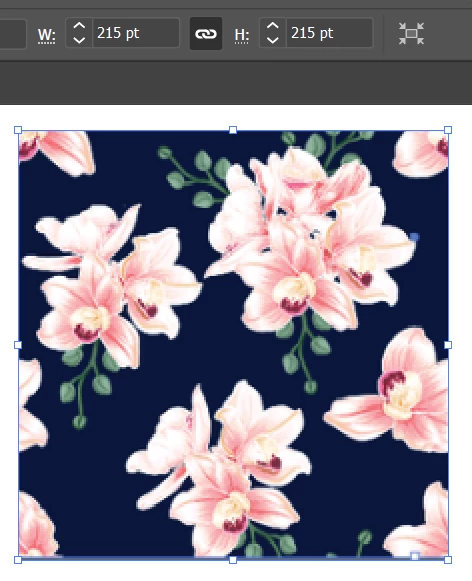
I like to start with a pattern that has numbers with even dimensions, no decimal points. You can resize it if necessary in a number of different ways. The Transform panel is one way. The height and width don't need to be the same dimension, but the tile does need to be a rectangle.
Click on the artboard with the Rectangle tool to bring up the Rectangle dialog box and type in the exact dimensions of the pattern tile.
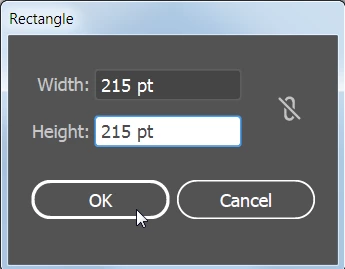
The rectangle should have no fill and no stroke.

Select both the rectangle and the pattern tile and use the Align icons to align them horizontally and vertically.

Since the rectangle was the last object drawn on the artboard, it will be on top of the pattern tile. Select just the rectangle. You will need to click on the edge, not the center, of the rectangle. You can tell if the rectangle is selected because the fill and stroke icons will indicate no fill no stroke.
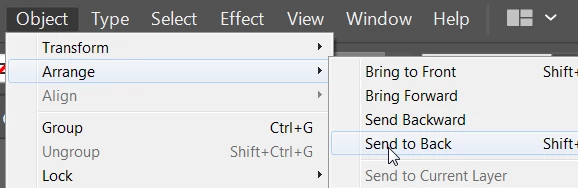
With the rectangle selected, choose Object > Arrange > Send to Back.
Select both the rectangle and the pattern tile. Be careful not to move them while selecting.
Drag them into the Swatches panel.
Now the pattern should tile without gaps.

 AdChoices