
Known Participant
May 31, 2019
Answered

Accurately resize repeat pattern artwork to a larger artboard/tile size

  • May 31, 2019
  • 3 replies
  • 5784 views

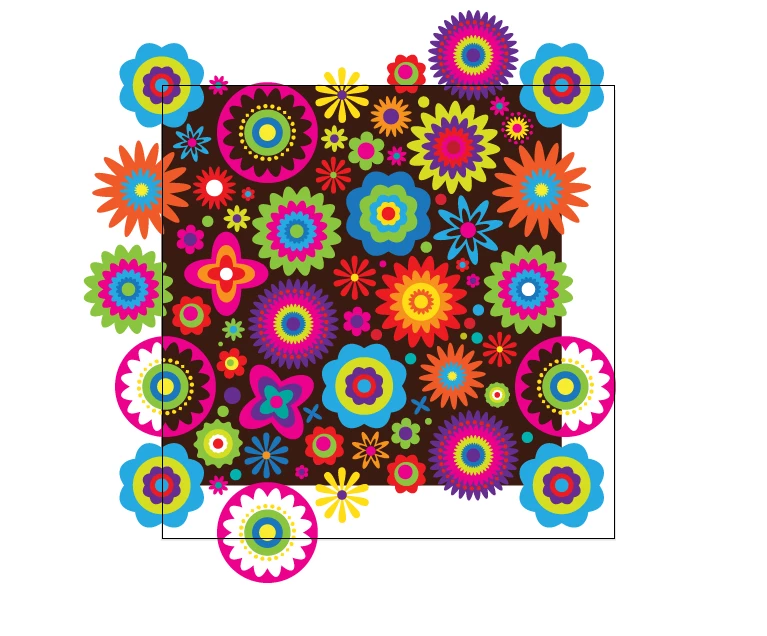
I have a 'tile' which I created a few years ago at a (now seems) random document/artboard size and I want to transfer my patterns from the old tile/artboard size to a new (rounded number 0f 40mm) size.

I have to make sure that the pattern resizes perfectly, if it doesn't the tiles won't match up and my repeat pattern will look bad, so my question is, (using the screen snap attached as reference, the square outline being my new 40mm artboard/tile size and the black square being my previous tile/artboard size) is there a way I can resize the black background and the all of the pattern to fit the new tile/artboard size perfectly please?

I realise that if it was just the black square alone I could set it the X and Y co-ordinates a 0 and make the box 40mm x 40mm but the flowers are the tricky bit and the spill over the black box (until I crop them to make the finished tile for repeating) and therefore to select all of it and set X and Y at 0 won't be correct.

What ideally I need to do is select everything and just resize the black area with the flowers following along so once the black box is in place if the flowers have followed the resizing and repositioning of the black box then the flowers will be in the exact position they need to be to make a perfect tile.

I hope I am explaining this clearly!

Any help would be greatly appreciated.
This topic has been closed for replies.
Correct answer Jacob Bugge

Miss Sparkles,

In 3), with the top left Reference point chosen (to keep the top left corner in place), after the value in the W box insert first * (to multiply) then 1.1338 (the value to reach the 40) and press Ctrl/Cmd+Enter to retain proportions.

3 replies

Ton Frederiks
Community Expert
Community Expert
June 4, 2019

Good to hear that was helpful.

Ton Frederiks
Community Expert
Community Expert
May 31, 2019

MissSparkles75  wrote

I have a 'tile' which I created a few years ago at a (now seems) random document/artboard size and I want to transfer my patterns from the old tile/artboard size to a new (rounded number 0f 40mm) size.

Be careful when using mm for the tile size.

If you ever want to export the tile as an image (pixel) format, 40mm will result in extra, unwanted pixels.

40 mm becomes 113,3858 px. Because a fraction of a pixel does not exist, the resulting tile wille export like this:

adding extra transparent pixels to the tile.

If you want to export as an image It would be better to use point or pixels as the unit.

113 px would not give you the unwanted pixels when exported at 72 ppi or a multiple of 72, but the mm size would be 39,864.

Known Participant
June 4, 2019

Hello Ton, so I just went to change my document size from mm to pixels in order to make the doc 113px and thought all would become clear but I'm trying to work out how you know 113 pixels would not give me extra transparent pixels, can you explain for me please? Is it just a case of always just using pixels and therefore no fractions of pixels will be used (because they don't exist)?

I would most likely be exporting the tile at 300dpi for professional printing.

Many thanks.

Jacob Bugge
Community Expert
Community Expert
June 4, 2019

Miss Sparkles,

Illy (job description Adobe Illustrator) uses pixels as an actual unit equaling 1/72 inch. And 1 inch equals 25.4 mm

So, with 113 px = 113/72 in = 25.4*113/72 mm ~ 39.864 (0.136 mm smaller than 40 mm) you get the closest you can to 40 mm with whole pixels ; 114 px ~ 40.217 mm (0.217 mm larger than 40 mm).

Obviously, if you wish to have a print of exactly 40 mm, you will need to stay with mm.

But actually, since you are creating vector artwork, you may get the best of both worlds if you scale/create the artwork in mm to get the exact 40 mm, then create the corresponding PNG24 image (never use JPEG for crisp and clear artwork like yours) using the Legacy Save for Web and set the Image Size to 113 or 114 px (or whichever value suit the purpose); or if applicable, you may use the vector format SVG for web/screen use without having to worry about pixel sizes.

And by the way, why export at 300 PPI instead of saving a copy as PDF and let the printer get the best possible from it?

Jacob Bugge
Community Expert
Community Expert
May 31, 2019

Miss Sparkles,

As I (mis)understand it, you can just us the Transform palette, click the top left Reference point (to the left) and have Scale Strokes and Effects ticked (in the (flyout) options), then:

1) Click the black rectangle and see the present W (or H) value,

2) Determine the desired scaling factor (40 mm divided by the present value from 1)),

3) Add * followed by the scaling factor from 2) to the W value and press Ctrl/Cmd+Enter.

Always keep a copy of the original artwork before making such changes.

Known Participant
May 31, 2019

Thank you Jacob, though sorry you've lost me after point 2, so the percentage I need to scale up by is 113.38% can you just elaborate on what I have to do next please?

Jacob Bugge
Community Expert
Jacob BuggeCommunity ExpertCorrect answer
Community Expert
May 31, 2019

Miss Sparkles,

In 3), with the top left Reference point chosen (to keep the top left corner in place), after the value in the W box insert first * (to multiply) then 1.1338 (the value to reach the 40) and press Ctrl/Cmd+Enter to retain proportions.