Answered
Add Color Filter to Image
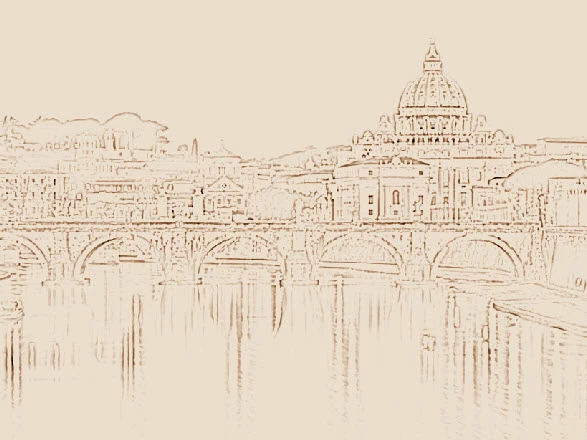
I need to add a beige color filter to an image. I need the first image to look like the buildings in the bottom image. How is this done in either Adobe Illustrator CC or Adobe Photoshop CC?
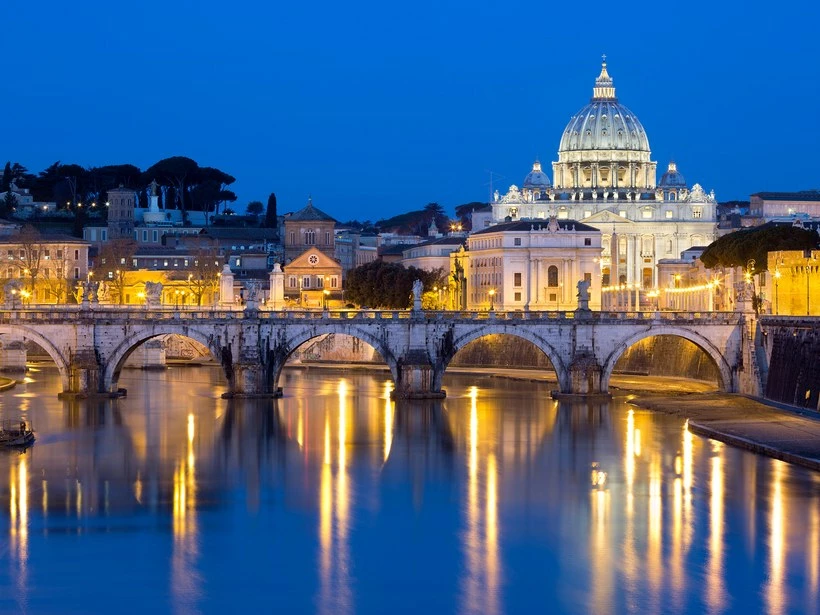


I need to add a beige color filter to an image. I need the first image to look like the buildings in the bottom image. How is this done in either Adobe Illustrator CC or Adobe Photoshop CC?
While it may be better to do it in Photoshop, here's one way you can achieve an effect like that in Illustrator with Photoshop Effects and some Blend Modes.
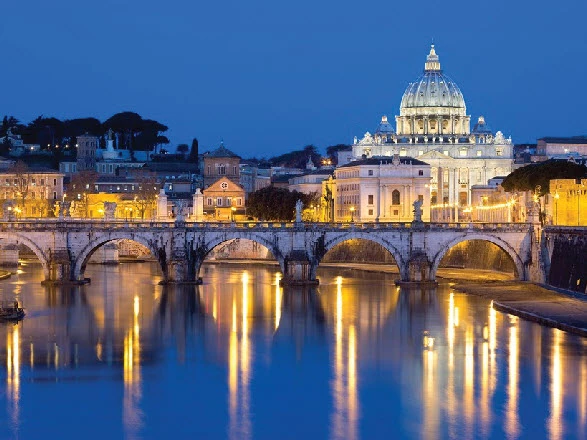
1. Select your image and go to Effect > Sketch > Photocopy. (You can try other effects and settings to see what you like the best. I used the settings Detail 2 and Darkness 5).
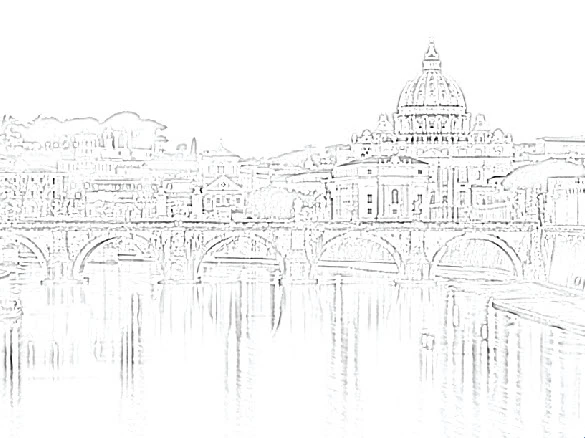
2. Add a rectangle over the image. Fill it with a brownish color for the ink. Go to the Transparency Panel and set the Blend Mode to Overlay.
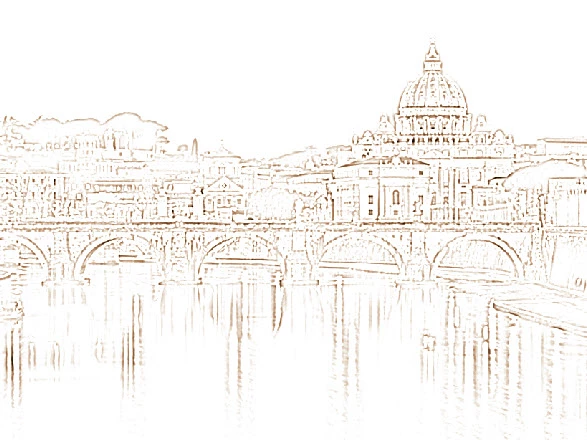
3. Add another rectangle for the paper color. Fill it with a lighter beige. Go to the Transparency Panel and set the Blend Mode to Multiply.
Already have an account? Login
Enter your E-mail address. We'll send you an e-mail with instructions to reset your password.
 AdChoices