Exit
  • Global community
    • Language:
      • Deutsch
      • English
      • Español
      • Français
      • Português
  • 日本語コミュニティ
  • 한국 커뮤니티
0

Add fill button keeps adding weird outline

New Here ,
Feb 01, 2022 Feb 01, 2022

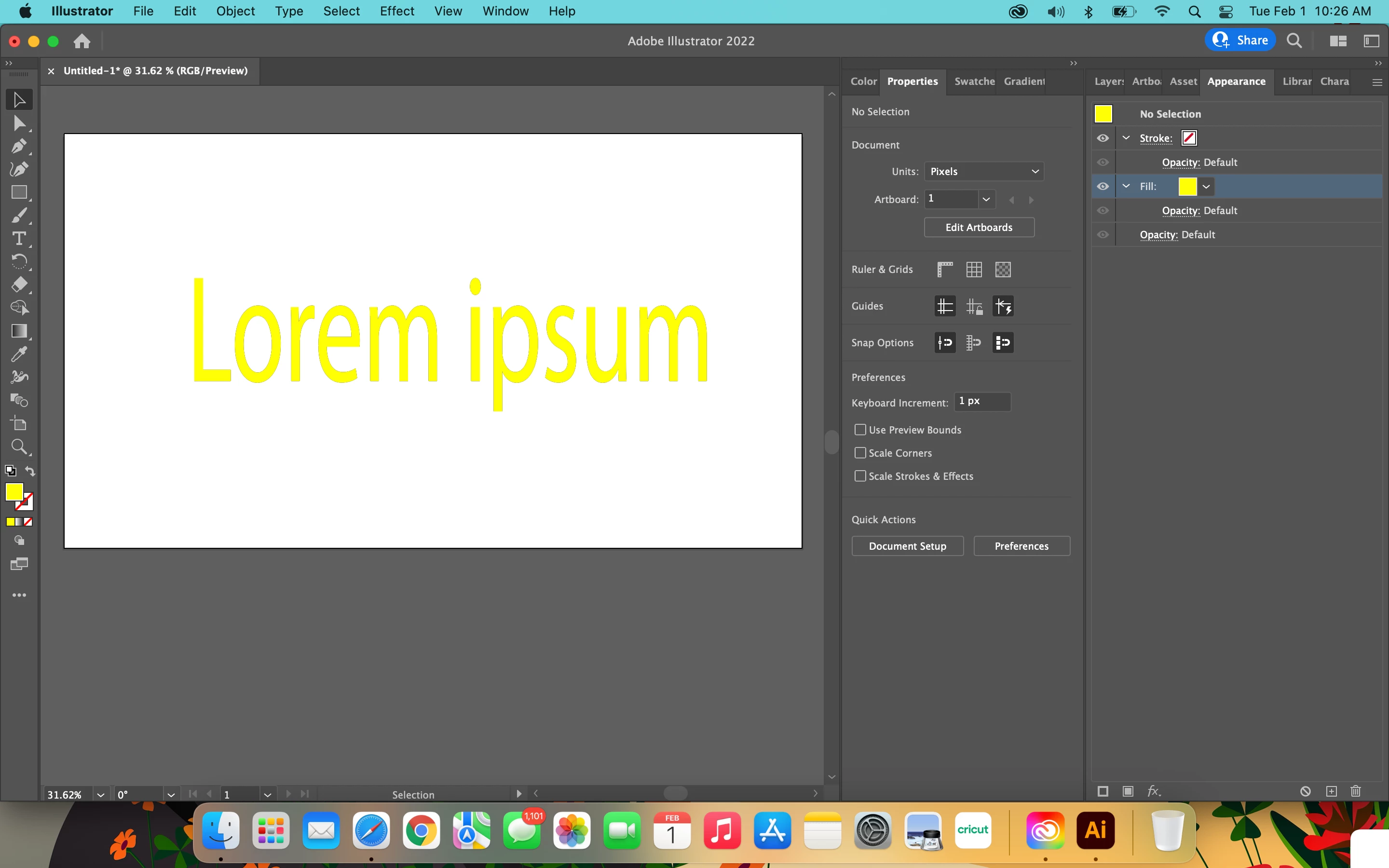
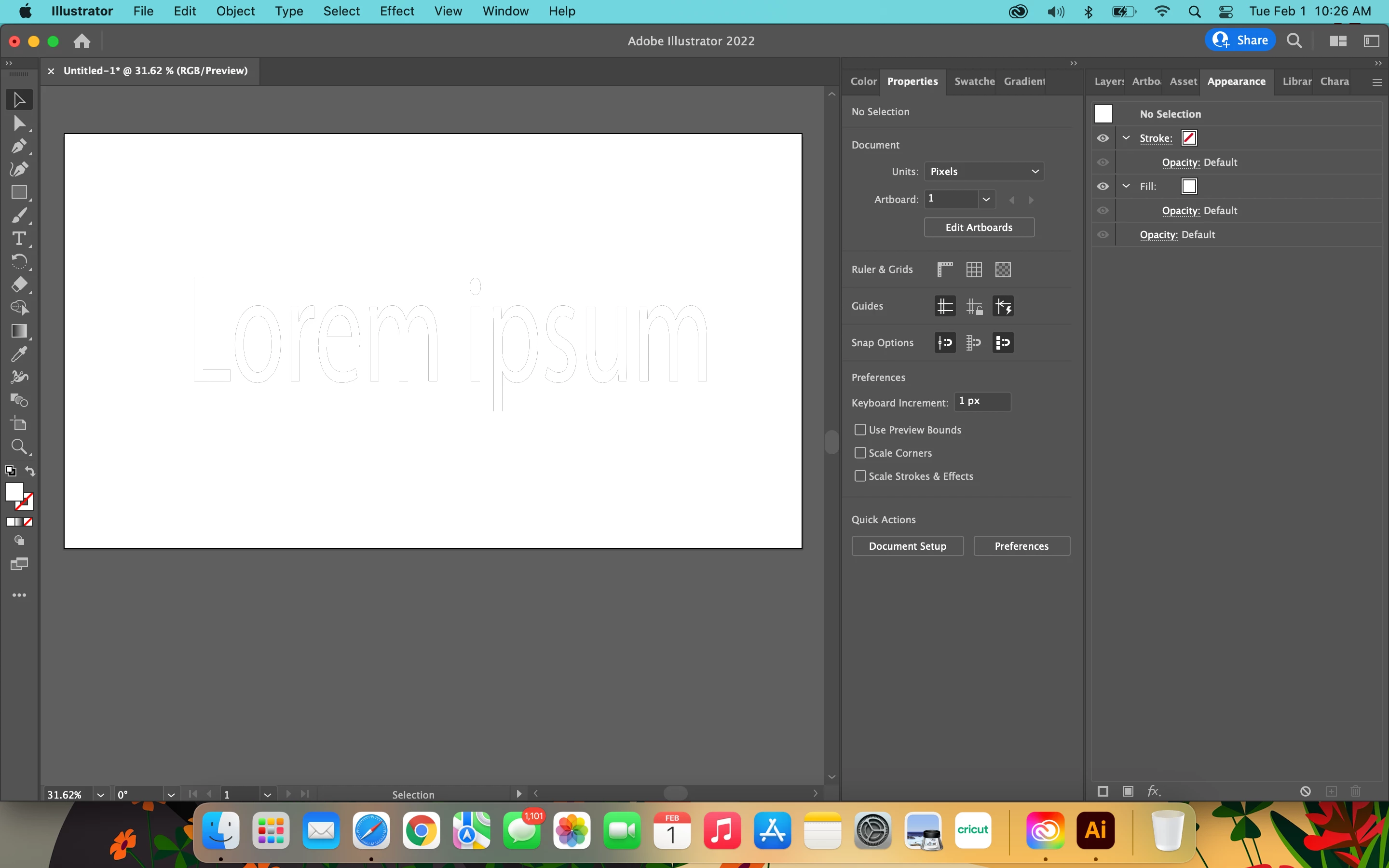
I have been having this problem since Nov 2021. Every time I add a new fill in the appearances panel a uneven outline appears on my text. My stroke is off and it only happens when I add a new fill to text Screen Shot 2022-02-01 at 10.26.03 AM.pngScreen Shot 2022-02-01 at 10.26.42 AM.pngin the appearances panel.
TOPICS
Bug , Type
421
Translate
Report
Community guidelines
Be kind and respectful, give credit to the original source of content, and search for duplicates before posting. Learn more
community guidelines

correct answers 2 Correct answers

Advocate , Feb 03, 2022 Feb 03, 2022

Keyosha, Hi.


I suspect you have two Fills on the type.

I did the same to demonstrate.


With your Text Tool, select your type. It probably has a 

fill of Black.

Now with your Selection Tool, you added an additional Yellow color on top.


To get rid of that hint of Black, select your type with the Text Tool, and give it a color of none.


K

Screen Shot Fill.png

Translate
Community Expert , Sep 15, 2022 Sep 15, 2022

See the answer from kphotopage.

To avoid 2 fills:

Double Click your text with the Text tool. Give it a fill of None.

Select your text with the Selection Tool.

Add a fill in the Appearance panel.

Translate
Adobe
Community Expert ,
Feb 01, 2022 Feb 01, 2022

Does it improve when you change the preview? Cmd or Ctrl E.

Translate
Report
Community guidelines
Be kind and respectful, give credit to the original source of content, and search for duplicates before posting. Learn more
community guidelines
Advocate ,
Feb 03, 2022 Feb 03, 2022

Keyosha, Hi.


I suspect you have two Fills on the type.

I did the same to demonstrate.


With your Text Tool, select your type. It probably has a 

fill of Black.

Now with your Selection Tool, you added an additional Yellow color on top.


To get rid of that hint of Black, select your type with the Text Tool, and give it a color of none.


K

Screen Shot Fill.png

Translate
Report
Community guidelines
Be kind and respectful, give credit to the original source of content, and search for duplicates before posting. Learn more
community guidelines
Community Expert ,
Sep 15, 2022 Sep 15, 2022
LATEST

See the answer from kphotopage.

To avoid 2 fills:

Double Click your text with the Text tool. Give it a fill of None.

Select your text with the Selection Tool.

Add a fill in the Appearance panel.

Translate
Report
Community guidelines
Be kind and respectful, give credit to the original source of content, and search for duplicates before posting. Learn more
community guidelines