
jessicag3258874
Participant
April 27, 2022
Question

Added Bleed but Not Printing with Bleed

  • April 27, 2022
  • 4 replies
  • 3863 views

Hi, I've watching every tutorial on youtube, and read everything on Adobe about how to add a bleed successfully for printing. Yet when I go to print, it still shows up without a bleed and won't print with a bleed to the edge. What am I doing wrong or missing?? Truly, I've done everything.
This topic has been closed for replies.

4 replies

John Mensinger
Community Expert
Community Expert
April 27, 2022

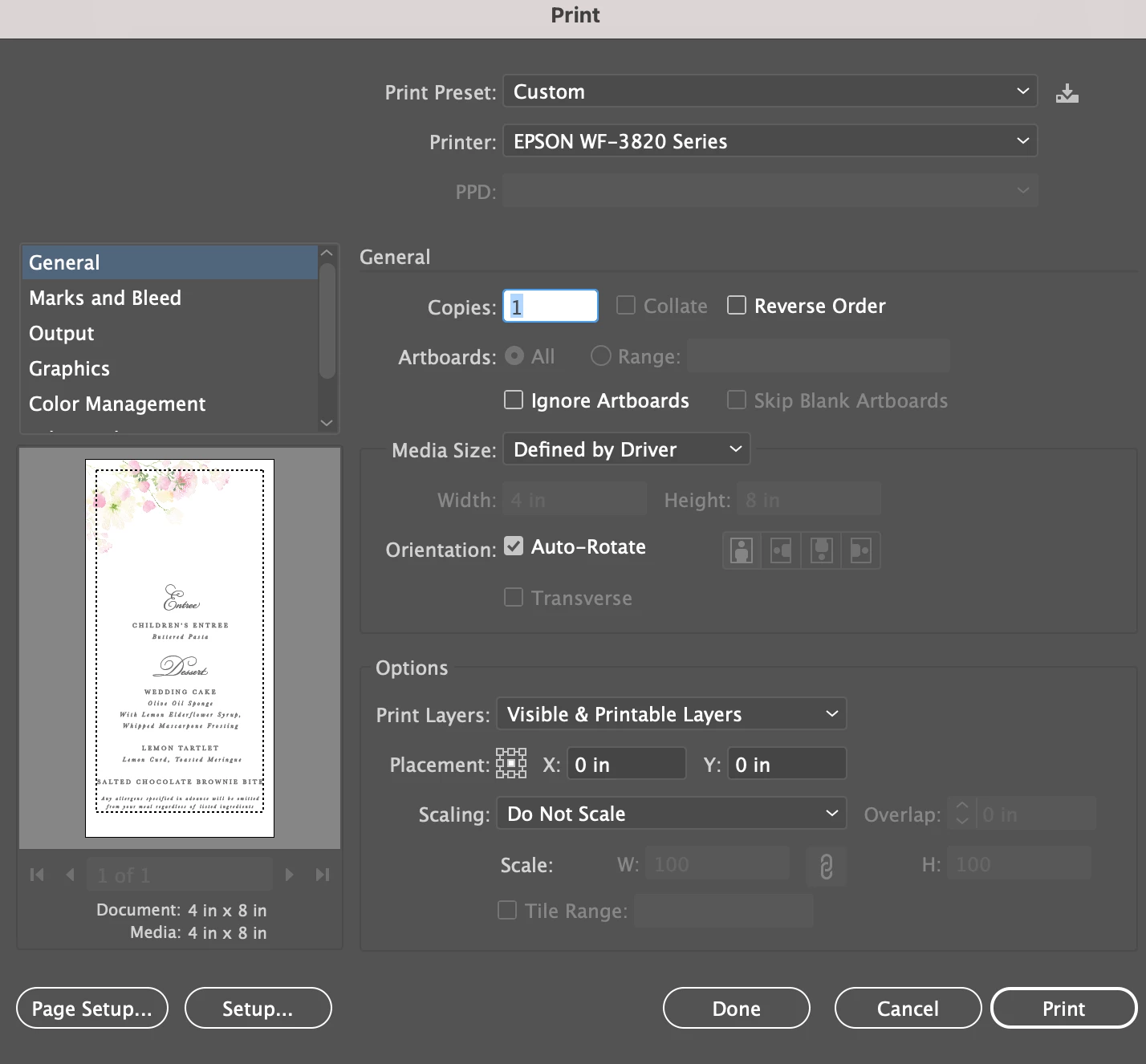
To print bleed, you have to print on paper that's larger than your page size.


Participant
April 27, 2022

Good catch! I missed that.

Bleed requires a larger page size than the actual document, that's the point of bleed. Print on larger paper, cut to the final size.

I personally also prefer all marks other than trim marks turned off, and those offset .125" so they don't poke into the bleed. 

Mike_Gondek10189183
Community Expert
Community Expert
April 27, 2022

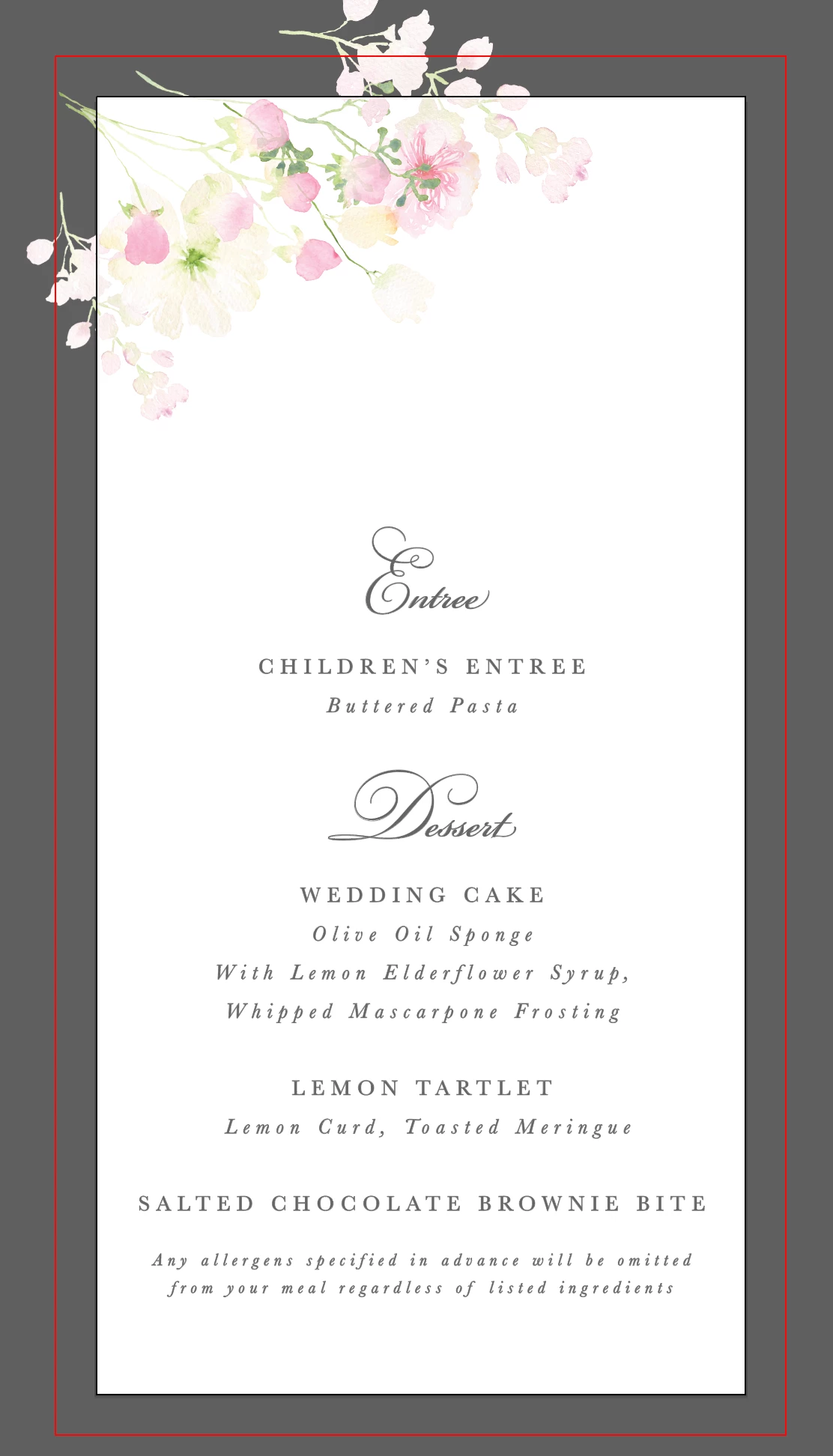
By the red line I can see you set your bleed correctly. It might not be printing if you unchecked the use document bleed settings which was on by default

You can draw a rectangle to artboard size and use 

object >> Create Trim Marks


Participant
April 27, 2022

Click on the "Marks and Bleeds" in the list on the left, and make sure bleeds are selected. You turn on crop marks there as well. 

jessicag3258874
Participant
April 27, 2022

i did that!

Mike_Gondek10189183
Community Expert
Community Expert
April 27, 2022

OK, we posted at same time.  Change your paper size. If not coming up download the driver for your printer model.

If still having trouble and want this printed ASAP, just draw your own manual trim marks, the make your artboard size larger.


Doug A Roberts
Community Expert
Community Expert
April 27, 2022

Please show the Marks & Bleed print options.