
Participant
February 10, 2022
Question

Adobe Illustrator how do I make font fill "color" be inverse of what is beneath it

  • February 10, 2022
  • 4 replies
  • 7580 views

relative novice at Adobe Illustrator

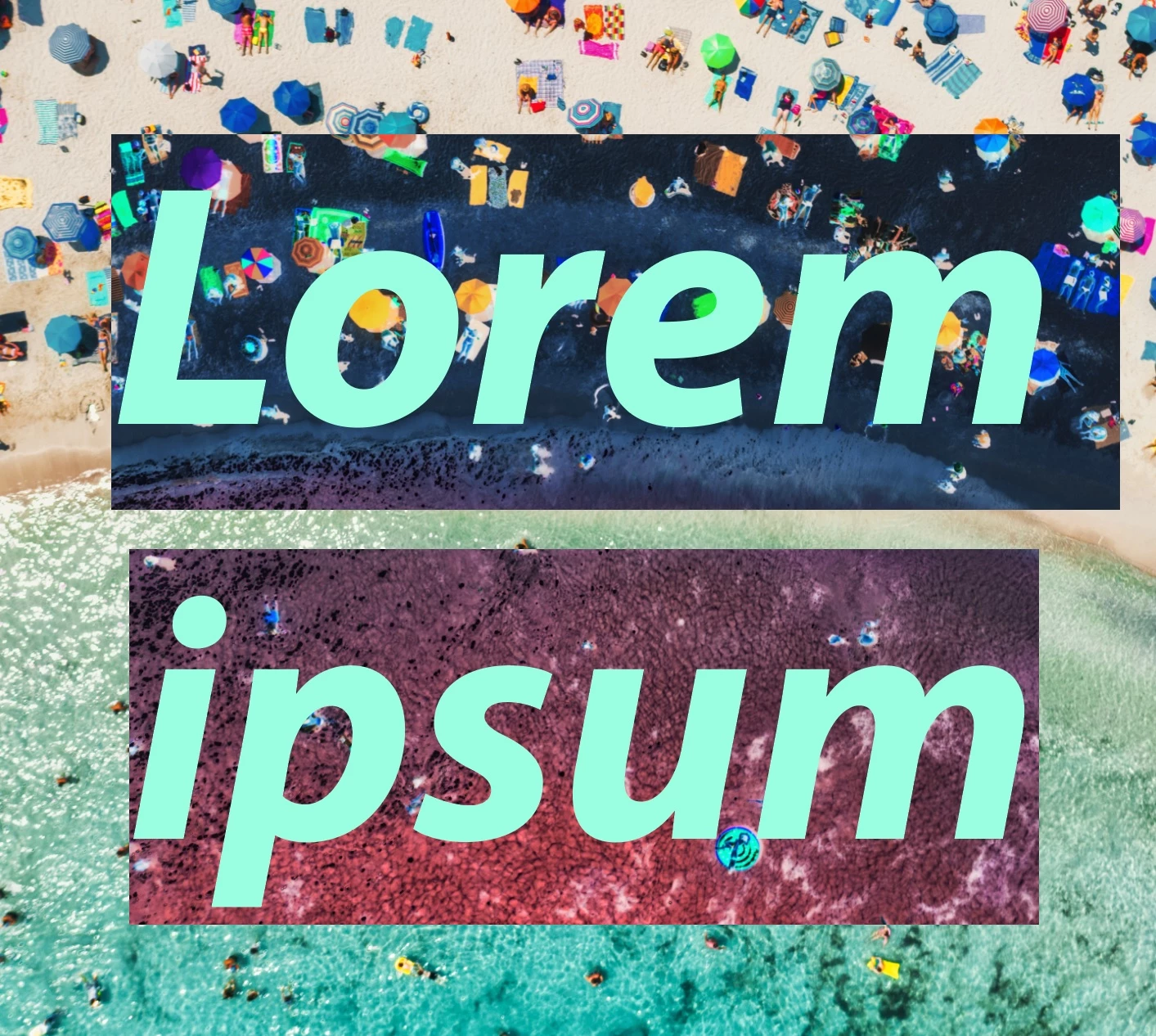
I have as a background a photo (jpg placed onto the artboard) and I want to place some text above that which is filled with the inverse/negative of the background it is over.

I have investigated how to do this as much as I can but am getting nowhere.

I'd appreciate any pointers thank you

The picture below I have created by putting the text over the photo and highlighting the text with the cursor. I want the text filled with the inversion in the same way as highlighting creates the inversion.
This topic has been closed for replies.

4 replies

Mohammad.Harb
Community Expert
Community Expert
February 10, 2022

You can save the inverted photo as a pattern by dragging the image into the swatches panel

Then use it as a fill for the text 

Jeff Witchel, ACI
Community Expert
Community Expert
February 10, 2022

I'm not exactly sure what you are asking, so if I'm misinterpreting your question, I apologize.


What I'm understanding is that when your type is over a dark background, you want the type to be white. When the type is over a light background you want the type to be black. 


Illustrator will not do this automatically. You have to select the type (as shown in your screenshot) an apply a Swatch color from the Swatches panel.


Hope this helps!

Jacob Bugge
Community Expert
Community Expert
February 10, 2022

John,


One way is to place the inverse image precisely above the original, as you already have, and the text/Type at the top in the stacking order (expanded Layers panel), the select the text/live Type and the inverse image and hold Ctrl/Cmd and press 7 to turn them into a clipping set.


The Clipping Mask (the text which can be live Type) will be the Clipping Mask showing the part of the inverse image immediately beneath and hide the rest of it, so that the original image outside the text/Type and the inverse image inside fit precisely.


Edit: Hi Susan.


Edit edit: I just realized we used reverse ways.


Legend
February 10, 2022

Hi Jacob

This thread proves once again that Illustrator offers many paths to the same destination.  😀

Jacob Bugge
Community Expert
Community Expert
February 10, 2022

Indeed, Susan.


Especially in the old days (before Jive and the merging of the Mac and Win tribes, with Hosts instead of moderators), at least in my tribe we regularly carried on in ever sillier ways until Len (Hewitt) called us to order.


Legend
February 10, 2022

Embed a copy of your photo in your document, placed directly above the existing one. Use Edit > Edit Colors > Invert Colors on the embedded copy of your photo. Postion your text in back above the inverted image. Select text and inverted image. Use Make Mask (with Clip and Invert Mask Checked).

Legend
February 10, 2022

Looks like I was overthinking this. Place your black type over the placed image, select just the type in the transparency pallet, and change the blending mode to Difference or Exclusion. For a slightly different effect, change the text color to white.