
Participant
March 28, 2019
Question

Advanced tools greyed out and not available in Illustrator CC 2019

  • March 28, 2019
  • 2 replies
  • 42053 views

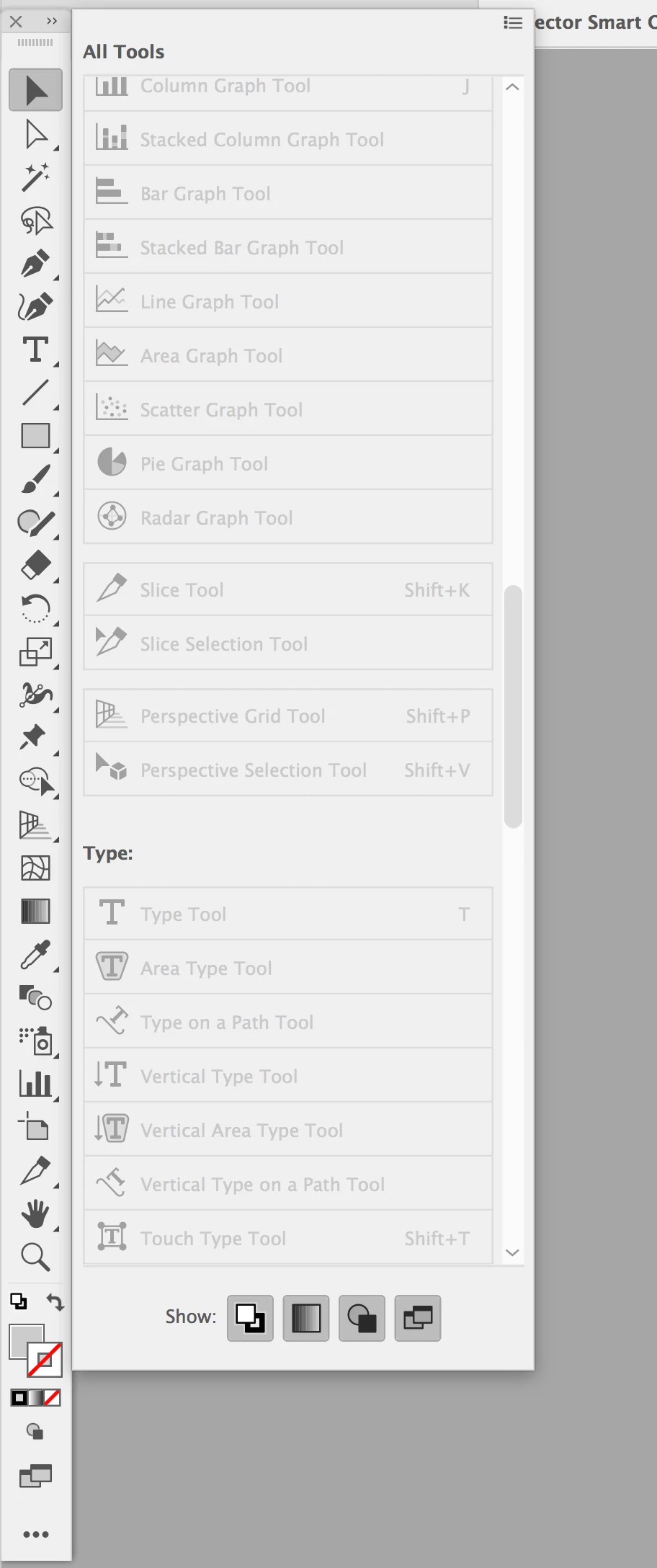
I recently updated my Illustrator CC 2019, and can't use any Advanced Tools. All of the tools in the fly-out are greyed out, and I can't click/access any of them. See screenshot. I tried uninstalling and reinstalling Illustrator CC 2019, but to no avail. Any suggestions?
    2 replies

    JSTN
    Participant
    April 23, 2020

    Hi

    I had this problem just now with the latest update for 2020 - everything was greyed out in the addiotnal toolbars,  i managed to get round it by chosing basic and then back to advanced again, then i dragged the one i wanted into the toolbar

    it was all fine the other day, not sure what the update did to change anything but hope this helps 

    Participant
    July 23, 2020

    Same situation.  Switched to basic and the pencil tool became available.


    Participant
    December 10, 2020

    did not work for me

    Monika Gause
    Community Expert
    Community Expert
    March 28, 2019

    This means that the tools are already contained in your current toolbar setup. They are just hidden below other tools. Press and hold those tools and you will see a popup with the other tools. Documentation: How to work with tools in Illustrator

    Dr. A11y
    Participating Frequently
    December 12, 2020

    Legally blind user here. Your directive to "read the documentation" is not kind or helpful. The documentation is not accessible. A very tiny icon is shown for the tool. The keyboard shortcut is not given in the documentation. For example, it says here in the offical docs to "Select the shear tool" with a horrible little icon that is not even retina-optimized so it can be zoomed without blurring: https://helpx.adobe.com/illustrator/using/scaling-shearing-distorting-objects.html. In fact, why does Adobe not use vector icons in its documentation? But more fundamentally, why is there no keyboard shortcut listed? Well, maybe its because there IS NO KEYBOARD SHORTCUT! You can hit S for scale, but not go into shear with the same key, like with other tools. Additionally, yes, they are grayed out in the selection menu... which is a terrible experience for visually impaired screen magnifier users who depend on menus because we just can't see the nuanced little Adobe icons well at all, and the user interface can't even be enlarged. So please be careful when telling people to just, "read the documentation," that directive does not show empathy.

    Monika Gause
    Community Expert
    Community Expert
    December 12, 2020

    "So please be careful when telling people to just, "read the documentation," that directive does not show empathy."


    The documentation has explanation in text, it has images and even videos. It's more extensive than what can be provided in a forum. So why not point to it, because that is the reason for its existence.


    I'm sorry the documentation doesn't work for you personally, but if you want Adobe to improve their accessibility, then please make a feature request, because most people on the forums are not even staff and cannot change anything on this web site, in the documentation or in the application (you can recognize staff by the remark "Staff" next to their avatar - everyone else in this forum takes part in their spare time).


    As for the shortcuts, you can configure them to your need in Edit > Edit shortcuts.

    You can make feature requests in http://illustrator.uservoice.com