Legend
March 20, 2023
Answered

AI 24.2 Selecting Font Interior Vector Line

  • March 20, 2023
  • 3 replies
  • 1590 views

Looking for an easy solution to selection of selecting white space within font outline. Image Trace does not appear to be the answer. I know I can do this with the Pen Tool, looking for an easier alternative. The end state is to be able to place a cut line using a laser 


Thanks

This topic has been closed for replies.
Correct answer Jacob Bugge

west,


In that case I believe you can do it as follows for each letter with one or more counters, Smart Guides being your friends:


1) With everything deselected, hold Alt/Option (to select the whole path) and click with the Direct Selection Tool on the border of the counter (the inner path in the compound path) at a spot where Smart Guides say path (not anchor), then for the other counter(s), if any, repeat also holding Shift to keep both/all selected;

2) Hold Ctrl/Cmd and click C then F then X then F to have a copy of the path (set) at the top of the stacking order in the expanded Layer in the Layers panel, then switch from Fill to Stroke in the Toolbox, then set the Stroke Weight to 0.001 in in the Stroke panel and change the stroke colour if needed, then hold Ctrl/Cmd and press G to Group if there are more than one counter.


If you wish/need to Group the cut line and the letter:


3) ClickDrag across the whole letter and Group.


Below is a B made as described at 72pt with the font interior vector line set at 0.001in shown in red, scaled up to make the line clearly visible:
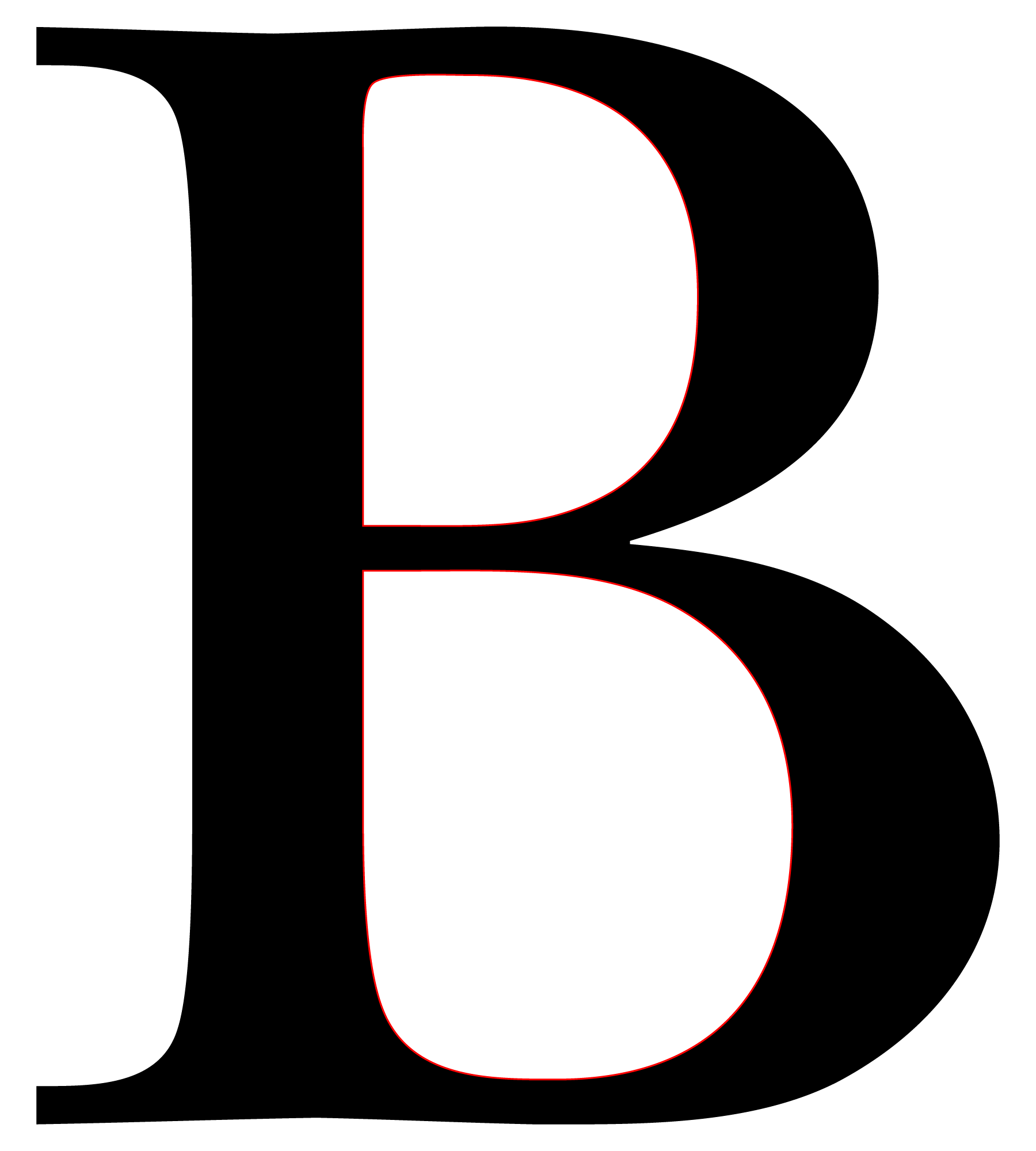


Click/RightClick to get closer, Click again to get closer still



3 replies

westdr1dwAuthor
Legend
March 30, 2023

Thanks for the information. However, why is AI not able to select based on color like Photoshop? 


Monika Gause
Community Expert
Community Expert
March 30, 2023

Illustrator IS able to select based on color. You just have to check out the menu Select > Same.

But it might just not be appropriate for your project. You never posted a demo file, so ...

westdr1dwAuthor
Legend
March 31, 2023

Then case solved since it is two color B&W not an issue?

Will try it and see.

Thanks

Jacob Bugge
Community Expert
Community Expert
March 20, 2023

west,


If you wish to remove counters (holes in letters such as O or R) in outlined type (text turned into paths), you can:


1) Select the Group of all letters, or the relevant letters, then Object>Compound Path>Release,

2) Pathfinder>Unite/Add to shape area.


You can Ungroup if Grouped, if desired.


westdr1dwAuthor
Legend
March 20, 2023

Thanks guys, as mentioned earlier I need to be able to cut out the center of the letters. This requires placing a .001 inch line around the area I wish to cut. The overall design is a little more complex and was developed in Photoshop (PS). However, PS is only able to produce a line density of .05 (1/2 Pixel) therefore all cutouts require an app such as AI to make the line.

Appreciate the assistance. 

Jacob Bugge
Community Expert
Jacob BuggeCommunity ExpertCorrect answer
Community Expert
March 20, 2023

west,


In that case I believe you can do it as follows for each letter with one or more counters, Smart Guides being your friends:


1) With everything deselected, hold Alt/Option (to select the whole path) and click with the Direct Selection Tool on the border of the counter (the inner path in the compound path) at a spot where Smart Guides say path (not anchor), then for the other counter(s), if any, repeat also holding Shift to keep both/all selected;

2) Hold Ctrl/Cmd and click C then F then X then F to have a copy of the path (set) at the top of the stacking order in the expanded Layer in the Layers panel, then switch from Fill to Stroke in the Toolbox, then set the Stroke Weight to 0.001 in in the Stroke panel and change the stroke colour if needed, then hold Ctrl/Cmd and press G to Group if there are more than one counter.


If you wish/need to Group the cut line and the letter:


3) ClickDrag across the whole letter and Group.


Below is a B made as described at 72pt with the font interior vector line set at 0.001in shown in red, scaled up to make the line clearly visible:


Click/RightClick to get closer, Click again to get closer still


Met1
Legend
March 20, 2023

Direct Selection Tool?

westdr1dwAuthor
Legend
March 20, 2023

Thanks, got me closer, however now to go back through to eliminate the path segements which appear to be a little time consuming. The font I am using is CCMonsterMashOutline which has a inner shell and outer. In using Direct Selection. it selects both. In PS this is an easy selection. Not sure if same case with AI?

Met1
Legend
March 20, 2023

Why don't you use the CCMonsterMash Regular?