
antoinechab
New Participant
January 9, 2018
Answered

AI use the wrong GPU, how to switch it?

  • January 9, 2018
  • 3 replies
  • 31122 views

Hello  and happy new year everybody,

I have a Lenovo P40 YOGA with a NVIDIA QUADRO m500m but it has also an INTEL HD graphic 520. Illustrator is using the Intel card instead of the NVIDIA. When i go to Edit/Preference/performance i can't switch it.

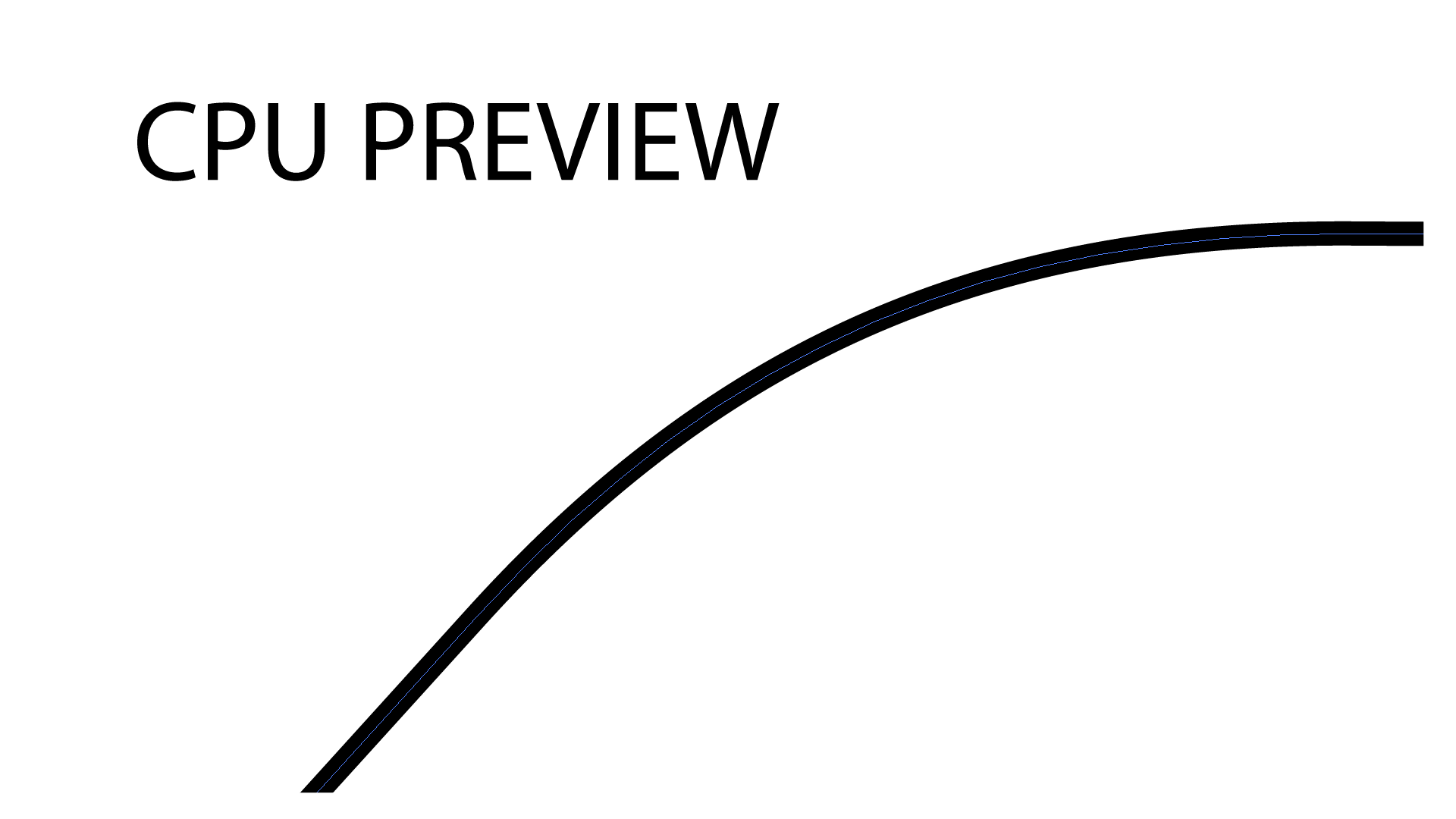
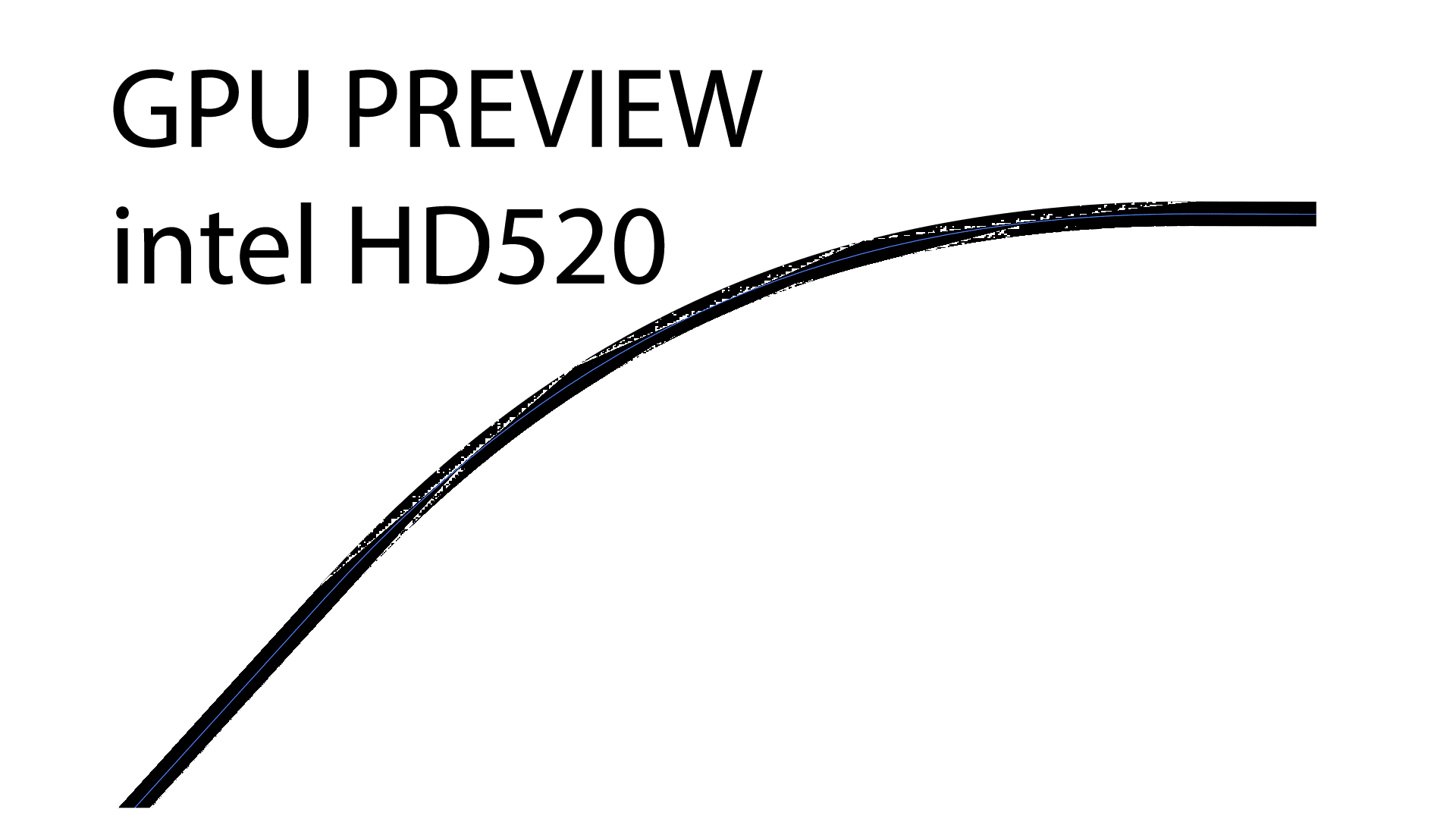
I have a preview problem with this gpu, the thin strokes are not well displayed . When i switch to CPU preview I don't have this problem. Here a picture of CPU and GPU preview. I have  installed the lastest driver and the Quadro m500m is well recognized by other software (Rhinoceros 3D). Do you know how to solve this problem?
Thank you
This topic has been closed for replies.
Correct answer Mark van der Schyff

Hi,

I spent 2 days figuring this out for my AMD Radeon HD 8500M.

When using a laptop that has a GPU as well as HD Graphics, the performance is switched using software from the HD Graphics to your GPU.

In my case, AMD uses "AMD Radeon Settings" or "AMD Catalyst Control Center"

In order for Adobe Illustrator to detect my GPU I had to add the application to the "Switchable Graphics" feature within the AMD Radeon Settings application. This application is installed along with your GPU drivers.

Turns out it's not as simple as adding the Illustrator.exe from your installation path.

You have to select the following file and add it to your "switchable graphics" and set it to "High Performance". Worked for me and now AI picks up my AMD Radeon HD 8500M Graphics Card.

\\Program Files\Adobe\Adobe Illustrator CC 2019\Support Files\Contents\Windows\AIGPUSniffer.exe

Hope this spares, anyone else with a similar situation, 2 days of irritation in the future.

Regards,
Mark

3 replies

Mark van der Schyff
Mark van der SchyffCorrect answer
New Participant
March 15, 2019

Hi,

I spent 2 days figuring this out for my AMD Radeon HD 8500M.

When using a laptop that has a GPU as well as HD Graphics, the performance is switched using software from the HD Graphics to your GPU.

In my case, AMD uses "AMD Radeon Settings" or "AMD Catalyst Control Center"

In order for Adobe Illustrator to detect my GPU I had to add the application to the "Switchable Graphics" feature within the AMD Radeon Settings application. This application is installed along with your GPU drivers.

Turns out it's not as simple as adding the Illustrator.exe from your installation path.

You have to select the following file and add it to your "switchable graphics" and set it to "High Performance". Worked for me and now AI picks up my AMD Radeon HD 8500M Graphics Card.

\\Program Files\Adobe\Adobe Illustrator CC 2019\Support Files\Contents\Windows\AIGPUSniffer.exe

Hope this spares, anyone else with a similar situation, 2 days of irritation in the future.

Regards,
Mark

New Participant
May 12, 2019

worked for me as our graphic card is same..thank you

Jacarlin
New Participant
January 2, 2020
New Participant
January 6, 2019

Hello there,

(My Laptop is set to German, but I hope you can understand, what the screenshot shows.)

My Dell XPS 15 9570 was also using the Intel Graphics for Illustrator, however I found how to change it:

-go to the Windows 10 settings and search for the Graphics Settings

-then you click "browse" (German: Durchsuchen) and search for the Illustrator programme file

"C:\Program Files\Adobe\Adobe Illustrator CC 2019\Illustrator.exe"

-then, when the AI-Symbol appears in the list (as on the screenshot) you click on it and press "options"

-now the small "Graphics Specifications" window appears and both GPU's are listed.

-pick the better one (not the one with Intel, take the GeForce GTX or Quadro) and press save.

Now Illustrator should be using the Tesla instead of the Hyundai.

I hope I could help, I'm new to Illustrator

Wolf form Austria

New Participant
April 13, 2020

This worked for me! Thank you.

Monika Gause
Adobe Expert
January 9, 2018
antoinechab
New Participant
January 9, 2018

thanks Monika I will check it

wrensauer
Community Manager
Community Manager
January 18, 2018

Hi Antoinechab,

Did Monika's suggestion solve the GPU issue for you or are you still having trouble? Let us know if you need further assistance.

Best,

Wren