

Exit
  • Global community
    • Language:
      • Deutsch
      • English
      • Español
      • Français
      • Português
  • 日本語コミュニティ
  • 한국 커뮤니티
2

AIHostAdapter plugin Windows install

Community Beginner ,
Feb 03, 2022 Feb 03, 2022

We're developing a CEP extensions which uses some events provided by the AIHostAdapter plugin (found here).

We're managing to install the plugin fine on Mac just by dragging the zipped .aip file into the plugins directory. But doing the same on Windows doesn't seem to be working. When I unzip the zipped directory into the plugins directory, the AIHostAdapter.aip file appears as a directory, not as an .aip file like the rest of the plugins in the directory:
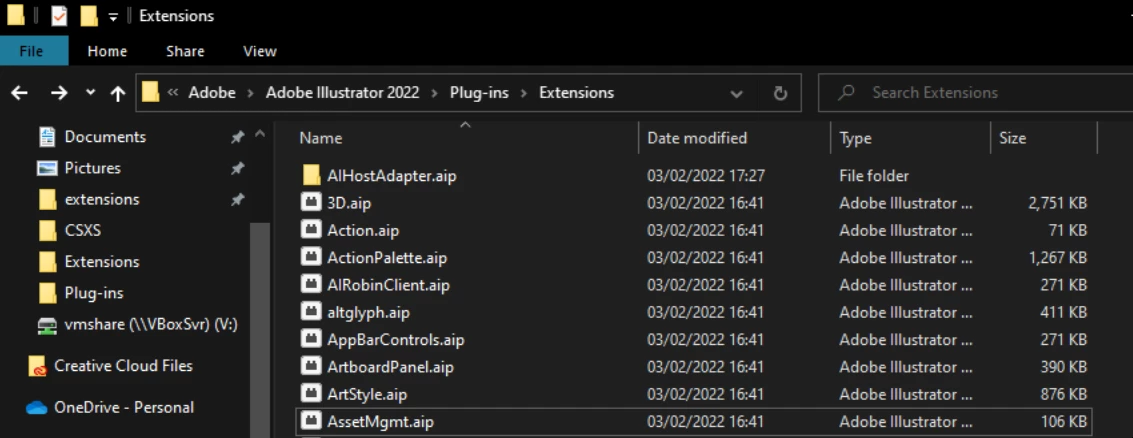
2022-02-03_17_27_42.png

This does not seem to be recognised by Illustrator when I open it up.

I've tried keeping the zipped folder and renaming it back to have the .aip file extension, but that still doesn't seem to work: the structure of the directory obviously isn't right.

So, questions:

 1. What is the correct installation process for the AIHostAdapter plugin on Windows?

 2. Is there any existing documentation on how this can be installed?
 3. Is the Github version of the plugin linked above the correct version?
 4. Is there any way this installation process can be automated / performed automatically when our CEP extension is installed?

Thanks for any help!

TOPICS
Scripting
3.4K
Translate
Report
Community guidelines
Be kind and respectful, give credit to the original source of content, and search for duplicates before posting. Learn more
community guidelines

correct answers 1 Correct answer

Community Beginner , Feb 10, 2022 Feb 10, 2022

Thanks @erinferinferinf ! The new version you linked on the Github issue worked fine.

Just linking here for future reference. This is the AIHostAdapter you want to use for Windows: https://github.com/Adobe-CEP/CEP-Resources/tree/master/CEP_11.x/AIHostAdapter/Win


That just gets installed into:

 C:\Program Files\Adobe\Adobe Illustrator 2022\Plug-ins\Extensions


Translate
Adobe
Adobe Employee ,
Feb 09, 2022 Feb 09, 2022

Hi @Ben Vosper,

I've answered your question in the github issue. Please try the build I just uploaded and see if that works.

Translate
Report
Community guidelines
Be kind and respectful, give credit to the original source of content, and search for duplicates before posting. Learn more
community guidelines
Community Beginner ,
Feb 10, 2022 Feb 10, 2022

Thanks @erinferinferinf ! The new version you linked on the Github issue worked fine.

Just linking here for future reference. This is the AIHostAdapter you want to use for Windows: https://github.com/Adobe-CEP/CEP-Resources/tree/master/CEP_11.x/AIHostAdapter/Win


That just gets installed into:

 C:\Program Files\Adobe\Adobe Illustrator 2022\Plug-ins\Extensions


Translate
Report
Community guidelines
Be kind and respectful, give credit to the original source of content, and search for duplicates before posting. Learn more
community guidelines
Community Beginner ,
Aug 29, 2024 Aug 29, 2024

Hello,

Just to say thank you, because it just saved me a big headache here...(almost 2/5 years later :)) This just made my Illustrator work fine again! Thank you to both @erinferinferinf and @Ben Vosper !

Translate
Report
Community guidelines
Be kind and respectful, give credit to the original source of content, and search for duplicates before posting. Learn more
community guidelines
Adobe Employee ,
Jan 12, 2026 Jan 12, 2026

Update : AIHostAdapter plugin is now natively built into Illustrator starting with the beta version of Illustrator 30.3.0.73, it’s no longer required to externally install AIHostAdapter

Translate
Report
Community guidelines
Be kind and respectful, give credit to the original source of content, and search for duplicates before posting. Learn more
community guidelines
Community Expert ,
Jan 12, 2026 Jan 12, 2026
LATEST

Christmas in January? thanks for sharing the good news, and please keep surprising us with more good stuff.

Translate
Report
Community guidelines
Be kind and respectful, give credit to the original source of content, and search for duplicates before posting. Learn more
community guidelines