
Participating Frequently
June 15, 2023
Answered

Align stroke to outside on special text.

  • June 15, 2023
  • 2 replies
  • 8828 views

It seems like Illustrator can't do what Affinity can in this regard? I am trying to add a stroke outside the text, not in-line. But I think because the text is filled with an image, it just won't work?

I also tried creating path and then trying to get the stroke to go on the path but again it won't work unless I remove the image from the text and then the stroke shows up. 

I'd appreciate it if anyone has any idea how I can do this because if not I'll have to do it in Affinity and then PDF it over, but illustrator then converts EVERY letter of text into a separate path when importing layers🤦
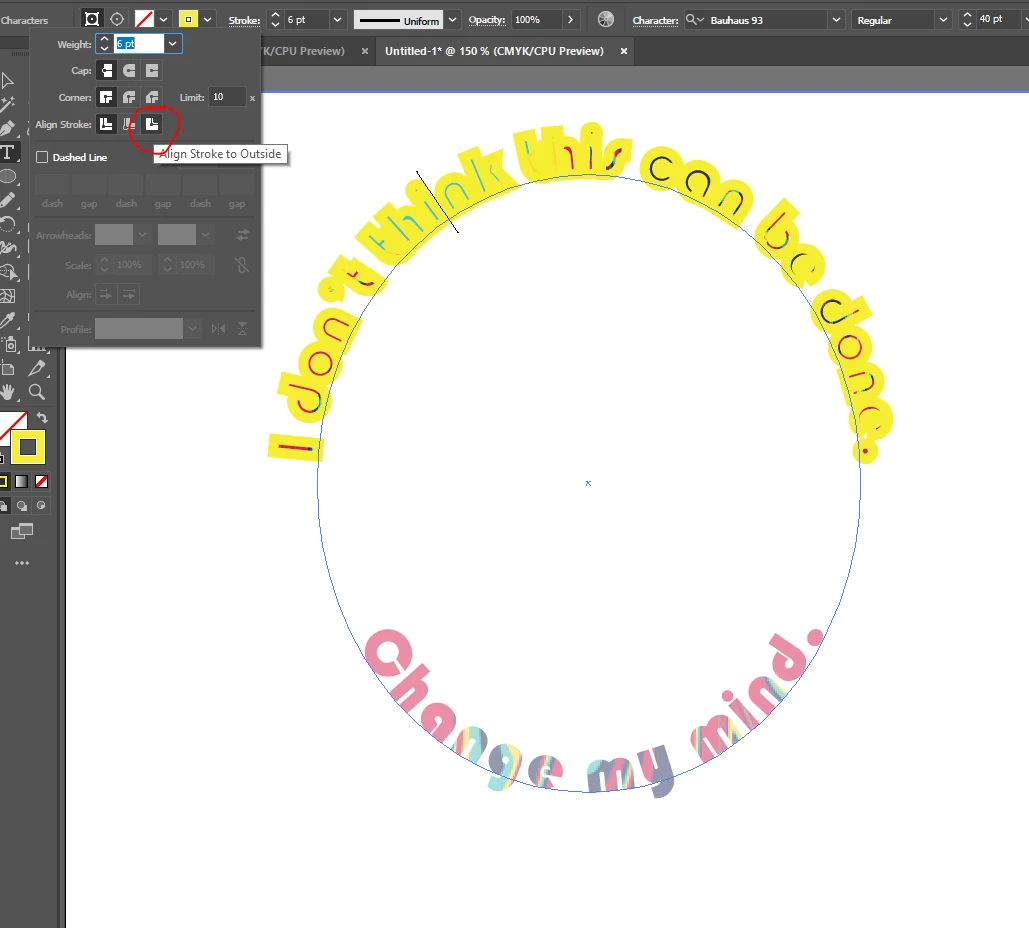
 

This topic has been closed for replies.
Correct answer Monika Gause

Select the text with the selection tool, not with the text tool.

Then open the Appearance panel.

Apply a new stroke to the text.

Move the stroke below the "Contents" and make it twice the desired weight.

2 replies

Creative Overlord
Known Participant
July 13, 2023

I'm having this issue with normal text, in a normal text box. Used to be able to select the text box, click a fill swatch colour, click the stroke, click a swatch then click slign stroke to outside... Now that's greyed out. I've tried creating fresh text box in case I had some appearence settings accidentally applied, this stops the option being greyed out, BUT I still can't select it. Clicking between the inside, middle and outside makes no change. 


I realise I can use Object > Path > Offset Path - but that requires me to commit the text box to outlines which is so tedious when doing mockups and creates two objects to keep track of. Also, if I just straight up ouline the text, the stroke options work and appear.


So it seems to be a bug with live text? Running v 27.7 on a mac studio with latest ios. 

Monika Gause
Community Expert
Monika GauseCommunity ExpertCorrect answer
Community Expert
July 13, 2023

Select the text with the selection tool, not with the text tool.

Then open the Appearance panel.

Apply a new stroke to the text.

Move the stroke below the "Contents" and make it twice the desired weight.

Creative Overlord
Known Participant
July 14, 2023

THANK YOU - about 5 steps longer a process than it used to be, and align stroke remains greyed out, but it has the right effect! I'm astounded they've removed such a common tool, especially as it still works fine in InDesign, but at least this is a solution!! 

p.s. for anyone reading this later they mean drag "stroke" below "fill" after addign them via the Appearance panel - you might want to press the appearance hamburger menu > "clear appearance" first.

Ton Frederiks
Community Expert
Community Expert
June 15, 2023

Try if dragging the stroke below the fill in the Appearance panel does wat you want.

Participating Frequently
June 18, 2023

Thanks a lot! That strangely worked the first time, then 2nd and 3rd time it didn't. So I just keep removing appearance options then retrying until it works. Is this a bug?? Either way, this little trick doesn't seem to stay present and unravels when copying the layer over to the main design. So I decided to convert to outlines so that it was permanent. 

But that created an additional problem; For some reason, that forces there to be a black "fill" dummy layer which won't be seen when the image is present but that is not how printing works. So I am afraid it will print the black then try to print the image on top 🤔 🤔

If I try to make that black fill into transparent, it does a weird overlap of the stroke! Which again, will probably be printed before the image and mess with the colouring? So I thought make the fill white, but will that mean the printer prints the spot white twice? I am not sure if this is going to mess with the process!

Maybe I can convert the text to solid vector shapes? I am not sure how though.. I am brand new to AI.

Cheers


Participating Frequently
June 18, 2023

Thanks that worked but if you then disable the image layer (as shown), the inner stroke is still there! Not sure if that will interfere with printing? 

And also can you tell me how I can now make a spot white under-layer for the text? As shown, I have copied each text layer and given them a white fill but it has gaps in the letters 🤔 🤔 Do I have to go back to the text creation process to make that whitespot duplicate layer, or can I do it after? 


Thanks so much for your help 😁


Forgot to attach screenshots..