Participant
January 14, 2025
Question

Anchor Point Tool and Locking Handles

  • January 14, 2025
  • 3 replies
  • 429 views

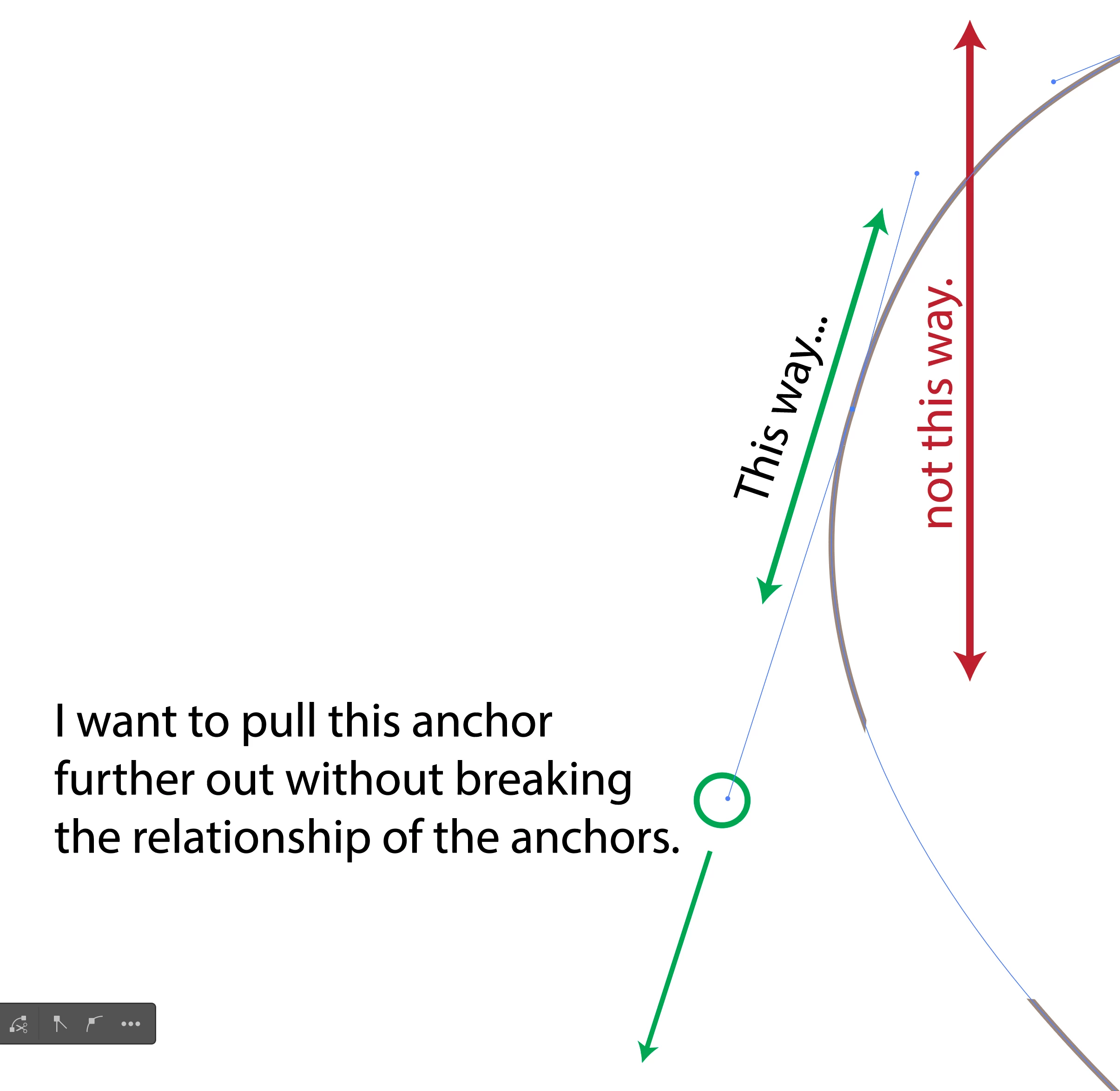
Is it possible to reshape with the Direct Selection tool and constrain the handles in abstract directions, not just the standard multiples of 45?

3 replies

Jacob Bugge
Community Expert
Community Expert
January 15, 2025

Vysion,


You can do it in an old crude way and see everything as you go, with the following steps, Smart Guides still being your friends:


1) Direct Select the Anchor Point as in your image;

2) With the Line Segment Tool ClickDrag from the Handle into the Anchor to create a guide line;

3) Click the Scale Tool, then Alt/OptionClick the end of the guide line (to scale from there), then set the Uniform Scale suffiently high to extend the guide line;

4) Direct Select the path segment to reveal the Handle, then ClickDrag the Handle along the guide line as desired and see the path change;

5) Delete the guide line 3), or hide it if you may need to use it again.


Kurt Gold
Community Expert
Community Expert
January 15, 2025

The Constrain Angle setting will not affect the behaviour in that case.


You can use the genuine Scale tool while following the Uniform Smart Guide, but unfortunately the direction handles will then temporarily disappear while dragging them. Not ideal.


In some cases (Shift) using the Free Transform tool may be useful as well (while only single anchor points are selected).

Community Expert
January 15, 2025

Yes, you can change your constrain angle in the General Settings Preferences. 


Community Expert
January 15, 2025

If you want even more control where the handle is locked into place regardless of the constarin angle, then there are third party tools available like PathScribe from Astute Graphics that has these options.

VysionkAuthor
Participant
January 15, 2025

Thanks, I'll take a look at that.