Inspiring
April 10, 2019
Answered

Applying a Gradient Across a Stroke

  • April 10, 2019
  • 3 replies
  • 85998 views

This is weird.  I made a circle.  I put a gradient on the fill.  Then I put a gradient on the stroke.  Then I tried to set the gradient to apply across the stroke, but I can't seem to select the option.  I tried shutting Illustrator off and on again.  Same results.  I tried quitting out of CC2018 and trying the same thing in 2015.  Same results.  What am I missing here? 

Correct answer sarapixels

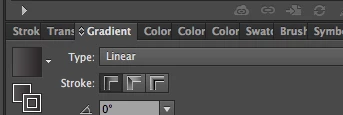
Bah, I finally figured this out.  Y'all were right about the appearance panel.  I just couldn't fathom what I could possibly be looking for there other than that yeah, it's a circle with a stroke, and when I was first looking, that's all I was seeing.  And I remade the circle so many times and with different details all to the same result that I was getting frustrated with being asked for screenshots of the circle.  BUT, it looks like the problem was that the stroke was defaulting to align inside the circle rather than centered, and apparently you can't use that button if the circle is aligned inside.  The pen tool work around was working because it was realigning the stroke as well as copying the gradient application.

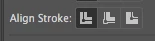
For anyone else coming across this (and I've seen several posts asking for help on this but none with answers), the stroke has to be center aligned.  You can select that with this here.
And yeah, when I went back from scratch and did it again, I did get a clue in the Appearance panel.  Right there next to where it shows the width of the stroke it says "Inside".  My previous file didn't have anything there because I was looking after I'd already done the work around with the pen and eyedropper tools, and it doesn't say anything about the alignment at all there when the stroke is centered.  It normally just gives the stroke width, shows if there is a gradient, and if there is opacity. 
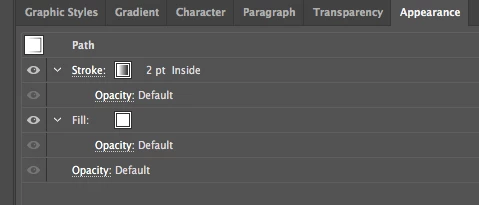

Oh, and it turned out that the gradient fill was irrelevant.  You can see in this one, I didn't even have one of those that time.  But apparently stroke alignment matters quite a lot for some reason.

Thanks to all for the help.  I would not have kept going back to the appearance panel after not getting anywhere with it the first time, if y'all hadn't been asking for screenshots of it. 

3 replies

sarapixelsAuthorCorrect answer
Inspiring
April 11, 2019

Bah, I finally figured this out.  Y'all were right about the appearance panel.  I just couldn't fathom what I could possibly be looking for there other than that yeah, it's a circle with a stroke, and when I was first looking, that's all I was seeing.  And I remade the circle so many times and with different details all to the same result that I was getting frustrated with being asked for screenshots of the circle.  BUT, it looks like the problem was that the stroke was defaulting to align inside the circle rather than centered, and apparently you can't use that button if the circle is aligned inside.  The pen tool work around was working because it was realigning the stroke as well as copying the gradient application.

For anyone else coming across this (and I've seen several posts asking for help on this but none with answers), the stroke has to be center aligned.  You can select that with this here.

And yeah, when I went back from scratch and did it again, I did get a clue in the Appearance panel.  Right there next to where it shows the width of the stroke it says "Inside".  My previous file didn't have anything there because I was looking after I'd already done the work around with the pen and eyedropper tools, and it doesn't say anything about the alignment at all there when the stroke is centered.  It normally just gives the stroke width, shows if there is a gradient, and if there is opacity. 


Oh, and it turned out that the gradient fill was irrelevant.  You can see in this one, I didn't even have one of those that time.  But apparently stroke alignment matters quite a lot for some reason.

Thanks to all for the help.  I would not have kept going back to the appearance panel after not getting anywhere with it the first time, if y'all hadn't been asking for screenshots of it. 
jane-e
Community Expert
Community Expert
April 11, 2019

Hi Sarah, thank you for reporting your findings. It will be helpful to others as well!

Jane

Simmer1
Community Expert
Community Expert
April 11, 2019

Hi,

Having the appearance pallet open is a great way to see what is happening within your shape:

Inspiring
April 11, 2019

To what end exactly?  This was literally just a circle with a gradient fill and gradient stroke.  I'm trying to learn what prevents the option of applying a gradient across the stroke rather than just the left to right gradient in that simple situation.

Doug A Roberts
Community Expert
Community Expert
April 11, 2019

The screenshot from the original post contains all the information.  The shape was literally just a circle with a linear gradient fill, and linear gradient stroke.  I rebuilt it repeatedly.  I guess it must just be a bug.  Maybe the workaround with using the pen tool to draw a line, applying the stroke across the gradient there, and then eyedropping onto the circle, letting it overwrite your fill, and remaking your fill, really is the most efficient way to do this.  That's disappointing, but at least it eventually gets the job done. 


I can't replicate this in CC2019. Do you mean the option is greyed out? Your first screenshot looks normal.

Monika Gause
Community Expert
Community Expert
April 10, 2019

Can you please show your artwork?

Inspiring
April 10, 2019

It's literally just a circle, with a 4pt stroke, with the gradients seen in the screenshot attached.  I finally got around the issue by drawing a line with the pen tool, and it allowed me the usual options for that.  And then I eyedropped the line onto the circle.  I had to redo my fill gradient then, but now I have the gradient applied across the stroke as intended.  But that can't possibly be the intended workflow.  I'm still interested to learn what the hitch is that I was running into.

DanS03
Participant
August 28, 2021
quote

I finally got around the issue by drawing a line with the pen tool, and it allowed me the usual options for that.  And then I eyedropped the line onto the circle.


By @sarapixels


Thank you, that fixed the issue for me 🙂


Seems to be a bug in Illustrator. You posted that on April 2019 and it is now August 2021. Still no fix 😞