
Participating Frequently
January 10, 2019
Answered

Applying a halftone gradient to text

  • January 10, 2019
  • 3 replies
  • 15360 views

I've been trying to discover a way to apply the following halftone effect to text in Illustrator 2019:
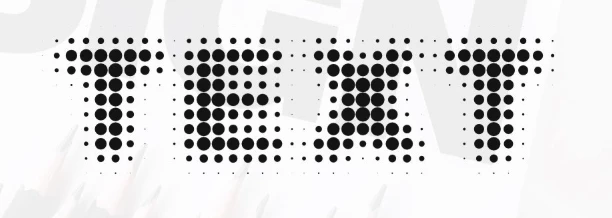
I've got Photoshop, and I can accomplish this in Photoshop, then expand or live trace the resultant image in Illustrator for a scalable vector, but I'm certain that this functionality has got to baked into Illustrator somewhere, and I'm just missing it.

Embarrassingly for Adobe, the above image is from a simple tutorial for a free Windows vector editor called Inkscape. It's strange to think that I could download a free app in Windows via Parallels and pretty easily accomplish this, but I can't seem to get it done in the $250/yr Adobe software? Someone, please tell me I'm wrong.

Thanks for any help/guidance!

Matt

This topic has been closed for replies.
Correct answer Ton Frederiks

@Muhammad Sattar  To keep the text live, you can try this:

Select the text with the Selection Tool (V).

Set the Fill color to None.

Add a new Red Fill color in the Appearance panel.

This will also add an empty Stroke item, drag that below the Characters item.

Expand the Red Fill item and set the Opacity blend mode to Lighten.

Add a new fill below the Red Fill and make it a 90 degrees grayscale gradient (easier to see if you temporarely turn off the Red fill).

Add a Rasterize Effect: Grayscale, 600 ppi, Transparent, anti-aliasing None, no clipping mask, no additional px around.

Add a Pixelate > Color Halftone Effect: Radius 28 px 45 degrees.

Add another Rasterize Effect, this time Bitmap 1200 ppi.

Add a Yellow fill below the Characters item.

Add a stroke below the Yellow fill.

In the Graphic Styles panel click the + to add a New Graphic Style, that makes is possible to add this to other text.

So far the text is live and can be changed.

Because the Lighten blend mode is an RGB effect, this graphic style will not work in a CMYK document.

To use this in a CMYK document, create it in RGB, choose Object > Flatten Transparency: High Resolution Preset.

This will be destructive, text is no longer live, but outlined.

Copy and paste the result in a CMYK document.

See attached PDF (open the PDF in Illustrator).

3 replies

Community Expert
January 11, 2019

Astute Graphics Phantasm plug-in for Illustrator can generate a variety of halftone effects that are vector-based. It can also produce some interesting color effects too. The plug-in costs a little over $40 with the current dollars to pounds exchange rate.

Ton Frederiks
Community Expert
Community Expert
January 10, 2019

You can do that with Effects and keep the text editable:

mattbruntAuthor
Participating Frequently
January 10, 2019

That's it! Thank you, Ton!

I had experimented with this same combination of effects, but I think my order was different, and I certainly wasn't sure which variables to set and to what. I could never produce the effect. Not even close.

This was the solution, and concisely presented. Thank you!

Grace and peace,

Matt

Ton Frederiks
Community Expert
Community Expert
January 10, 2019

Good to hear that helped!

Ten A
Community Expert
Community Expert
January 10, 2019

Illustrator doesn't have a similar feature. However, We can use some solution.

Here is a sample of halftone work you can reference.

Script available below link.

Extend_Script_experimentals/halftoneScreenConverter.jsx at master · ten-A/Extend_Script_experimentals · GitHub