



Copy link to clipboard
Copied
I have combed the forums trying to find a way to get one object in Illustrator to be sent to the front of another. I have tried resetting preferences, restarting the application, restarting the computer, grouping things, checking my layers (all on the same layer for the record), and nothing is working for me. Help? How do I fix this? 
I would like bright (and shine but it's in the white space so it's fine) to be on top of the diamond, but nothing I have tried has worked.


 1 Correct answer

Well, it's a cause. Arrange works fine, you have SHINE on top, then BRIGHT, then diamond. But the empty areas make the unsufficient appearance.
What you can do.
1. Re-trace the .jpg with BRIGHT word.
2. Remove only OUTER white parts (around the word and holes of B and R) and KEEP all white areas inside the letters' elements.
I suppose this will be faster then create new objects inside the letters' elements and fill them white.


Explore related tutorials & articles
 13
Replies
13
13
Replies
13


Copy link to clipboard
Copied
My guess is that none of your objects have a fill. Can you Select the word Bright and show a screenshot of the Appearance Panel open?
Copy link to clipboard
Copied
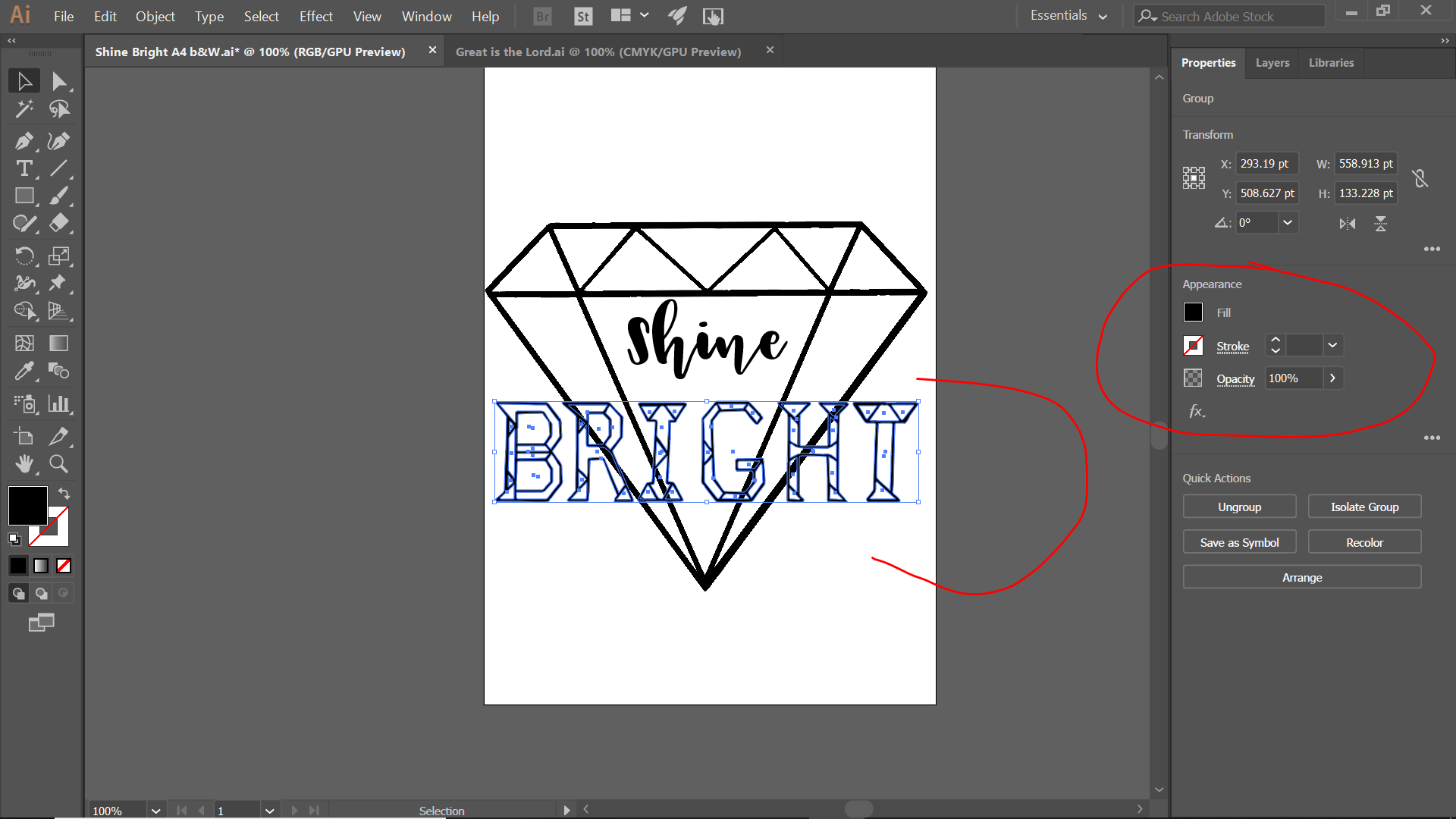
I didn't add a fill to them, haven't chosen colors yet.
Copy link to clipboard
Copied
As far as I can see, the BRIGHT word is made with thin black shapes and empty areas between them. Maybe it would be reasonable to create the filled areas there (by Live Paint, or Shape builder, or another object-creating tool) and fill by White.
for any case, share pls a screenshot with Layers panel expanded to clear which objects order you have now.
BTW, Check if there is not any Blending Mode on BRIGHT word. It mustn't be basing on your actual screen, but checking is always worth it.
Copy link to clipboard
Copied
I don't know if it makes a difference, but I wanted to say I drew the BRIGHT in Procreate and sent the .jpg to my computer, then live traced it into Illustrator.
Copy link to clipboard
Copied
Yes, the tracing makes a little difference, but not big. Did you remove the white areas from the traced object?
Copy link to clipboard
Copied
I did remove the white areas, and here's the layer panel screeshot:

Copy link to clipboard
Copied
Well, it's a cause. Arrange works fine, you have SHINE on top, then BRIGHT, then diamond. But the empty areas make the unsufficient appearance.
What you can do.
1. Re-trace the .jpg with BRIGHT word.
2. Remove only OUTER white parts (around the word and holes of B and R) and KEEP all white areas inside the letters' elements.
I suppose this will be faster then create new objects inside the letters' elements and fill them white.
Copy link to clipboard
Copied
Okay I'll try this
Copy link to clipboard
Copied
before tracing make sure in Photoshop or another raster editor that all black lines are connected without any gaps. Otherwice some internal white shapes may be connected with outer area and be removed together with it/
Copy link to clipboard
Copied
Yay! That fixed it! Thanks so much!!!
Copy link to clipboard
Copied
as your screenshot shows, now you have only black parts and empty spaces. You need to fill the spaces by any way that you prefer.
Copy link to clipboard
Copied
Tried to use live paint (for the first time) and ended up with the lines and inside of the letter all changing together when I change the color of the fill )I'm reasonably sure I don't know how to use it).
Copy link to clipboard
Copied
I pressed undo until I got back to where I last was.


Get ready! An upgraded Adobe Community experience is coming in January.
Learn more
 AdChoices