benjaming82382646
Participant
December 11, 2017
Answered

Arrondir un texte déjà vectorisé

  • December 11, 2017
  • 1 reply
  • 2346 views

Bonjour à tous,

Il existe sûrement une solution, mais comme souvent le plus difficile pour trouver la réponse est d'avoir les bons mots pour faire la recherche (et là je bloque).

Aussi je m'excuse par avance si une réponse existe déjà quelque part. Merci de m'y renvoyer.

Mon problème est le suivant :

Je souhaite qu'un ensemble de mots suive le tracé exact d'un cercle.

Avant de me parler de l'outil texte curviligne (fort pratique il est certain), je précise que je ne dispose par du nom de typographie de mon client qui date quelque peu, mais uniquement des lettres vectorisées grâce à un document d'assez bonne qualité.

Comment donc faire de ce mot "à plat" un mot "en cercle", sans avoir la typographie à disposition?

Merci de votre retour.
    This topic has been closed for replies.
    Correct answer barbara_a7746676

    Since the "type" is not really type, this is how you could approach it.

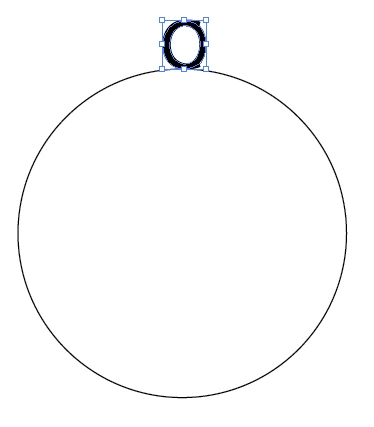
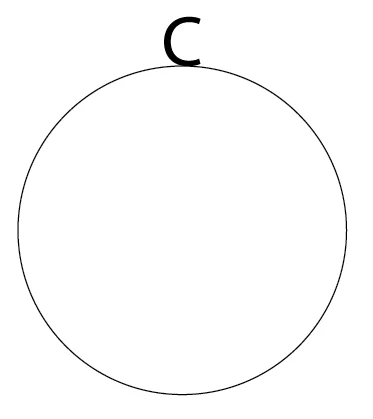
    1. Draw a circle. Ungroup the letter shapes, if they are grouped.
    2. Put the first letter on the edge of the circle, centered at the top.
    3. Position the next letter on top of the first one.
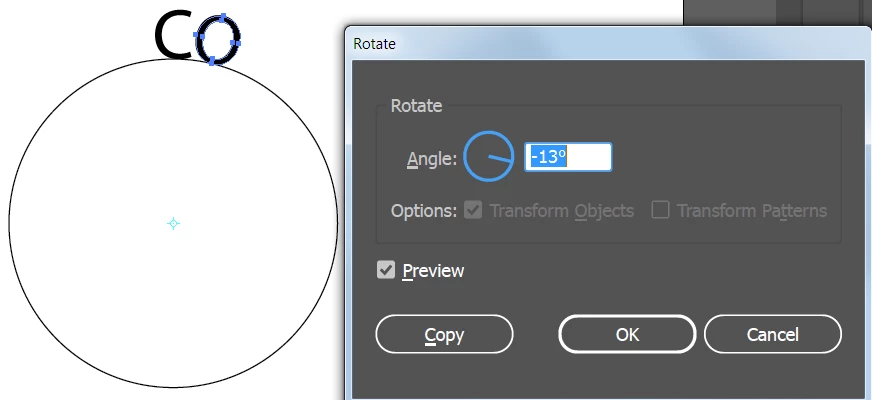
    4. Select the Rotate tool and Option or Alt click on the center point of the circle. (If it's difficult to find the center you could choose View > Outline, or you could add ruler guides.) This will open the Rotate dialog box and it will position the pivot point where you alt/option clicked.
    5. Adjust the angle and click OK.
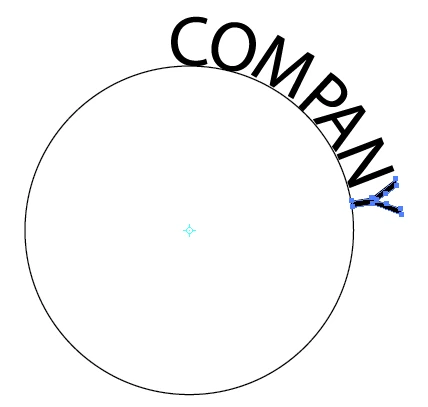
    6. Repeat this process with each letter, one at a time.
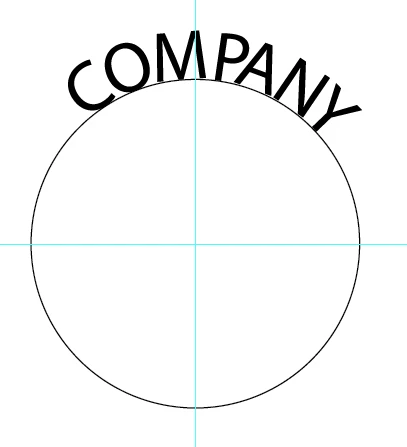
    7. When done, you can rotate all the shapes to the position you want.

    1 reply

    barbara_a7746676
    Community Expert
    barbara_a7746676Community ExpertCorrect answer
    Community Expert
    December 11, 2017

    Since the "type" is not really type, this is how you could approach it.

    1. Draw a circle. Ungroup the letter shapes, if they are grouped.
    2. Put the first letter on the edge of the circle, centered at the top.
    3. Position the next letter on top of the first one.
    4. Select the Rotate tool and Option or Alt click on the center point of the circle. (If it's difficult to find the center you could choose View > Outline, or you could add ruler guides.) This will open the Rotate dialog box and it will position the pivot point where you alt/option clicked.
    5. Adjust the angle and click OK.
    6. Repeat this process with each letter, one at a time.
    7. When done, you can rotate all the shapes to the position you want.