Participant
May 16, 2021
Answered

Artboard color is tinted over art work

  • May 16, 2021
  • 3 replies
  • 2764 views

I'm using the latest version of Illustrator. Version 25.2.3 5/16/2021

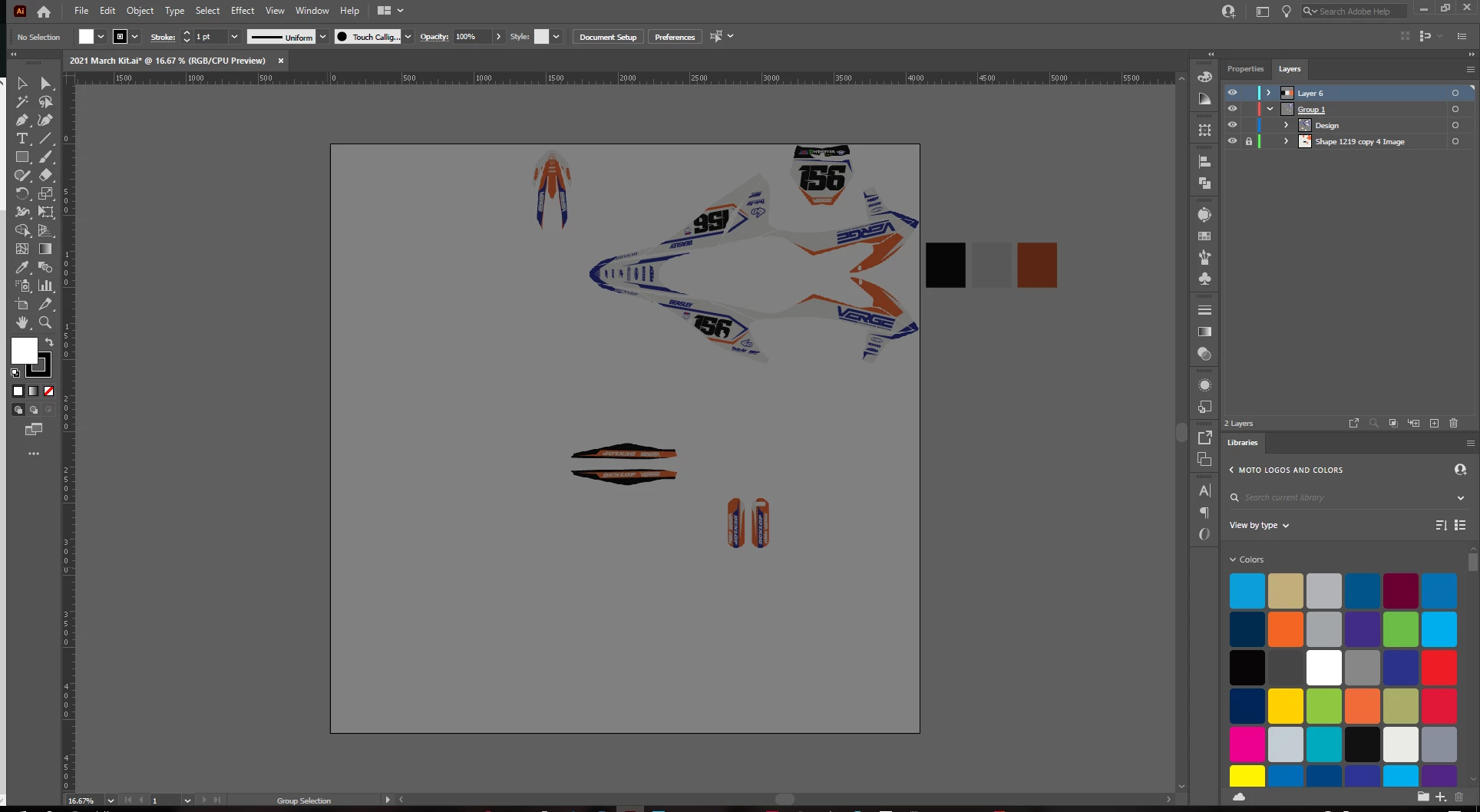
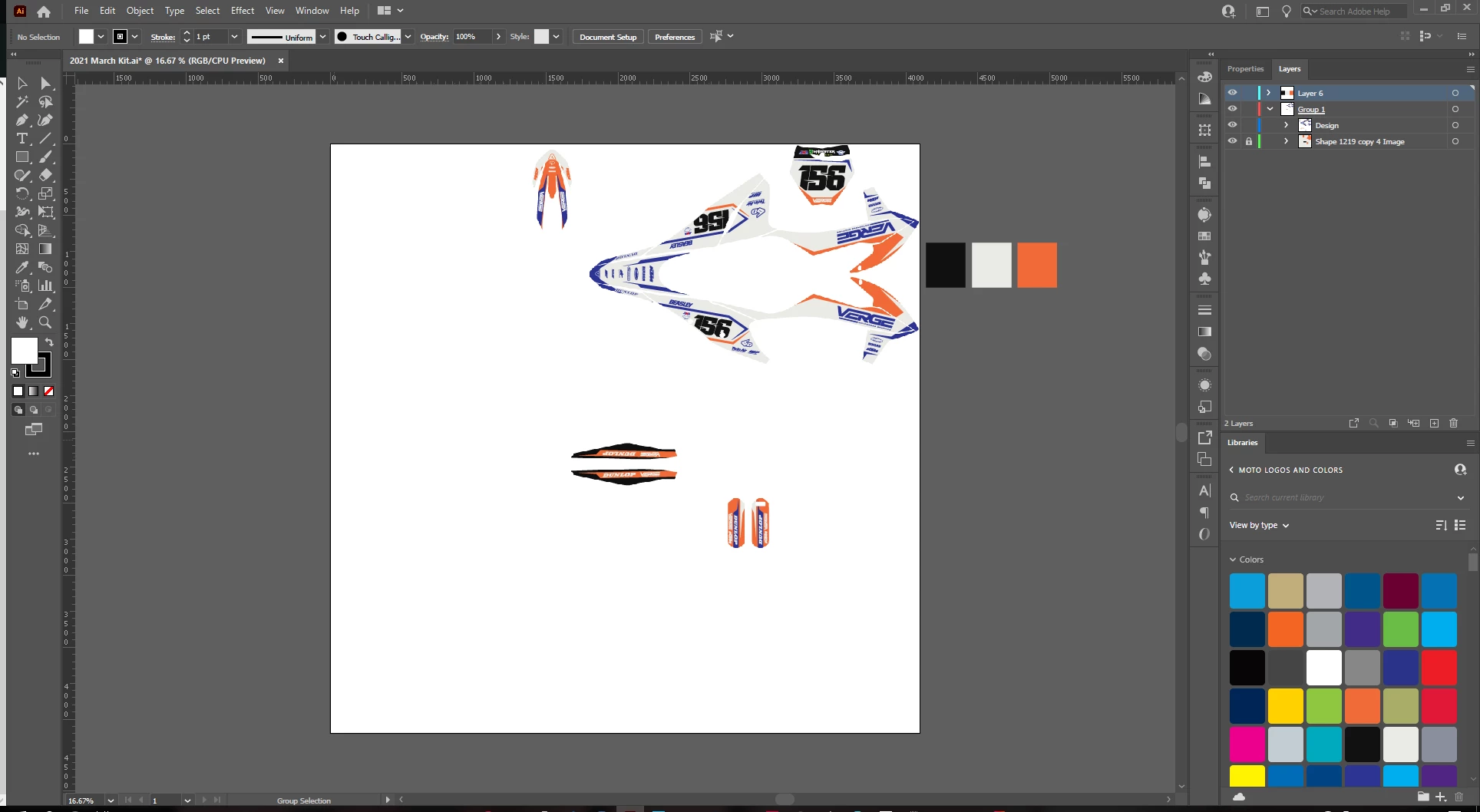
Whenever I try to change my artboard color of my artboard it makes my whole artwork a tint of that color. 

I try to change the background to a grey so I can focus better on the art and so that I can distinguish my logos in my layers pannel. Instead of doing that, it will darken everything losing the point of changing the color to my artboard. 

I am okay with making a backround and working that way, but it doesn't change the fact that its hard to see certain designs or logos I use in the layers pannel. 

Any help would be awesome! 


Correct answer Ton Frederiks

Try if switching Preview mode from CPU to GPU helps. (Ctrl E)

3 replies

Monika Gause
Community Expert
Community Expert
May 17, 2021

This is not a "bckground color"

Instead it simulates tinted paper and that's what happens when you print on tinted paper.


If you need a grey background, then draw a rectangle and fill it with grey.

Participant
May 17, 2021

I put the reason why I'm okay with this up in the first paragraph. However, it doesn't help work flow if its harder to see logos or designs in layers. Thats my main reason why I want to figure it out. Thanks for the suggestion though.


Ton Frederiks
Community Expert
Ton FrederiksCommunity ExpertCorrect answer
Community Expert
May 17, 2021

Try if switching Preview mode from CPU to GPU helps. (Ctrl E)

Participant
May 17, 2021

Thanks for your help. It worked immediately!

Bill Silbert
Community Expert
Community Expert
May 17, 2021

You didn't say how you have been going about changing the artboard color. I found that my artwork does not pick up the tint if I first go through File>Document Setup and click on each of the grid icons next to the checkerboard that is there when you first open the dialog window. For each icon I use the Grayscale Slider—that you get by clicking on the second icon at the top of the Colors Panel that appears—and choose the same percentage of gray for each icon. I also make sure that "Simulate Colored Paper" is checked. After clicking OK I get the result you see below. A gray background which does not affect the colors of my objects.

Participant
May 17, 2021

Thank you for the kind suggestions, also sorry for forgetting to put how I normally go about it. 

I also forgot to mention that I am on pc / windows version of Illustrator. 

Anyways, I have tried going through File>Document Setup and adjusting it there. Unfortunately, it still tinted every time. Your program is a little different as far as the interface goes. I'm not sure if I need to change anything either but heres what it looks like. 

Please let me know if you know of any additional tips or tricks. Thanks for your help.