August 3, 2021
Answered

Attempting to slice a circle...

  • August 3, 2021
  • 4 replies
  • 2730 views

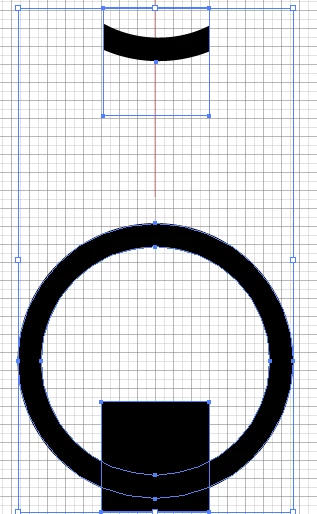
Hello, I need the other side of the circle to show using the clipping mask. I have a sample of my images below and the results, how can I invert that image? OMG I have worked on it for two hours. Help, T



This topic has been closed for replies.
Correct answer Jacob Bugge

Doug, I converted the legs to outline stroke, but when I use the shape builder it does not work on the circle, circle is a clipping path. TU!
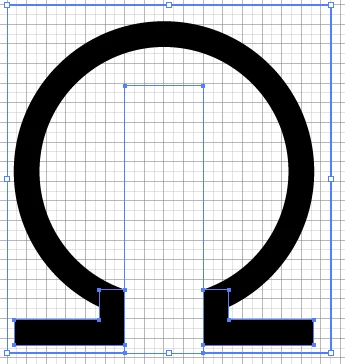


Treza,


My suggestion was to start over with the circle, also without the Clipping Path.

4 replies

August 3, 2021

How can I join the circle and the line? I want to make it one object. There is a reason why I need to create the Omega symbol instead of purchase a vector.  TU


John Mensinger
Community Expert
Community Expert
August 3, 2021
August 3, 2021

John, hello, can my points be joined? I tried that earlier, it states "must select open end points" TU


Jacob Bugge
Community Expert
Community Expert
August 3, 2021

Treza,


Or if you wish to keep the original circle and make the hiding reversible, instead of the Clipping Mask you can use the Opacity Mask (Transparency panel) with both Clip and Invert Mask unticked.


That will hide the part of the circle within the rectangle/Mask.


August 3, 2021

Thank you Jacob. Done.

How can I join the circle and the line.I want to make it one object. There is a reason why I need to create the Omega symbol instead of purchase a vector.  TU


Jacob Bugge
Community Expert
Community Expert
August 3, 2021

Treza,


I presume you need both legs/feet of the Omega.


In that case you can:


0) Create the circle (you have that);

1) Create an angular path with the desired width (from the leftmost edge to the desired cut of the circle and the same height, then left align it with the circle and place it vertically as desired relative to the circle (the surplus going up past the circle);

2) Reflect a copy of the angular path from 2) horizontally (vertical axis), then right align it with the circle;

3) Use the Shape Builder or Divide + Unite (under pathfinder), deleting the unwanted bits and uniting the wanted bits.


For the Shape Builder you can have a look here and/or here:

https://helpx.adobe.com/illustrator/using/creating-shapes-shape-builder-tool.html

https://helpx.adobe.com/illustrator/atv/cs5-tutorials/creating-complex-art-with-the-shape-builder-tool.html


For Divide and Unite see the leftmost among the Pathfinders/Shape Modes.


Jacob Bugge
Community Expert
Community Expert
August 3, 2021

Treza,


As I (mis)understand it, you can use Minus front, second Shape mode from the left in the Pathfinder panel.


ceyhun_akgun
Legend
August 3, 2021

You can use Divide from Pathfinder tools. Red circle.

1- Select all the parts.
2- Click Divide.
3- Issue the ungroup command. Parts will be separate.

It can also be done with different tools. I suggested this because it was practical.


Graphic Designer Educator / PrePress Consultant