
Cymoril
Participating Frequently
May 24, 2018
Question

Beginner question - how can I make joined paths more smooth?

  • May 24, 2018
  • 4 replies
  • 3154 views

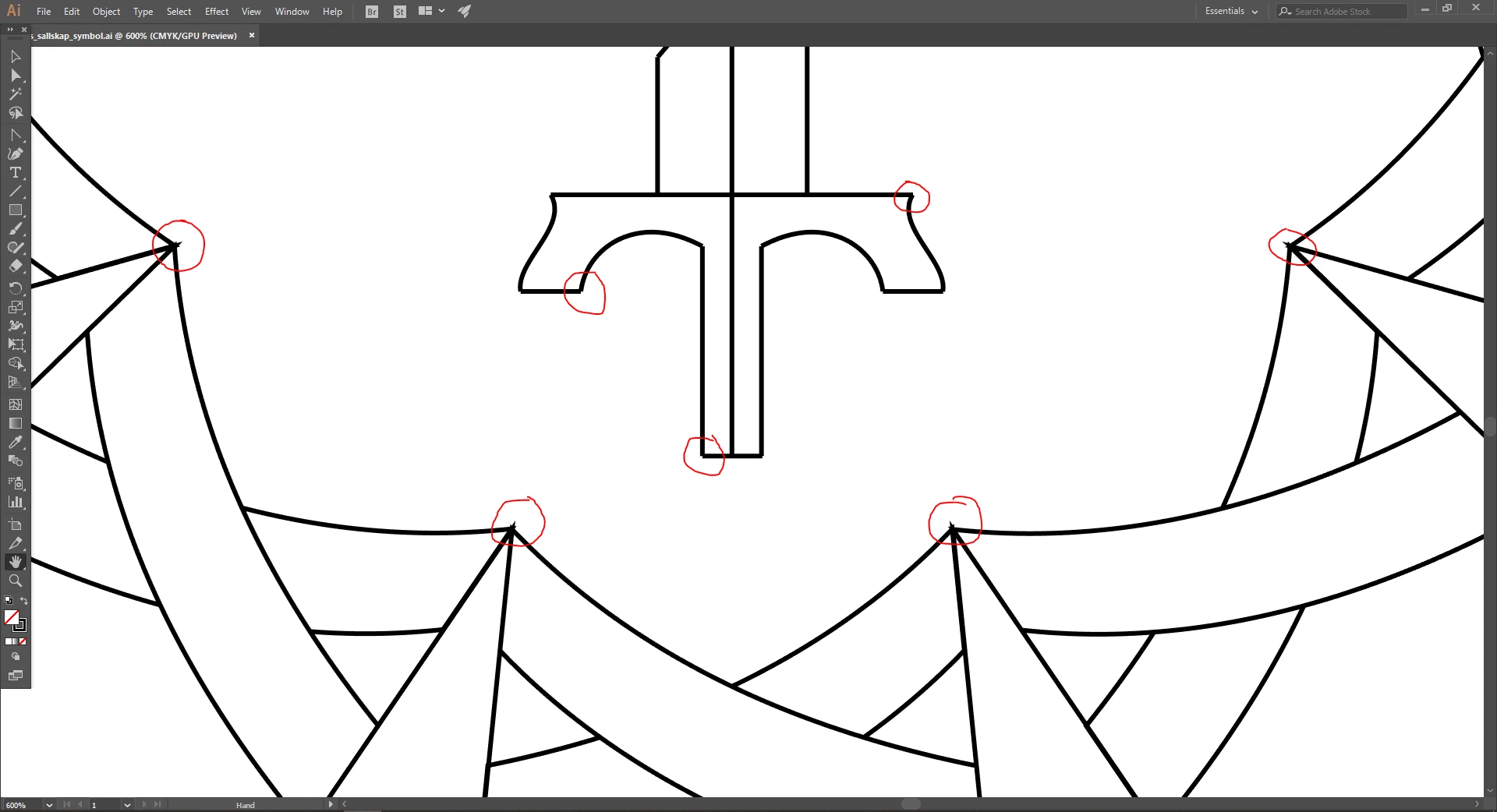
Title says it all. I'm wondering how I can make the transitioning stroke between anchor points more smooth. I tried using "join" but it offsets the strokes and somehow moves around my perfectly lined up paths.

I've marked the problem areas in red in my screenshot so that you can see what I mean. Not sure if this is normal when working in Illustrator, or if I'm not doing the anchor point joins the right way.
This topic has been closed for replies.

4 replies

Cymoril
CymorilAuthor
Participating Frequently
June 13, 2018

Hi again!

While working this problem with your answers in mind I discovered a lot of sloppy joins and reworked everything.
Today the problem is similar but a bit different and I have discovered it appears when I use the shape builder tool.

My question is why the shape builder tool seems to distort the strokes - is this a function that is made and looks sloppy by my beginner's work? All in all I am still open for all tips that can make me better at choosing how to join ends in a more smooth way. You have already helped loads!

Jacob Bugge
Community Expert
Community Expert
June 13, 2018

Cymoril,

It seems clear that the Shape Builder builds wrongly here, turning the kite shapes into closed paths with sharp angles, and that is what causes the trouble.

As I and James explained, you need to have as wide angles as possible, which you get if you join/close the paths that form the outer shapes and leave the inner paths open at the ends (where they meet the outer paths) so they do not spike out.

Cymoril
CymorilAuthor
Participating Frequently
June 13, 2018

I'm not very sure on how do do that exactly - open and closed paths, what are those precisely and how do I achieve that? Also not too sure on which shapes you mean by the 'outer' ones - all the strokes belong to separate lines, like so:

Somehow I still understand what you mean and how it affects the shape builder function. But atm I'm quite confused and the join results in one short end of the curved rectangles being open. I'll play around some more, but it would be of great assistance if you could mark in my picture exactly what paths I should join according to you.

JETalmage
Inspiring
May 25, 2018

In other words:

Geometry dictates that the more acute the angle formed by the paths you join, the longer the "spike" of the miter will be. So where you have the ends of more than two paths coincident, and you what a cleanly cornered outer perimeter, join the two paths which make the widest angle and leave the other paths disjointed unless you have some other reason they must be joined.

If they must also be joined, then you have several options:

  • Set their strokes to miter joins, but with a miter limit that effectively "chops off" the spikes.
  • Set their strokes to round joins.
  • If when joined, they become closed paths, set the stroke to inside the path, rather than centered on the path.

JET

Jacob Bugge
Community Expert
Community Expert
May 24, 2018

cymoril,

As far as I can see there are a few different things going on.

The easiest way, if otherwise applicable, is to leave the unjoined paths as they are and change Join and Cap to Round (in the Stroke palette after selecting all paths).

But the real solution is to keep the Miter Joins and Butt Caps, and to:

1) Join the fragmented paths as those at the top, just select those to join and Ctrl/Cmd+J, and

2) Carefully select which paths to have as closed paths at the bottom, namely those forming the outer shapes instead of the pointy ones sticking out because of the long miter joins, the pointy one should be cut at those pointy end so they stay inside the outer shape.

JonathanArias
Legend
May 24, 2018