
Spirited_happiness5D41
Known Participant
August 9, 2019
Answered

Best Way to do Perpendicular Lines on Slanted/Angled Lines?

  • August 9, 2019
  • 3 replies
  • 21646 views

After some searching on this topic it seems this comes up: Is there a shortcut to draw a 45 or 90 degree angle from a drawn line on an angle?

Seems like there is only a paid option, looks like a subscription, called SubScribe v2...

Does Adobe illustrator have a built in perpendicular line tool to draw from an anchor point on a slanted line?
This topic has been closed for replies.
Correct answer jane-e

Hi

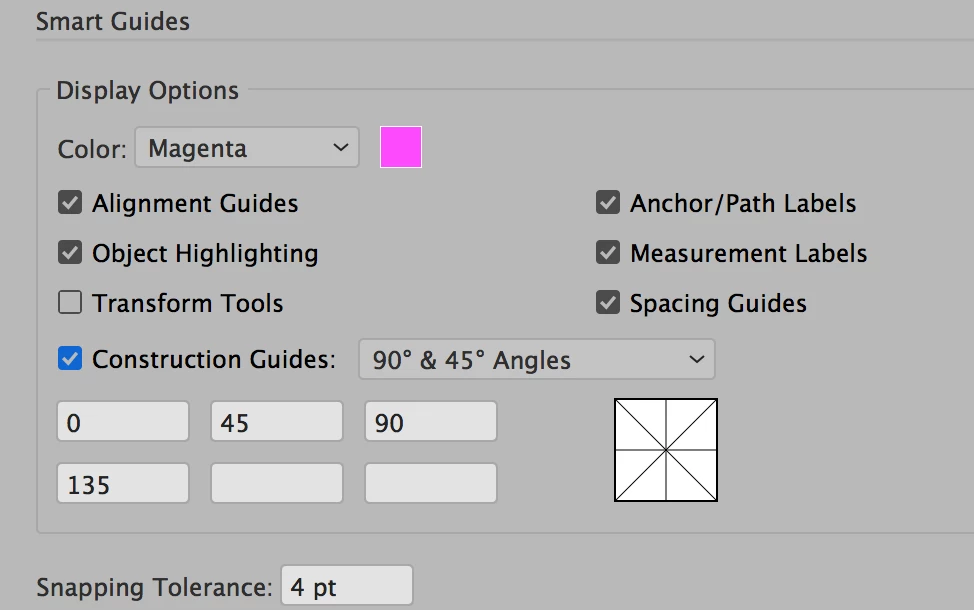
Go to Preferences > Smart Guides and check (tick) Construction Guides. Keep 90° & 45° from the dropdown, or choose something else, or type in your own angles. You have six boxes you can use, so if you want 17°, just type it in.

To draw anchor point to anchor point, make sure Snap to Point is enable in the View menu. Deselect first (or hide the bounding box).

~ Jane

3 replies

Monika Gause
Community Expert
Community Expert
August 10, 2019

SubScribe is not a subscription. You pay once (until it gets a major upgrade)

As for perpencicular lines: Try a pattern brush.

barbara_a7746676
Community Expert
Community Expert
August 10, 2019

If you only want angles of 45 degrees, you can hold down the Shift key white dragging with the Line tool.

jane-e
Community Expert
jane-eCommunity ExpertCorrect answer
Community Expert
August 9, 2019

Hi

Go to Preferences > Smart Guides and check (tick) Construction Guides. Keep 90° & 45° from the dropdown, or choose something else, or type in your own angles. You have six boxes you can use, so if you want 17°, just type it in.

To draw anchor point to anchor point, make sure Snap to Point is enable in the View menu. Deselect first (or hide the bounding box).

~ Jane

Spirited_happiness5D41
Known Participant
August 10, 2019

Perfect!

Spirited_happiness5D41
Known Participant
August 11, 2019

Jane,

It is not "given" that your arbitrary diagonal path is 62 degrees. You have to determine that.

If one has to...:

  • Determine the angle of the arbitrarily drawn path.
  • Add or subtract 90 to that angle.

...then visiting the SmartGuides modal dialog to set a custom angle Construction Guide is completely unnecessary tedium.

Illustrator does not provide you the angle of the arbitrarily path (or segment or node). You have to determine that. So (with snaps on)...

  1. Line Tool: Draw a single-segment straight path along the arbitrary path (or straight segment, or between handles of a selected node).
  2. Delete.
  3. DoubleClick the Line Tool OR AltClick with the Line Tool where you want the perpendicular to start. This invokes the LineTool's dialog. The values in the dialog still show the previously used angle and length.
  4. Key "+90" or -90" after the angle shown.
  5. Tap Enter.

Or, simply do step 1, doubleClick the Rotate Tool, and enter 90 or -90.

That is far less bother than setting up a custom Smart Guide angle just to determine a perpendicular angle to a particular arbitrary path (or segmentl or node). SmartGuide Custom angles (like any kind of guides) assume you want to use the same angle repeatedly,, much as one would do with a grid.

It's silly but true that (as of CS6) Illustrator's Line Tool serves as a better "measure tool" than its useless Measure Tool.

Further, using Custom Construction Guide angles, there is no need in your example to set both -28 and 152. Those are the same angle. Construction Guides are document-spanning in both directions. They don't radiate from an origin (again, like lines of a grid).

Moreover, once you set a Construction Guide Custom Angle just to determine perpendicularity for an arbitrary path, that Custom Angle thereafter just gets in your way as an unwanted snapping candidate until you either toggle SmartGuides off altogether, or revisit the archaic modal dialog to delete that custom angle.

JET


I thought I only had to do this once, but realized I had to do this multiple times. So I just purchased the Astute Plugin: Perpendicular Line Tool