Participant
October 29, 2021
Answered

Black 'glow' around lights vector instead of transparent

  • October 29, 2021
  • 2 replies
  • 5856 views

Hi, 

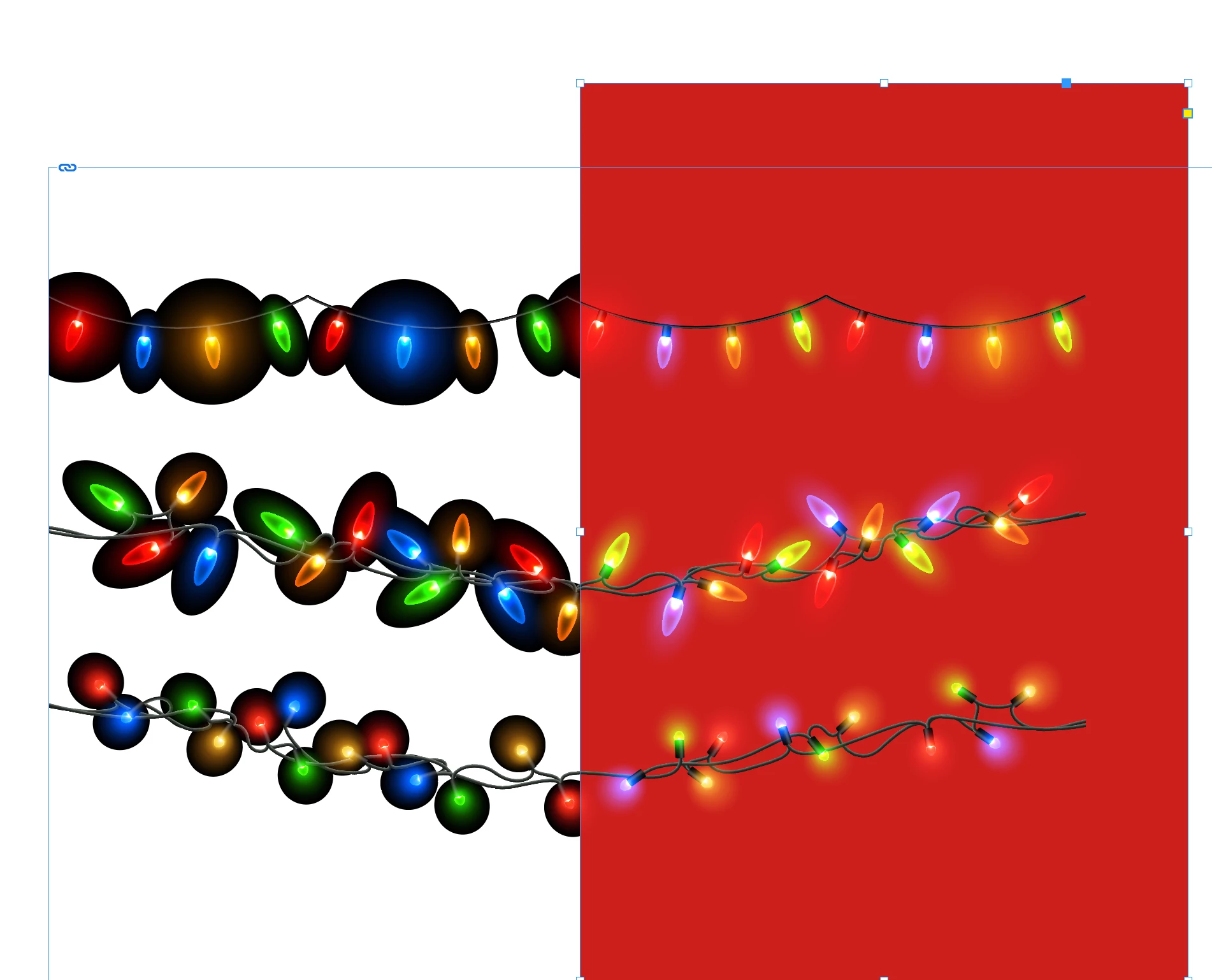
Can anyone help me remove the black background on this Adobe Stock Christmas lights image? Once I remove the 'transparency grid' that's behind the image of the lights they're all left with this black background. I was hoping to use them in InDesign as a border on a variety of different coloured pages. Is there some workaround to remove this black colour?

Many thanks,


Bryony
 

This topic has been closed for replies.
Correct answer Brad @ Roaring Mouse

The black is there for a reason. Because the glow effects are using the Screen transparency effect, the outer edge of the gradation needs to be darker than anything you may place it against, hence Black. This means you MUST have a colour behind it.

Also: the stock art is in RGB mode, so you will have to set your blend space in Indesign to RGB for the effect to work properly. Once you do that, you can place ANY colour behind it, but what you CAN'T do is have NOTHING behind it.

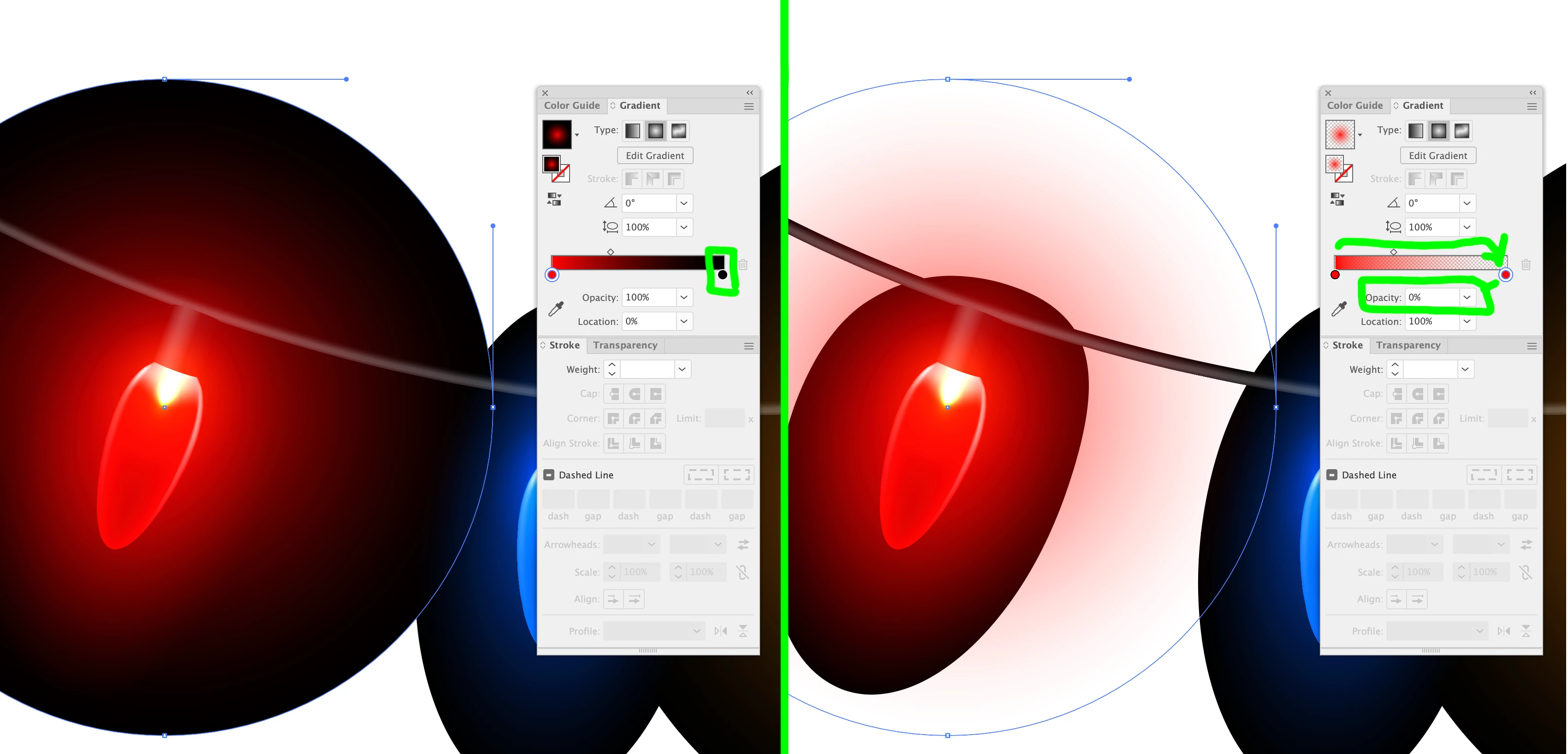
Your other option is to go into the artwork itself in Illustrator and individually select every gradation and change it from what it is now, i.e. say a Red color to Black, to and change the Black to the same Red but make the Opacity at that end at 0%..... and there are ALOT of these gradations (my example just shows the bigger one, but you can see there are more closer to to the bulb, so be prepared to spend some time doing this.) 

2 replies

Brad @ Roaring Mouse
Community Expert
Brad @ Roaring MouseCommunity ExpertCorrect answer
Community Expert
October 29, 2021

The black is there for a reason. Because the glow effects are using the Screen transparency effect, the outer edge of the gradation needs to be darker than anything you may place it against, hence Black. This means you MUST have a colour behind it.

Also: the stock art is in RGB mode, so you will have to set your blend space in Indesign to RGB for the effect to work properly. Once you do that, you can place ANY colour behind it, but what you CAN'T do is have NOTHING behind it.

Your other option is to go into the artwork itself in Illustrator and individually select every gradation and change it from what it is now, i.e. say a Red color to Black, to and change the Black to the same Red but make the Opacity at that end at 0%..... and there are ALOT of these gradations (my example just shows the bigger one, but you can see there are more closer to to the bulb, so be prepared to spend some time doing this.) 

Participant
October 30, 2021

Thank you that's a really comprehensive answer! I think they actually don't really work for what I want them for but that's ok. (I don't have the patience or the Illustrator know how to do the gradient thing to each light!)

Participant
October 29, 2021

There isn't a complete answer on this thread. I've watched the video but it doesn't explain how to remove the black background and the other answer says they've just been designed to be used over a dark background. I'm hoping that isn't the case and I can use them in another document with the transparency preserved.

Monika Gause
Community Expert
Community Expert
October 29, 2021

The video does explain how this could work without black. At about 6:30 you can see how the gradients would need to be in order for this to work.