
Known Participant
December 4, 2013
Question

Blend Tool Not Making Smooth Color Blend

  • December 4, 2013
  • 13 replies
  • 54587 views

I'm using Illustrator CC (on a Win7 Pro machine) at a beginner level, probably halfway to intermediate. I'm trying to learn how to blend colors together for highlights of various types (skin tones, clothing, light on objects, etc.) so that when I'm making a graphic for a project I'll have a decent idea of which tool/technique is best for the specific effect I need.

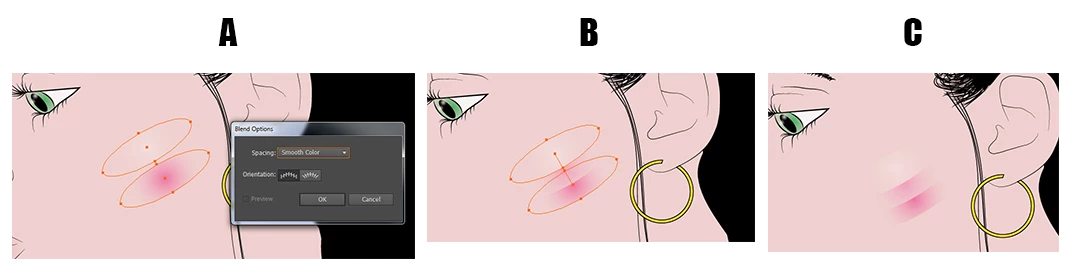
I'm trying to use the Smooth Color option in the blend tool. Late yesterday afternoon I recall creating two ellipses (one of which was a solid fill and one of which was a gradient going from black to transparent) and getting a smooth color transition between the two. It was a much harsher effect than I was looking for so I didn't keep it. This morning, while trying to replicate the same thing, I seem to be unable to use smooth color between two objects if one or more of them has a gradient applied. I only get what you see below, which is a step between the two objects.

I've done searches and found multiple references to blending gradients in this way and have followed those instructions (create the shapes, fill with the gradients, then either click on the Blend tool and click on the center of each shape, or click on Object -> Blend -> Make) but I can't seem to get a Smooth Color blend if either object has a gradient applied. Am I missing an important step somewhere? I'm 95% sure I accomplished it yesterday and nothing has been changed since then.

I realize the blend tool might not be the best option in this particular instance but this is just a learning exercise for me. I could as easily have chosen a metal or plastic object (and I'm sure I will do some of each to practice) but I would probably still be here asking the same question.
13 replies

Inspiring
December 5, 2013

I've never used a gradient on one end of a Blend.  I always considered a Blend between two colors.  The advantage to a Blend over a Gradient is you can blend shapes with the Blend option.  Smooth Color should work between 2 colors, but may depend on the actual size of the Blend and perhaps Document > Raster setting.  I'm not sure about the gradient being one of the colors and may be creating a problem.  Try creating a new Blend using the flesh color of one ellipse, and the darker pink as the other ellipse.  Dupe the ellipses and create one set using Smooth color, and the other ellipse set use Number of Steps ( depends on size, start with 12 ).

Monika Gause
Community Expert
Community Expert
December 5, 2013

To me it looks like there are two gradients. And this isn't a problem. Illustrator can blend two gradients.

KarynRHAuthor
Known Participant
December 6, 2013

"If the objects contain identical colors, or if they contain gradients or patterns, the number of steps is based on the longest distance between the bounding box edges of the two objects."

http://help.adobe.com/en_US/illustrator/cs/using/WS714a382cdf7d304e7e07d0100196cbc5f-6443a.html#WS714a382cdf7d304e7e07d0100196cbc5f-6442a

this implies to me that if you want the effect of a smooth blend (because after all, 'smooth' blends are just stepped blends with a large number of steps), you'll have to specify a suitable number of steps yourself.


Then shall I just assume every tutorial which shows (including in video) a smooth color transition while using the Smooth Color tool on a gradient is a bald-faced lie and the Smooth Color tool can't transition gradients smoothly?

Y'all have fun trying to figure out how many steps it takes to create a smooth color transition between gradients using Specified Steps. Me, I'm going to assume I'm doing something wrong and keep trying to figure out what. I just won't bother looking for anyone here to help.

KarynRHAuthor
Known Participant
December 5, 2013

I could really use some help with the blend tool on this issue. Does anyone know why it's not making a smooth transition but is instead using a step image? Every tutorial I've seen says that it the color transition should be smooth when I use Smooth Color.

Monika Gause
Community Expert
Community Expert
December 5, 2013

Open the options, set it to specified steps and enter any value you find appropriate

KarynRHAuthor
Known Participant
December 5, 2013

Monika Gause wrote:

Open the options, set it to specified steps and enter any value you find appropriate

I find 0 to be appropriate. I'm using the Smooth Color option because I need there to be a continuous, smooth transition from one color to the next. Instead, it is acting as if I have selected 1 step.

Jacob Bugge
Community Expert
Community Expert
December 4, 2013

Karyn,

You may (also) start looking at Gradient Meshes.

KarynRHAuthor
Known Participant
December 4, 2013

Jacob Bugge wrote:

Karyn,

You may (also) start looking at Gradient Meshes.

That's next. I was going in what seemed to me the order of complexity - gradients, blends, and then gradient meshes. I used a gradient mesh once before while following a tutorial but that gave me a barely passing understanding of it. Thanks!