
Participant
December 29, 2017
Question

Blur effect lost when I paste from Illustrator to Photoshop

  • December 29, 2017
  • 3 replies
  • 1141 views

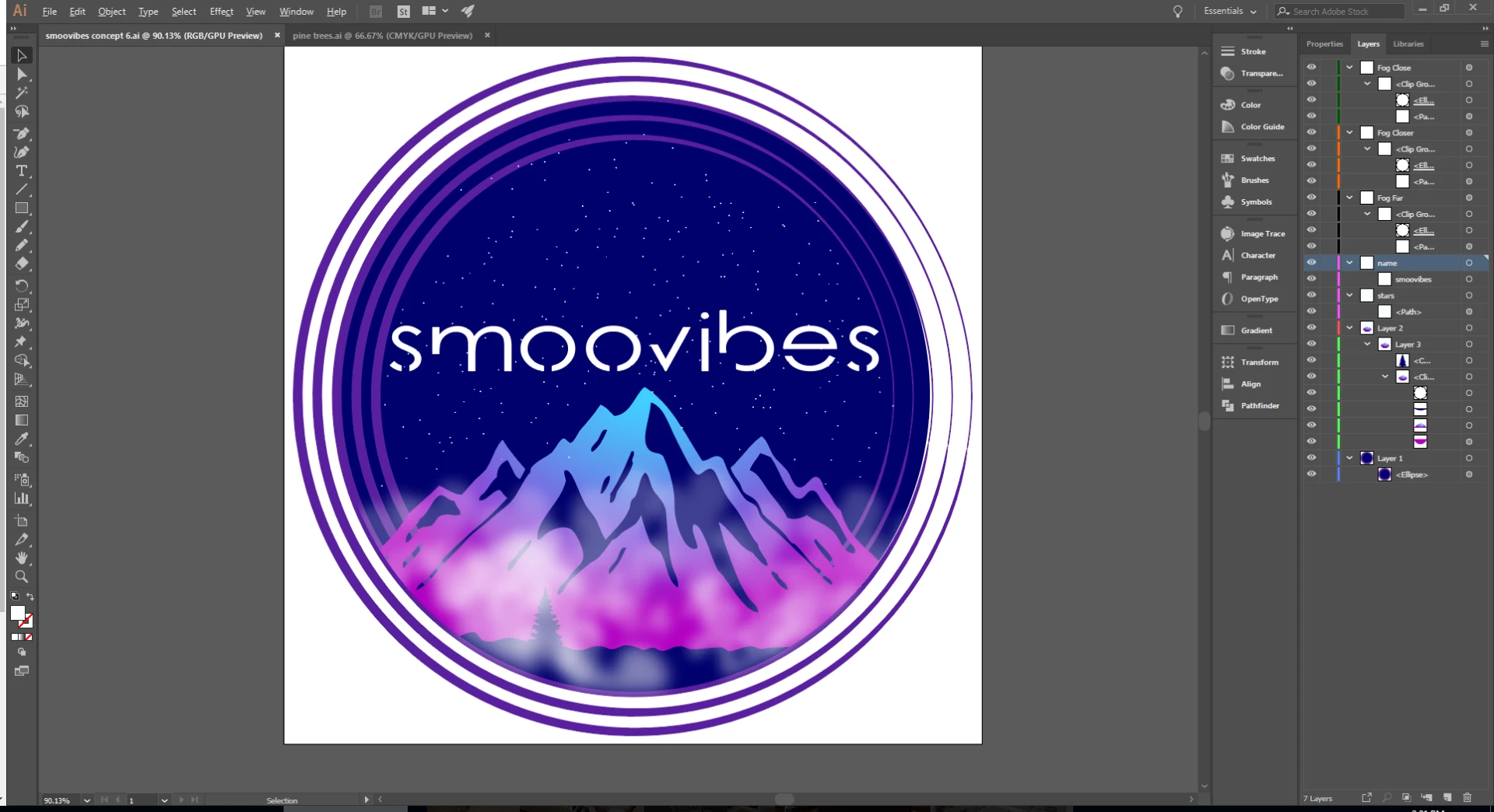
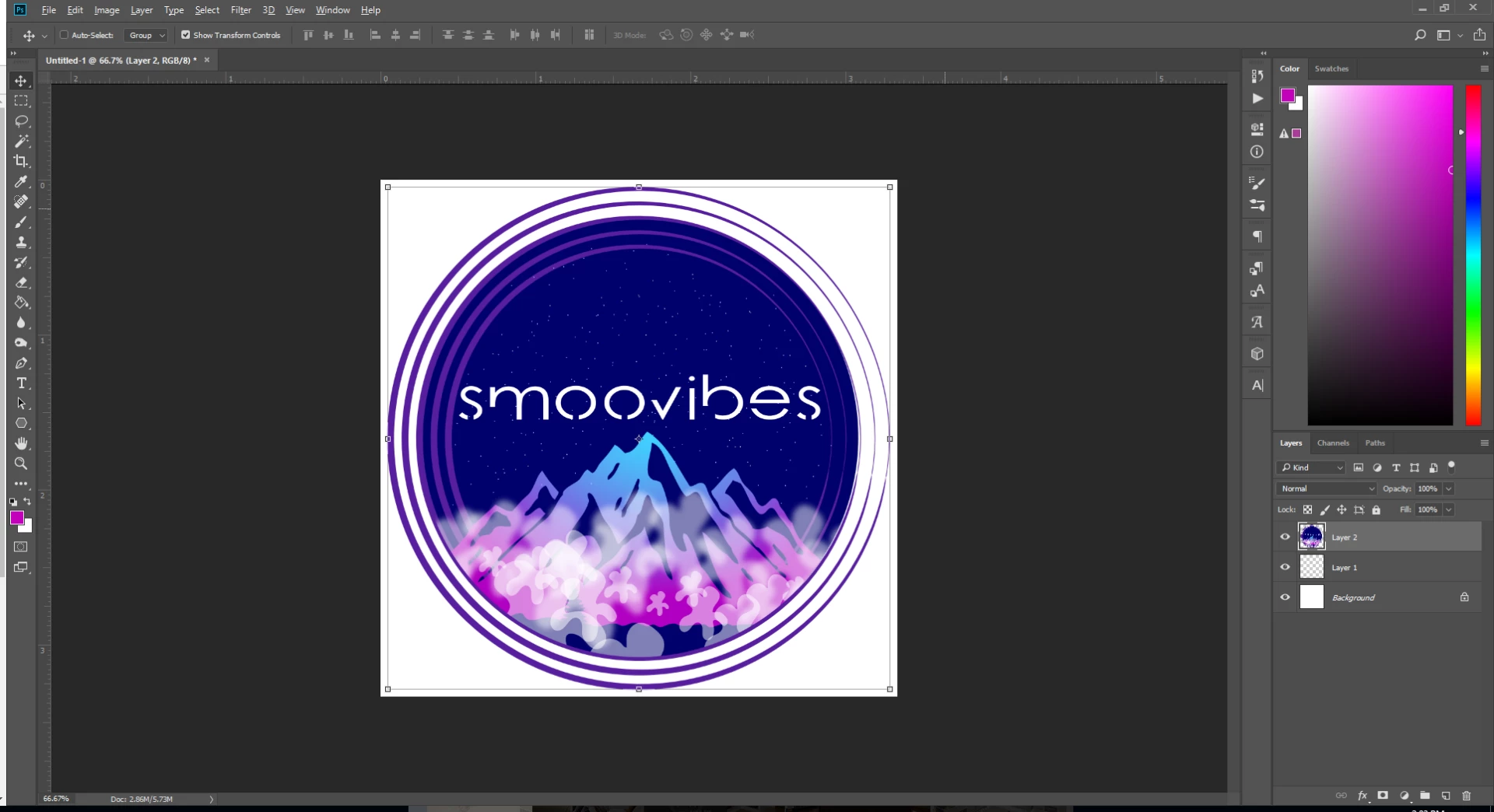
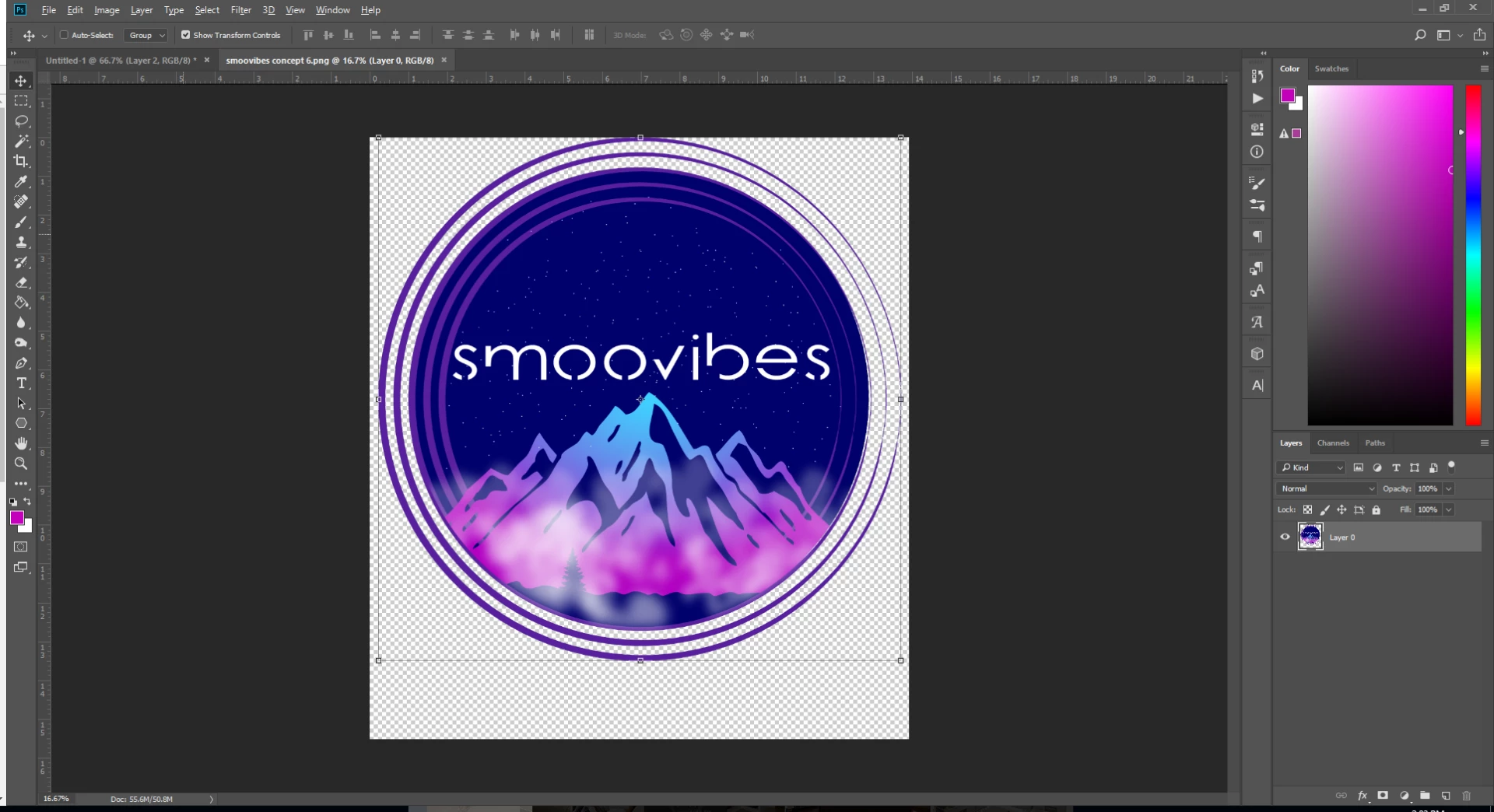
I am creating fog in Illustrator and it has a blur effect.  When I try to Select>Select All>Copy> Paste into Photoshop the blur effect is not there.  Anyone have any advice?  I'm sure it is something simple I am missing...  I have closed both applications, checked for updates.  I have exported the Illustrator file as a PNG and it opens in Photoshop fine.

In Illustrator:
In Photoshop Pasted:
Exported PNG
This topic has been closed for replies.

3 replies

Participant
December 29, 2017

Thanks yall!  I tried all of the paste options All gave the same results.

I will try to expand!

Bill Silbert
Community Expert
Community Expert
December 29, 2017

Have you tried to export the file as a psd? You can do that through File Menu>Export>Export AS>PSD. Make sure that you set up the dialog that appears for high resolution and maximum edibility. See screen shot:

chanaart
Community Expert
Community Expert
December 29, 2017

Copy and paste from Illustrator  as a smart object.

Best to maintain effects is to place it in Illustrator!

Chana

chanaart
Community Expert
Community Expert
December 29, 2017

another thing you can try is to expand the Appearance before copy and pasting. This might help!

I will do it only if I have a duplication...so I can go back to the original..

Chana

Bill Silbert
Community Expert
Community Expert
December 29, 2017

When you pasted it into Photoshop did you select the option to make it a Smart Object? I can see a possible problem if you rasterized it but a Smart Object should retain all of Illustrator's properties. See screen shot: