
Exit
  • Global community
    • Language:
      • Deutsch
      • English
      • Español
      • Français
      • Português
  • 日本語コミュニティ
  • 한국 커뮤니티
0

Bounding Box Issues With Text

New Here ,
May 17, 2018 May 17, 2018

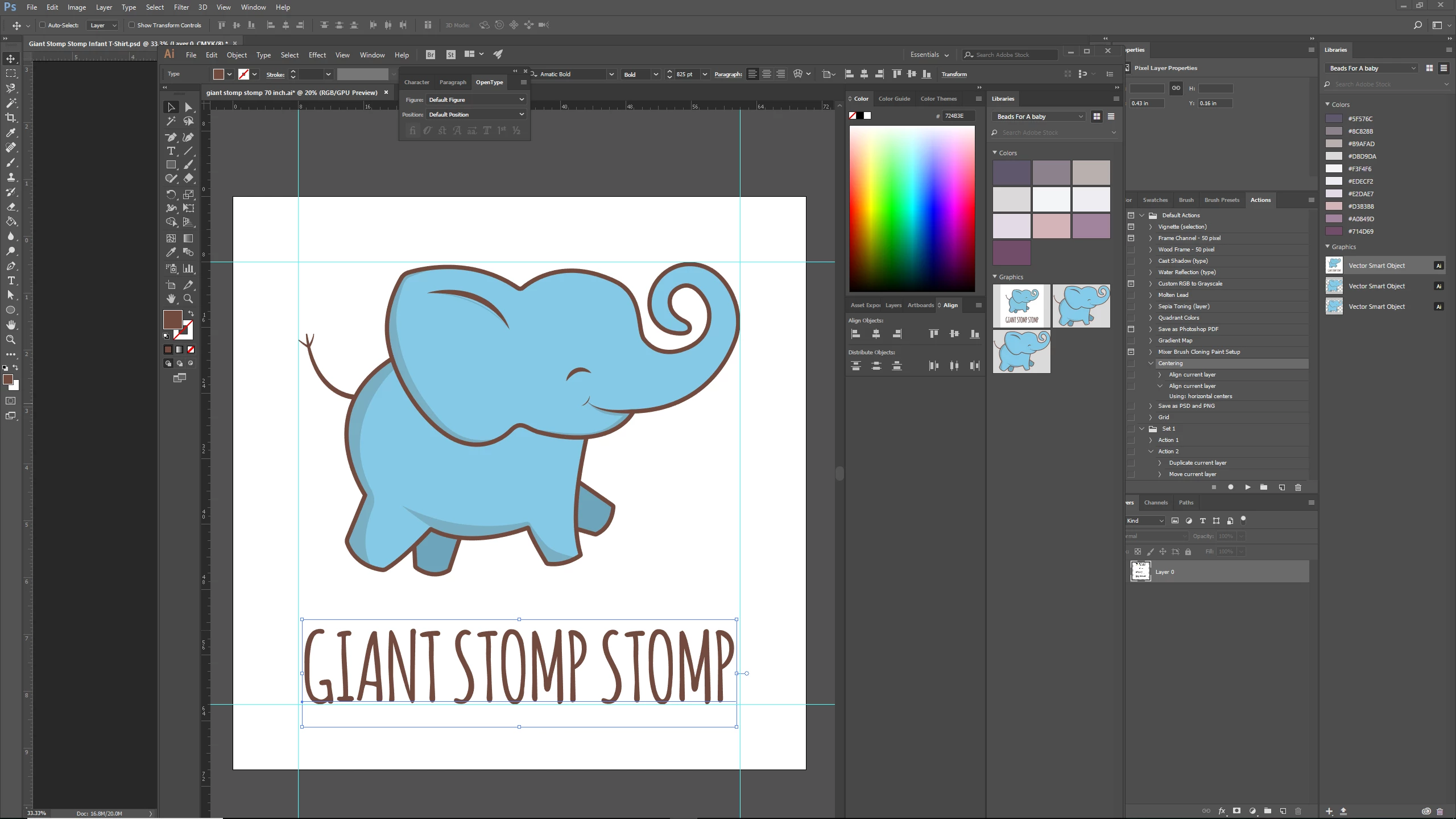
I have a number of illustrations created in Adobe Illustrator that I need to add text to.  I then need to import them into Photoshop, as vectors, using Smart Objects.  I have template files set up in Photoshop (just files at the specific sizes I need) so I can easily resize the various AI illustrations quickly to the required sizes.

However, the bounding box around the text in AI is messing this up!  I'm not sure why this box is larger than the text.  Any help would be appreciated.

There are no hidden objects or grouped objects (a suggestion I've seen on other threads).ss1-bounding-box.png
1.8K
Translate
Report
Community guidelines
Be kind and respectful, give credit to the original source of content, and search for duplicates before posting. Learn more
community guidelines

correct answers 1 Correct answer

Community Expert , May 18, 2018 May 18, 2018

That box is larger because of the hot metal type history that is still built into it.

You can apply the effect > Path > Outline object to the text. That way you can still edit the text in Illustrator, but will have the bounding box fit in Photoshop.

Translate
Adobe
Community Expert ,
May 18, 2018 May 18, 2018

That box is larger because of the hot metal type history that is still built into it.

You can apply the effect > Path > Outline object to the text. That way you can still edit the text in Illustrator, but will have the bounding box fit in Photoshop.

Translate
Report
Community guidelines
Be kind and respectful, give credit to the original source of content, and search for duplicates before posting. Learn more
community guidelines
New Here ,
May 18, 2018 May 18, 2018

Could you explain hot metal type history?  Never heard of that before.

Thanks for the advice, I'll try that!  Got a bunch of these things to make.

Translate
Report
Community guidelines
Be kind and respectful, give credit to the original source of content, and search for duplicates before posting. Learn more
community guidelines
Community Expert ,
May 18, 2018 May 18, 2018

Please read this:

Typesetting - Wikipedia

Translate
Report
Community guidelines
Be kind and respectful, give credit to the original source of content, and search for duplicates before posting. Learn more
community guidelines
Community Expert ,
May 18, 2018 May 18, 2018
LATEST

faile,

You can also keep the Type live and editable and:

1) Tick Use Preview Bounds in Edit>Preferences>General;

2) Select the live Type with the (normal) Selection Tool and Effect>Path>Outline Object.

That will give you a Bounding Box that fits tightly round the live Type.

Afterwards, you will probably wish to reverse 1) to work normally.

Translate
Report
Community guidelines
Be kind and respectful, give credit to the original source of content, and search for duplicates before posting. Learn more
community guidelines