Exit
  • Global community
    • Language:
      • Deutsch
      • English
      • Español
      • Français
      • Português
  • 日本語コミュニティ
  • 한국 커뮤니티
1

brick pattern rotation

Community Beginner ,
Mar 20, 2018 Mar 20, 2018

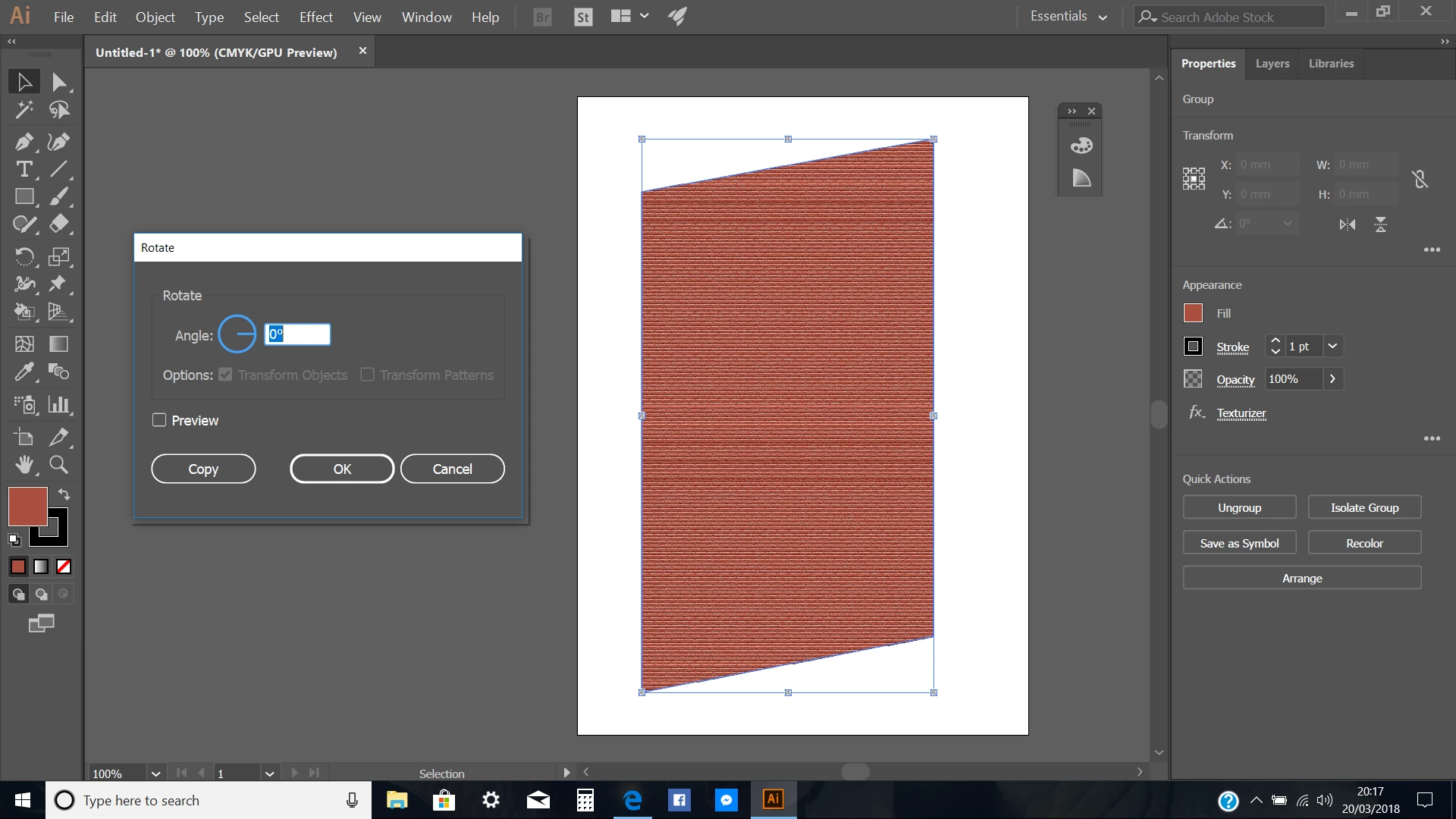
Hi, I need some help in illustrator. i have tall rectangle with a brick texture inserted into it. I want to rotate the pattern only (not the box) so that it alines with the angle and looks like a brick wall from a side view. However, it won't let me rotate the pattern only as you see below in the rotate panel. Why and how do i solve it?illustrator screen shot.png
2.0K
Translate
Report
Community guidelines
Be kind and respectful, give credit to the original source of content, and search for duplicates before posting. Learn more
community guidelines

correct answers 1 Correct answer

Community Expert , Mar 20, 2018 Mar 20, 2018

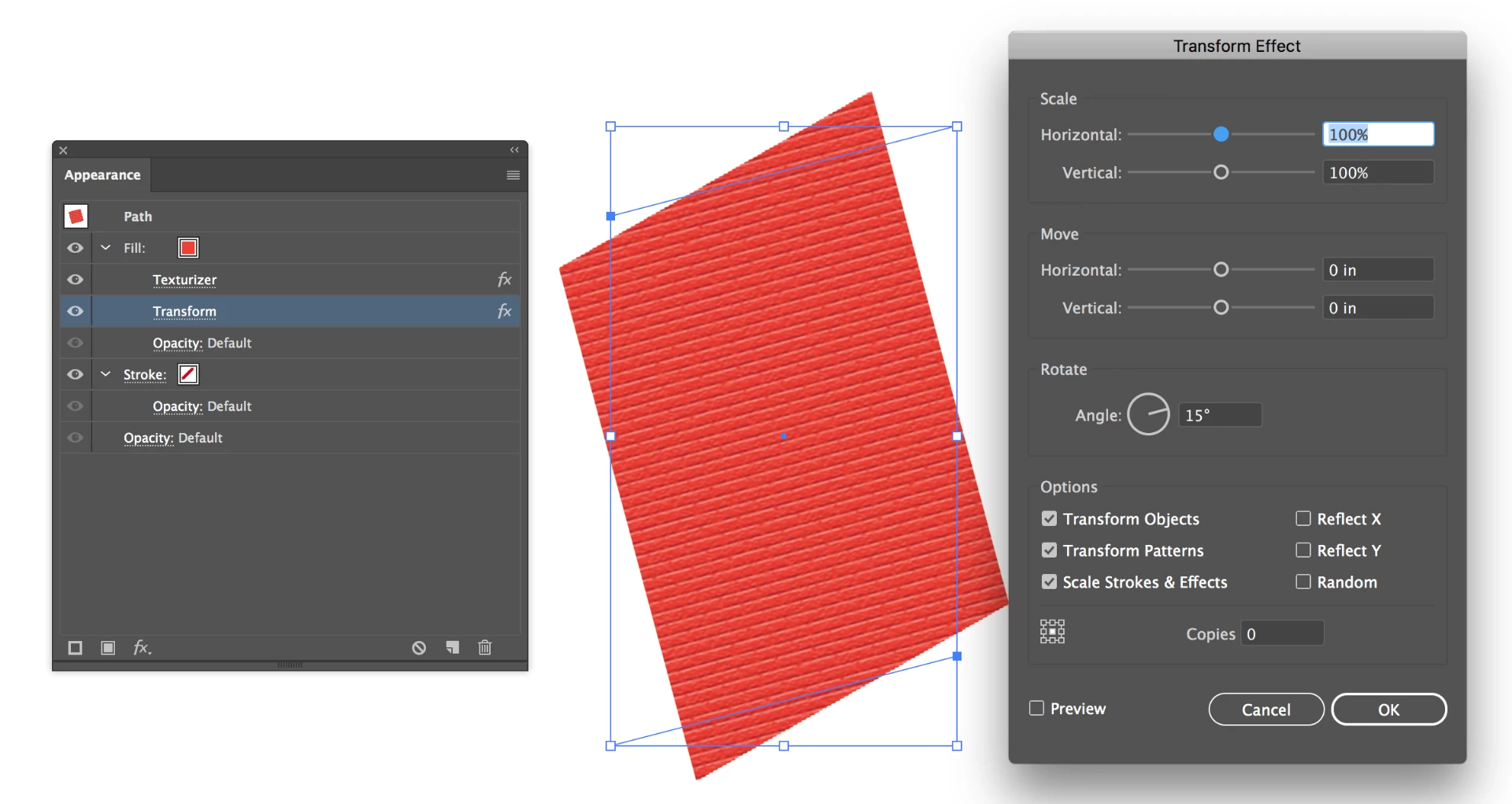
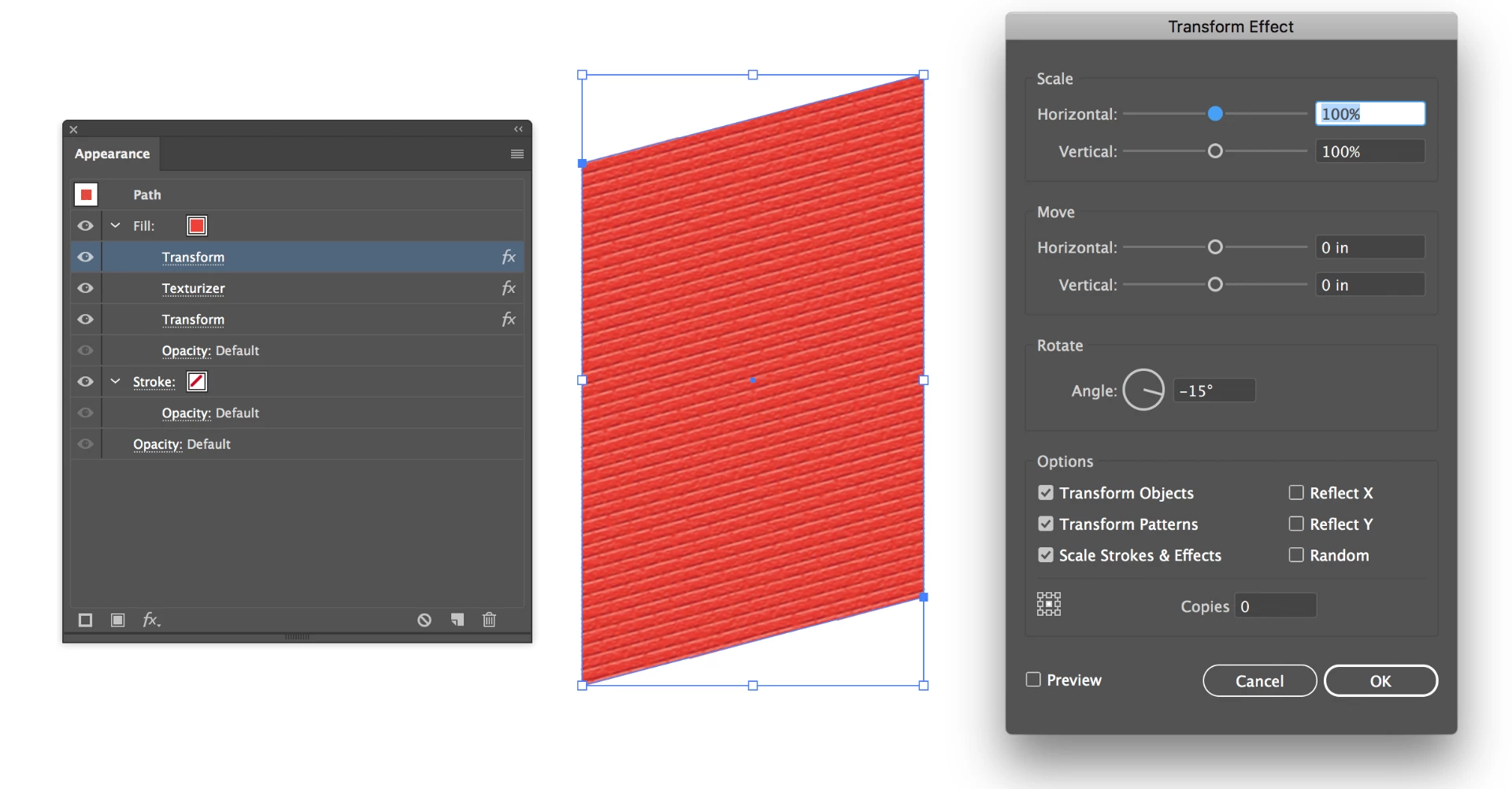
The brick pattern you have applied is an effect (fx Texturizer, which can be seen in the Properties panel). In order to control its behavior you'll need to use additional effects, applied through the Appearance panel. You can open the Appearance panel by clicking the three dots below Appearance in the Properties panel, or go to Window > Appearance. In order to understand what has to happen there, you need to spend time reading about it in the Help files.

In essence, this is what you need, substit

...
Translate
Adobe
Advocate ,
Mar 20, 2018 Mar 20, 2018

check only the transform patterns option

pic.jpg

Translate
Report
Community guidelines
Be kind and respectful, give credit to the original source of content, and search for duplicates before posting. Learn more
community guidelines
Community Beginner ,
Mar 20, 2018 Mar 20, 2018

I've tried but it won't let me. If you look closer at the rotate panel, the tick boxes and in grey rather than white, meaning I can't change them. This is my problem.

Translate
Report
Community guidelines
Be kind and respectful, give credit to the original source of content, and search for duplicates before posting. Learn more
community guidelines
Advocate ,
Mar 20, 2018 Mar 20, 2018

hmmm may be your image is not a patterns at all, check that

Translate
Report
Community guidelines
Be kind and respectful, give credit to the original source of content, and search for duplicates before posting. Learn more
community guidelines
Community Beginner ,
Mar 20, 2018 Mar 20, 2018

I inserted the brick texture by going to effect, texture, texturizer, then choosing brick from the drop down

Translate
Report
Community guidelines
Be kind and respectful, give credit to the original source of content, and search for duplicates before posting. Learn more
community guidelines
Community Expert ,
Mar 20, 2018 Mar 20, 2018

The brick pattern you have applied is an effect (fx Texturizer, which can be seen in the Properties panel). In order to control its behavior you'll need to use additional effects, applied through the Appearance panel. You can open the Appearance panel by clicking the three dots below Appearance in the Properties panel, or go to Window > Appearance. In order to understand what has to happen there, you need to spend time reading about it in the Help files.

In essence, this is what you need, substituting whatever angle you need for my +/-15°. The order in which these effects appear is important.

Screen Shot 2018-03-20 at 2.07.15 PM.pngScreen Shot 2018-03-20 at 2.07.58 PM.png

Translate
Report
Community guidelines
Be kind and respectful, give credit to the original source of content, and search for duplicates before posting. Learn more
community guidelines
Community Expert ,
Mar 20, 2018 Mar 20, 2018

Please check the appearance panel. There might be mutliple fills applied. You need to select the one with the pattern.

Translate
Report
Community guidelines
Be kind and respectful, give credit to the original source of content, and search for duplicates before posting. Learn more
community guidelines
Community Beginner ,
Mar 20, 2018 Mar 20, 2018

how do i get to the appearance panel

Translate
Report
Community guidelines
Be kind and respectful, give credit to the original source of content, and search for duplicates before posting. Learn more
community guidelines
Community Expert ,
Mar 20, 2018 Mar 20, 2018

Window menu > Appearance

Translate
Report
Community guidelines
Be kind and respectful, give credit to the original source of content, and search for duplicates before posting. Learn more
community guidelines
Community Expert ,
Mar 20, 2018 Mar 20, 2018

The brick texture is not a pattern, so it can't be rotated with the Rotate tool. Even it you rotate the entire object the bricks don't rotate.

Translate
Report
Community guidelines
Be kind and respectful, give credit to the original source of content, and search for duplicates before posting. Learn more
community guidelines
Community Expert ,
Mar 20, 2018 Mar 20, 2018

You could Rasterize the object (Object > Rasterize) and then rotate the entire object

Translate
Report
Community guidelines
Be kind and respectful, give credit to the original source of content, and search for duplicates before posting. Learn more
community guidelines
Participant ,
Mar 21, 2018 Mar 21, 2018
LATEST
  1. Create you brick wall in front view
    (meaning, without distortion, rotation or skewing)
    Effect - brick front.png
  2. Use Effects -> 3D - Rotate
    Set perspective to zero to prevent foreshortening (or tapered look).
    Effects-3D-Rotate.png

Hope this helps and simplify your workflow.

Translate
Report
Community guidelines
Be kind and respectful, give credit to the original source of content, and search for duplicates before posting. Learn more
community guidelines