
Participating Frequently
April 8, 2022
Answered

Brush lines not lining up with the vertices lines.

  • April 8, 2022
  • 6 replies
  • 1721 views

I'm using Illustrator 2022 - v 26.2.1
I'm on a PC but I don't think any of my PC capabilites is the cause of this as I have given this file to other coworkers and we are all experiencing the same issue. And it is this one file that is the problem. 
As you can see in the image attached. When using the brush tool, no matter where I draw the line ends up being offset slightly. So when I select all the brush strokes it doesn't line up with the green vertice lines. 
I have tried "Align to Pixels" from the control panel
I have tried turning off GPU Performance in the preferences options
Updated - restarted the program and the computer


If I select the art and copy it and open up a new file and paste it in the new file, it looks and behaves normally.

So maybe this is a bug or some obsurce option that is selected/turned on that we can't see/find.
Any ideas? 
Thanks


Edited by Moderator at users request
This topic has been closed for replies.
Correct answer Ton Frederiks

It does work when I copy and paste it into a new document. 
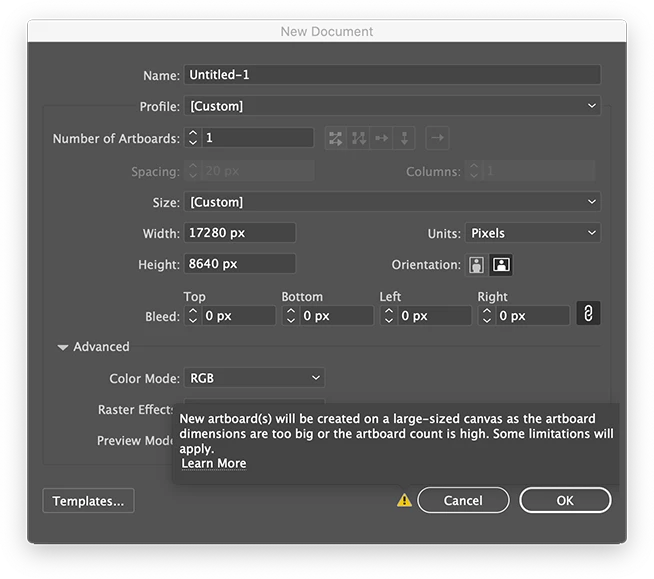
The document that isn't working, the art board is 17280 x 8640 pixels.
When I change the size of the existing file to a smaller artboard, it still behaves in the same way. Seems copying and pasting is the only way to fix it.
 
I am more curious as to what could be causing the issue in this one particular file.
Maybe it is just a bug?


6 replies

Kurt Gold
Community Expert
Community Expert
April 9, 2022

Peter,


usually I don't use large canvas documents in Illustrator and therefore I was not aware of the issue that Ton mentioned.


But Ton is right. After doing some tests I can reproduce that it is a bug in conjunction with large canvas documents.


It's always dangerous to take too much space.


tromboniator
Community Expert
Community Expert
April 10, 2022

Yes, Kurt, I tried it and got the bizarre behavior. I'll crawl back into my small space.


Peter

tromboniator
Community Expert
Community Expert
April 8, 2022

Is it not something as straightforward as a transform effect applied to the paths or the layer?

Peter

Ton Frederiks
Community Expert
Community Expert
April 8, 2022

No, it isn't.

Create a large canvas document (like in the screendump above)

Select the Charcoal - Feather brush.

Brush away...

Kurt Gold
Community Expert
Community Expert
April 8, 2022

Well, you may post a sample Illustrator file that contains just two or three of the brush strokes. Nothing else.


PacroidAuthor
Participating Frequently
April 8, 2022

Odd, I thought I did with my last post.
When I try and post it with an attached file, it says file not reconized and have been removed. 

Kurt Gold
Community Expert
Community Expert
April 8, 2022

Can you share this Illustrator file?


PacroidAuthor
Participating Frequently
April 8, 2022

Sorry I can't, its a working file with a NDA. I can do my best to post images and give you as much info as I can to help.

PacroidAuthor
Participating Frequently
April 8, 2022

Image of how the lines behave.

PacroidAuthor
Participating Frequently
April 8, 2022

Posted the incorrecet image.


Edited by Moderator at users request

Doug A Roberts
Community Expert
Community Expert
April 8, 2022

Does this happen with every brush?

Are you in a large canvas document by any chance?