
Participant
June 1, 2018
Answered

Can't Resize in Illustrator even though Bounding Box is visible?

  • June 1, 2018
  • 20 replies
  • 476444 views

Hello! Hoping someone can help as this is frustrating and I can't for the life of me get any answer from anywhere that does not involve the bounding box.

I am unable to resize objects and text in illustrator despite the anchor points being visible and the bounding box being turned on. This normally happens by accidentally hitting an unknown hotkey (Not sure which one...). My mouse has a different icon on it when this happens that I do not recognize (photo below).
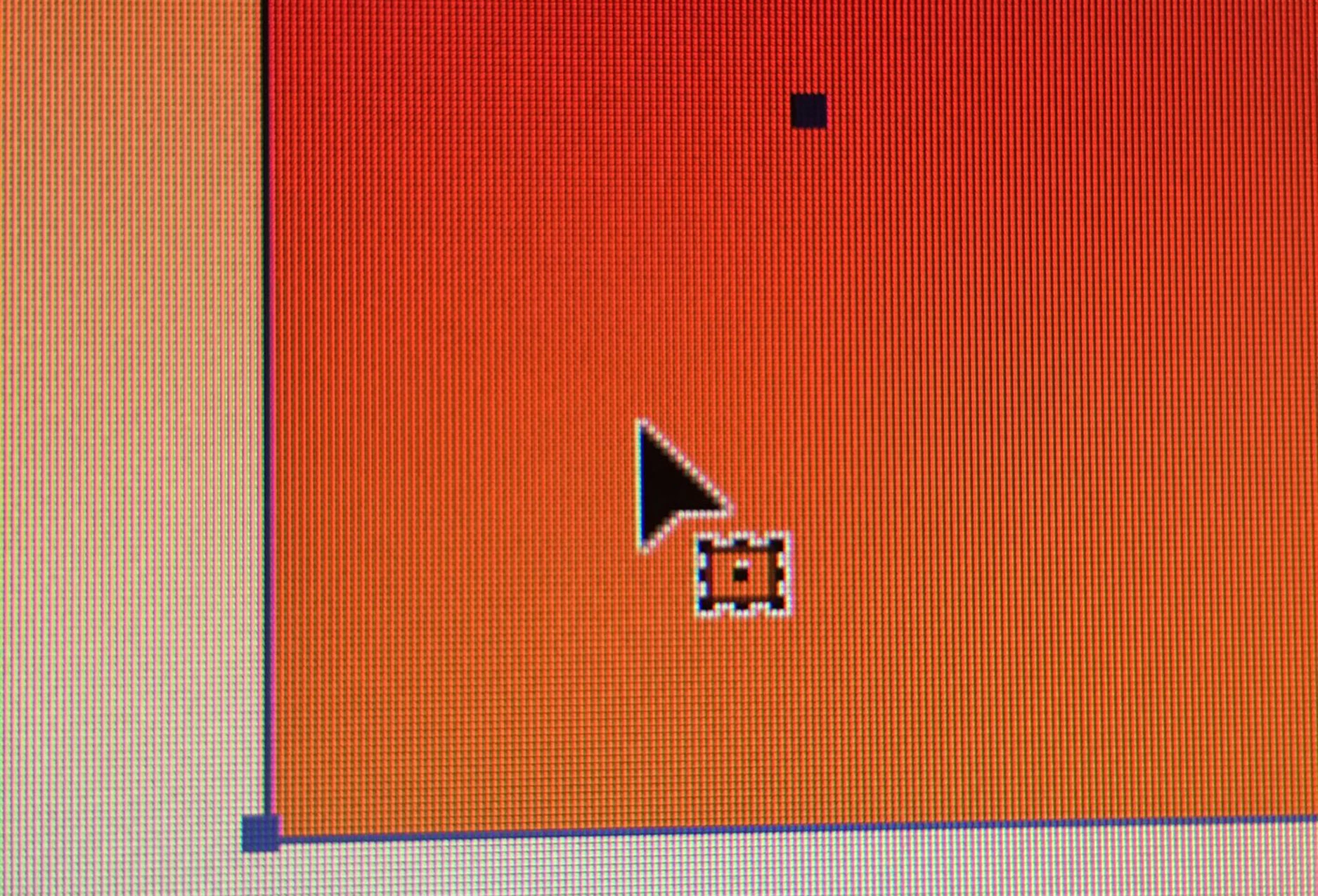
Program version: 2018 CC Illustrator (Newest Update as of May 31, 2018)

Please help... uninstalling does not work and this is really slowing down my workflow.

Correct answer beauhenneha

As mentioned before, I've done that already, but it doesn't matter now, I figured it out. So for anyone who finds themselves in this situation where trying View>"Show bounding box" does not resolve your issue, here's what I did. Try selecting the three dots in the bottom right corner of the transform panel and see if Scale Corners and Strokes and Effects are checked. If it is not, checked them and then try. This worked for me, nothing else in this forum worked and I did not find this answer anywhere when I googled. I only found the same solution of going to View > Show bounding box as the solution but this did not work for me. Thank you everyone who has posted because I did try all of your solutions. 


FOr anybody still having trouble, i did all of these solutions and nothing worked. I made a rectangle then with the regular selection tool i pressed control and dragged the corners to make it a cureved ractangle. THEN when i pressed show bounding box, it actually popped up, it would not work for a regular rectangle. after that it worked for whatever shape i made

20 replies

Participant
January 9, 2024

This happened to me - caused by following incorrect advice which gave command-shift-B as a shortcut for paste-in-place...

eonix
Participant
July 24, 2023

I have the correct mouse and also the bounding box I can increase the size of the rectangle shape but not decrease it.
That is I am able to increase the height and width of the rectangle shape. I am also able to decrease the width of the rectangle shape but I am not able to decrease the height of the shape.

Monika Gause
Community Expert
Community Expert
July 24, 2023

@eonix  schrieb:

I have the correct mouse and also the bounding box I can increase the size of the rectangle shape but not decrease it.
That is I am able to increase the height and width of the rectangle shape. I am also able to decrease the width of the rectangle shape but I am not able to decrease the height of the shape.


In your case it's probably that "Scaler corners" is turned off in the transform panel.

mrsck
Participant
January 9, 2023

Thank you Bill! Just helped someone here in 2023 🙂

September 8, 2022

Just double click on the circle (right side of the bounding box). It will convert the textbox to Area Type (text still editable) and you will be able to scale it with your mouse.

September 8, 2022

Sorry, I meant Point Type, not Area Type 😉

Participating Frequently
September 9, 2022

Thanks!

Srishti Bali
Community Manager
Community Manager
July 28, 2022

Hi all,


If you are still facing this issue, even if the bounding box is turned on, you may try the steps shared on this page.


Feel free to reach out if you have any suggestions or feedback or need assistance with this feature.


Regards,

Srishti

Participant
July 9, 2022

thank you so much I got the same problem and this solved it

Participant
October 30, 2021

I was having the same issue! Thank you to all those who have the answers for us still learning in fine tunings of things as we go. 

Participant
October 20, 2021

OMG!! This was sooooo fustrating for those who had the bounding box on and still couldn't scale 

YOU NEED TO RESET AI PREFERENCES IN ADOBE ILLUSTRATOR! 

https://www.youtube.com/watch?v=nIYtk10G4HU


USE THIS VIDEO! IT WORKED FOR ME! 🙂 

Known Participant
October 20, 2021

Thank you! Trying that now. 

Participant
February 1, 2021

I made the above changes and it wasn't until I CLOSED the program and restarted it that it worked and I could resize objects. 

Participant
November 27, 2020

OMG Thanks SO much! I had to do some stuff on it for my class and i had to make it the PERFECT size or it didnt work! I had to try OVER AND OVER to get it to work. I was SO confused! THANKS SO MUCH! (the bounding box worked!!!)