arkitec000
Participant
March 31, 2019
Answered

Can't seem to get exact measurement on objects after scaling them

  • March 31, 2019
  • 5 replies
  • 4515 views

Dear good people,

I need your help on figure out the issues I've been having in this couple days.

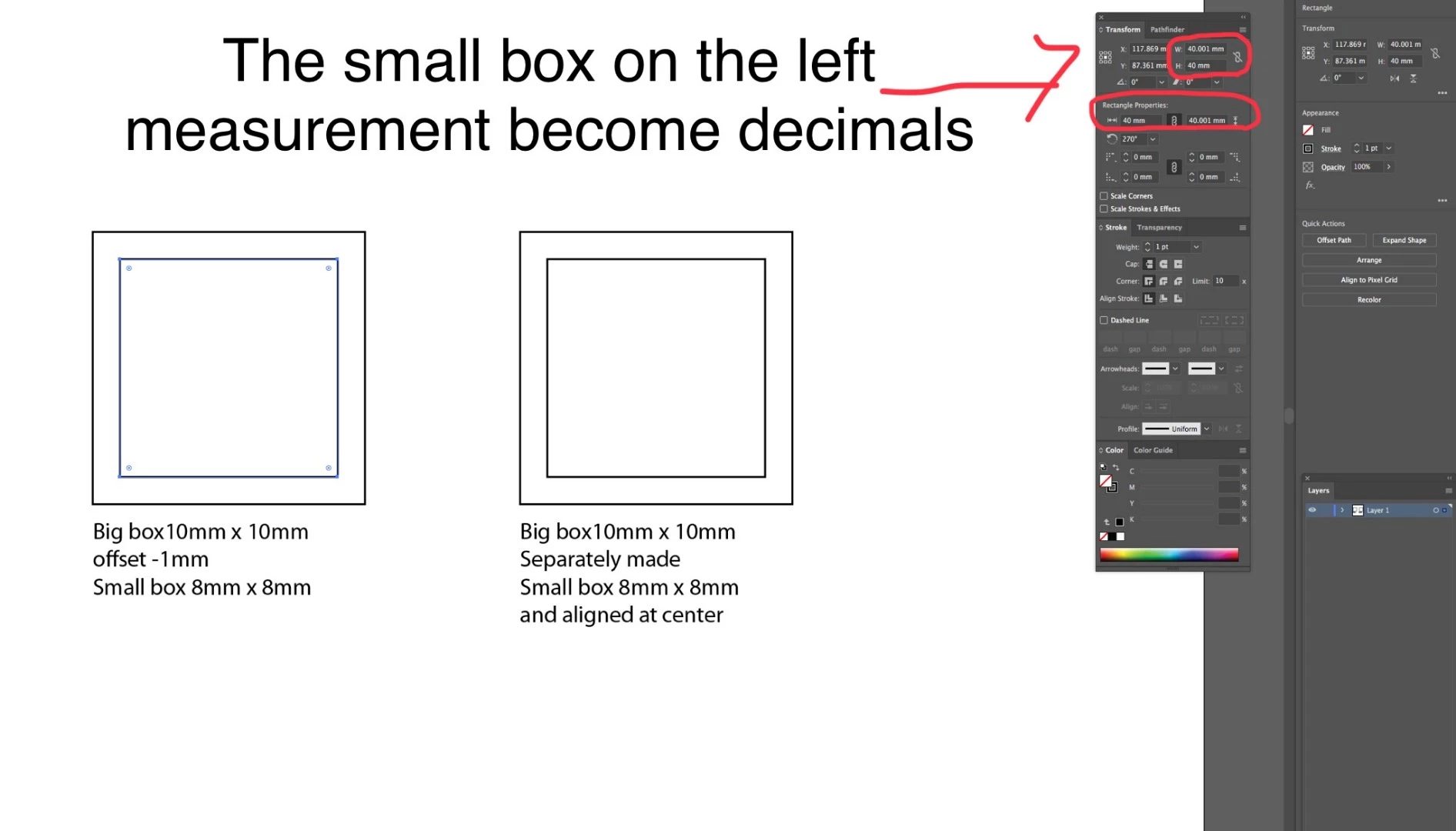
The problem is whenever I scale objects (using transform and type exact % like 200% bigger or smaller), then result of objects measurements comes out weirdly with numbers including decimals. This wouldn't happen when I make rectangle but it happens to the offset rectangles. I'm working in millimeter.

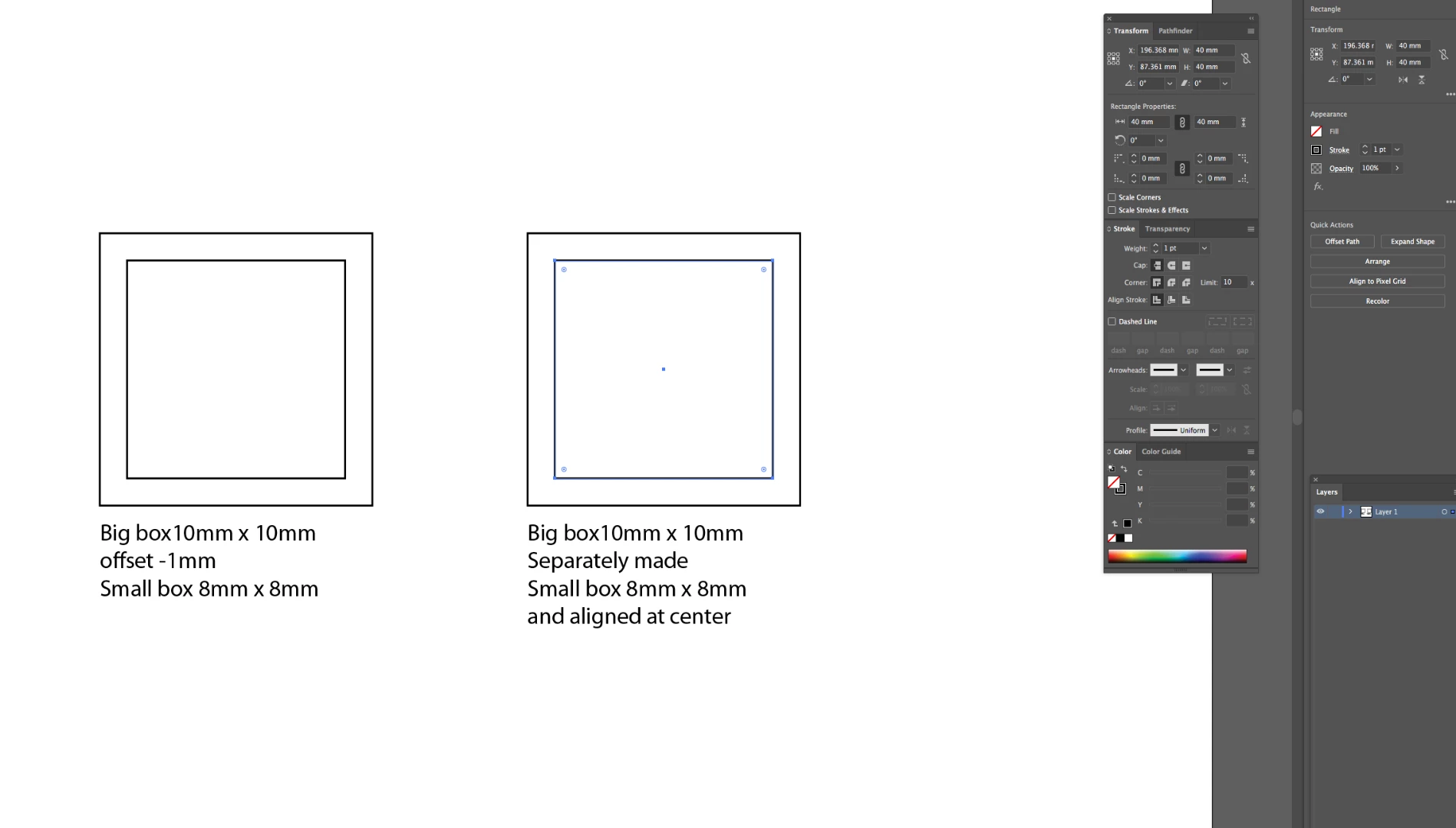
Lets say, I create 10mm x 10mm rectangle, then I offset the rectangle path inward using path offset under object,  type in -1mm to make 8mm x 8mm box within 10mm x 10mm box.

Then I go to transform and type in 500% so result should be

Outer Box = 50mm x 50mm

Inner Box = 40mm x 40mm

Instead I'm getting

Outer Box = 50mm x 50mm

Inner Box = 40mm x 40.001mm

I just find out as ling as I make 8mm x 8mm box instead of offsetting -1mm from 10mm x 10mm rectangle then It works fine no matter how much I scale using transform.

Another thing is that this occurs to any object I have getting weird decimal measurements after scale up or down.

Do you have any idea to resolve this issues?

Please find attached image below, and thank you in advance.

P.S.

I have been researching and turn things off like align to pixel or snap to grid and so on....
Correct answer Monika Gause

Is "Scale strokes and effects turned on"?

And also "Use Preview bounds"?


Then this is the logical consequence.

5 replies

Participating Frequently
April 18, 2023

Four years later, and this is still happening! Drives me CRAZY! I try to resize an object to 9.7 inches, I tryp in 9.7, hit enter, and Illustrator makes it 9.6999. WTF?! And even crazier, it changes the dimension of the other axis as well, even if it's not linked! PLEASE FIX THIS!!!!

Shawn Rossi
Known Participant
April 18, 2024

Same exact issue on my end. I want to scale a square 5 x 5 (whatever measurement I choose: in, px, pt, mm, etc.) to 6 x 6. I use the transform panel, constrain H and W. Illustrator returns 6 x 6.0286. If I uncheck constrain, I can enter 6 again in W it works. However, this is not productive to do this to ever element I wish to transform with constraints. I've unchecked all snapping, scale corners, effects, strokes, and scoured AI's prefs all without success. It seems the constraint function is the offender here. Is there a work-in-progress to correct this issue?

Monika Gause
Community Expert
Monika GauseCommunity ExpertCorrect answer
Community Expert
April 19, 2024

Is "Scale strokes and effects turned on"?

And also "Use Preview bounds"?


Then this is the logical consequence.

NathanDiesel
Participant
July 19, 2020

I have this exact same problem in points and picas. I cannot get Illustator to follow my precise transform specifications. I want my ellipse to be 5p8 but Illustrator makes it 5p8.004. I have all the snaps, pixel grid alignment, and smart guides turned off. When I nudge it with the arrow keys, with the preference set to 0p1 increments, I get 0p0.9996 increments. WTF Adobe? This didn't use to happen and I could trust that Illustrator always displayed the measurements I input. Now, with more recent releases of the software, this bug persists.

Omar.Fathy
Community Expert
Community Expert
April 1, 2019

Hi,

What about your snapping option?!

This weird decimal measurement may happen because of the Align to pixel grid technique.
Can you tell us more about your Snap option from View menu ?!

and from here:

arkitec000
Participant
April 1, 2019

Hi Omar.Fathy

I turned every snapping tools off as well as Align to pixel grid.

Weird thing is this problem only happy in Millimeter so far. I tried in inches and point then it works fine.

Thank you,

Doug A Roberts
Community Expert
Community Expert
April 1, 2019

I can't tell you definitively, but every dimension in Illustrator, whatever your unit preferences, is converted from thousandths of a point. So there are always slight discrepancies when using units like millimetres. Usually, they're too small to be represented in three decimal places.

arkitec000
Participant
April 1, 2019

Hi Doug A Roberts,

I agreed, but it happens only to Millimeter so far that I found.

Other unit works very fine.

Thank you,

Legend
April 1, 2019

Yes, won't happen with points. It is inevitable with metric numbers. Just try to work out the effect of 0.001 mm on your design, then forget it...

Eric Dumas
Community Expert
Community Expert
April 1, 2019

Hi,

I am sure there is a very technical answer to this. I always put it down to one of those 'computer things that happen' and never really questioned it.

I never found a preference that would allow the 'rounding' of values to avoid decimals or at least put some control on it.

arkitec000
Participant
April 1, 2019

Hi Eric Dumas,

Yes, I have been searching and searching if there are any ways to turn decimals off option but don't find any.

Like you said, computer things that happen, I should just let go......

Thank you

Eric Dumas
Community Expert
Community Expert
April 1, 2019

It is something you can add to bug/suggestion forum to add a rounding up preference