
Known Participant
March 12, 2024
Question

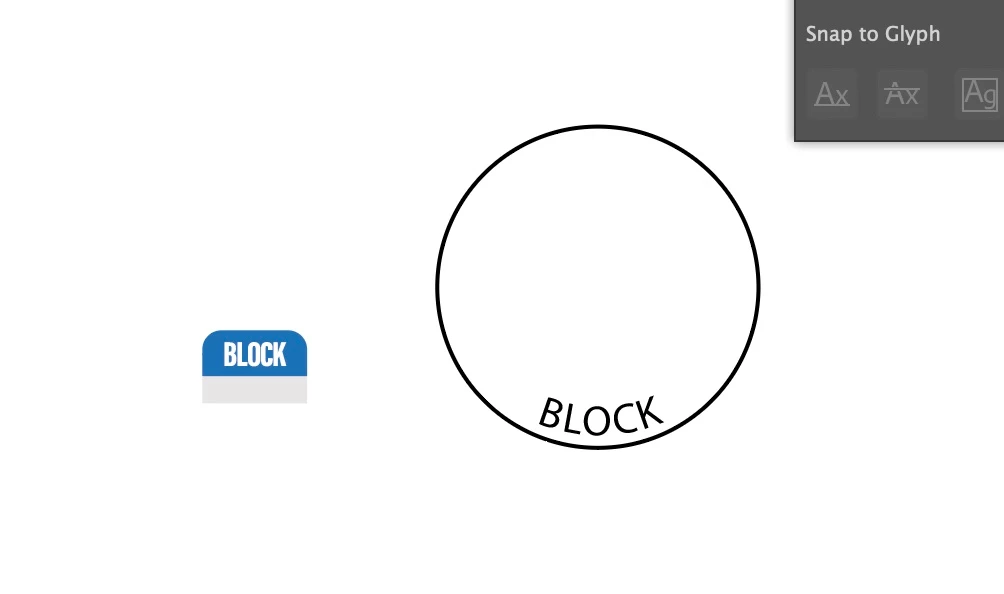
Can't seem to wrap text (with effects) around a circle?

  • March 12, 2024
  • 2 replies
  • 3185 views

I have some text that has effects on it and I want to wrap it around a 32mm circle.


Its easy to wrap the text but I cant get the effects to apply?

.ai file is here: https://www.dropbox.com/scl/fi/jdqmv6xv8p6n08vihczv1/SkillTabs-001.ai?rlkey=janflkc28n5468va77mbrm89y&dl=0
This topic has been closed for replies.

2 replies

kphotopage
Legend
April 3, 2024

Mark, as always there are many ways of doing things.

I’m working with Live Type, Text on a path.


I’m not quite sure of your end goal.

Getting started. Concentric circles. The outside measures 32mm

Live Paint. Fills and Strokes.

Expand Live Paint. Unite same colors for Tabs.

The center stroke is for Text on Path.


Round the corners on your Tabs

Text on Path. Be sure to Type>Type on Path Options, Align to Center.


K

Community Expert
April 3, 2024

I believe what the original poster wanted was a way to make type warp along the curve. Illustrator's stock Text on Path effect merely rotates letters. That approach works okay with letters that are small in proportion to the curve. Bigger letters tend to look wacky and jumbled. Problems vary depending on the typeface used.

Astute Graphics' Reform Text plugin is the only solution I know of that will partially warp text to a curve and still leave the text in a live state. The art brush approach I've described previously is "destructive" since it requires converting the live text to outlines before turning it into a brush.

Known Participant
April 3, 2024

Yes this is the issue. I need to the tab form and curve as I type. So I can create many tabs with different words.

Monika Gause
Community Expert
Community Expert
March 12, 2024

How do you want this to look?

Is it absolutely necessary to make it with effets?

Or would an art brush work as well?

Known Participant
March 12, 2024

Like these - they are shaped to wrap around..


Known Participant
April 2, 2024

Short version: To turn lettering into an art brush you first have to convert the text object to outlines. Open the Brushes palette. Drag the converted text object into the brushes palette to create a new brush. Choose Art Brush. The lettering will be visible in the list of brushes. Select a target path segment and then click the lettering brush in the brushes palette. You'll see the line stroke get replaced by the lettering. The lettering will bend the same way the target path bends.


Compound paths can be turned into art brushes. Even grouped objects, such as lettering inside a box, will work.


Multiple things can be done to improve the results of this approach. To minimize distortion I usually find out the length of the target path where the lettering will be applied and adjust the lettering to match that path length. The Document Info palette can show this, but you have to check "Objects" see path lengths of selected objects. I'll often use Variable Fonts that have variable weight and width axes so I can fine tune the lettering before it gets warped in the Art Brush effect.


I attached a sample image showing lettering inside a rectangular box turned into an art brush and then applied to the top portion of a circle. I created a separate path of what I wanted from the circle, determined its path length, then I made the box and lettering match that curved path length before grouping it and dragging it over to the Brushes palette. Very often when this effect is applied the lettering might be backwards or flipped. That's easy to fix by double clicking the brush and adjusting the brush settings.


Yes!!!!!! this is looking close, you send me the .ai file to work on? Can it work with a second color block like this?