
enyab31532995
Participant
May 11, 2017
Answered

Can you add an anchor point to a path along a specific x or y axis?

  • May 11, 2017
  • 2 replies
  • 2674 views

I'm trying to add an anchor point at a very specific place along a path. Aside from trial and error, is there a way to specify where an anchor point will appear along either an x or y axis?
    This topic has been closed for replies.
    Correct answer Mike_Gondek10189183

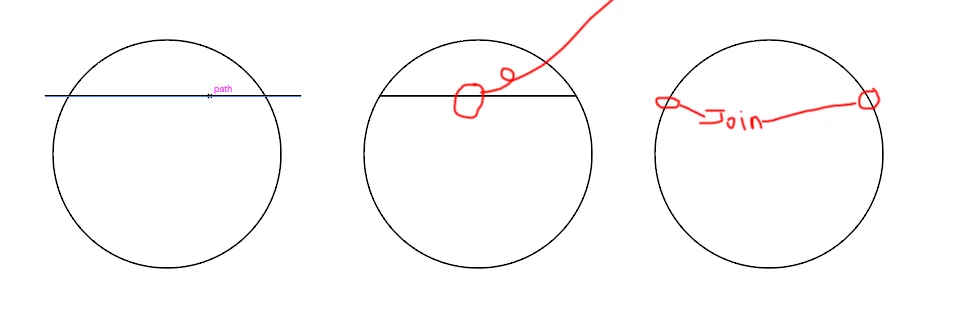
    On a circle is a little more work.

    1. Draw an extra  line.
    2. Select line only,  object >> path  >> divide objects below
    3. Command Y, with hollow arrow tool drag over lines to delete. Then select points with hollow tool, Object path join.

    2 replies

    Mike_Gondek10189183
    Community Expert
    Community Expert
    May 11, 2017

    Yes you can be numerically specific.

    1. Add the point first roughly where you want with the pen tool with plus sign
    2. The point should be selected,  go to transform and enter the number
    enyab31532995
    Participant
    May 12, 2017

    Thank you Mike! I really appreciate the response!

    I already know how to enter where I want the anchor point to go, but doing that will alter the path itself. I don't want to alter the path, I want the path to stay put, but be able to place an anchor point at a specific point along that path. Here are some images that will hopefully give a better idea:

    Here I've placed an anchor point on the right side of a circle path. The y value is 1472.703 px. Now I want to put another anchor point on the left side of the circle point at the exact same height, without altering the path. So the x value will be different, but I want it to have the same y value.

    Using the method you suggested, I should be able to place an anchor point anywhere along the path, and then change the y value. Here I've placed an anchor point:

    Now when I change the y value, it drags the entire path:

    Let's say I was able to determine what the exact x value should be (thankfully this example is done with a circle, so I can do the math and figure it out, but that won't always be the case). Even then, I'm still dragging the entire path along with the anchor point. So it would end up looking something like this:

    My goal is to predetermine where the anchor point is created along a path.

    I hope I've explained it better. It may be that this is just the wrong way to go about it in the first place. The actual image I'm working on is more complex.

    Mike_Gondek10189183
    Community Expert
    Mike_Gondek10189183Community ExpertCorrect answer
    Community Expert
    May 12, 2017

    On a circle is a little more work.

    1. Draw an extra  line.
    2. Select line only,  object >> path  >> divide objects below
    3. Command Y, with hollow arrow tool drag over lines to delete. Then select points with hollow tool, Object path join.

    Inspiring
    May 11, 2017

    Try using the rulers and guides.

    enyab31532995
    Participant
    May 11, 2017

    Thank you. I've tried using the guides, and they seem to work sometimes, but they aren't completely accurate. Maybe I'm just doing it wrong. Is there a way to snap to the guides?

    Basically here's the situation. I have anchor points on one side of my drawing, and I'm trying to add them at the exact same point along the y axis to the other side of my drawing. I can get them very close, but the y axis for each point is always slightly off. I turned on the "smart guides" thinking that would allow me to snap to the guides (I believe turning this on prompted the pink "intersect" that appears). I thought it worked, or it did work, but only for two anchor points. The other anchor points "intersected" with some other points that weren't the guides, or the "intersect" just never appeared like it did with the two points that worked. Again, I might be completely wrong about what the smart guides do.

    I really appreciate any more help you can provide.

    Larry G. Schneider
    Community Expert
    Community Expert
    May 11, 2017

    Have you tried using the Reflect tool (tool shortcut O) to reflect copies of the points across the x or y axis?