
philippaw43340443
Participating Frequently
September 9, 2017
Answered

Cannot create geometric stripe line art!

  • September 9, 2017
  • 2 replies
  • 922 views

Hi,

I've been trying to create geometric stripe art following this tutorial: How To Create Geometric Stripy Line Art in Illustrator

- When I reach the step to create semi-circles, quarter circles etc my shape appears to stack the circles on top of each other, creating a cone shape, rather than creating a flat shape as per the tutorial. I've tried turning off the 'anti-aliasing' feature as suggested in a different blog, and double checked the brush settings but nothing works! When I create the circle it has no fill and the stroke is black. Here is a screen shot which may help...

I am very new to illustrator so any help would be much appreciated!

Many Thanks
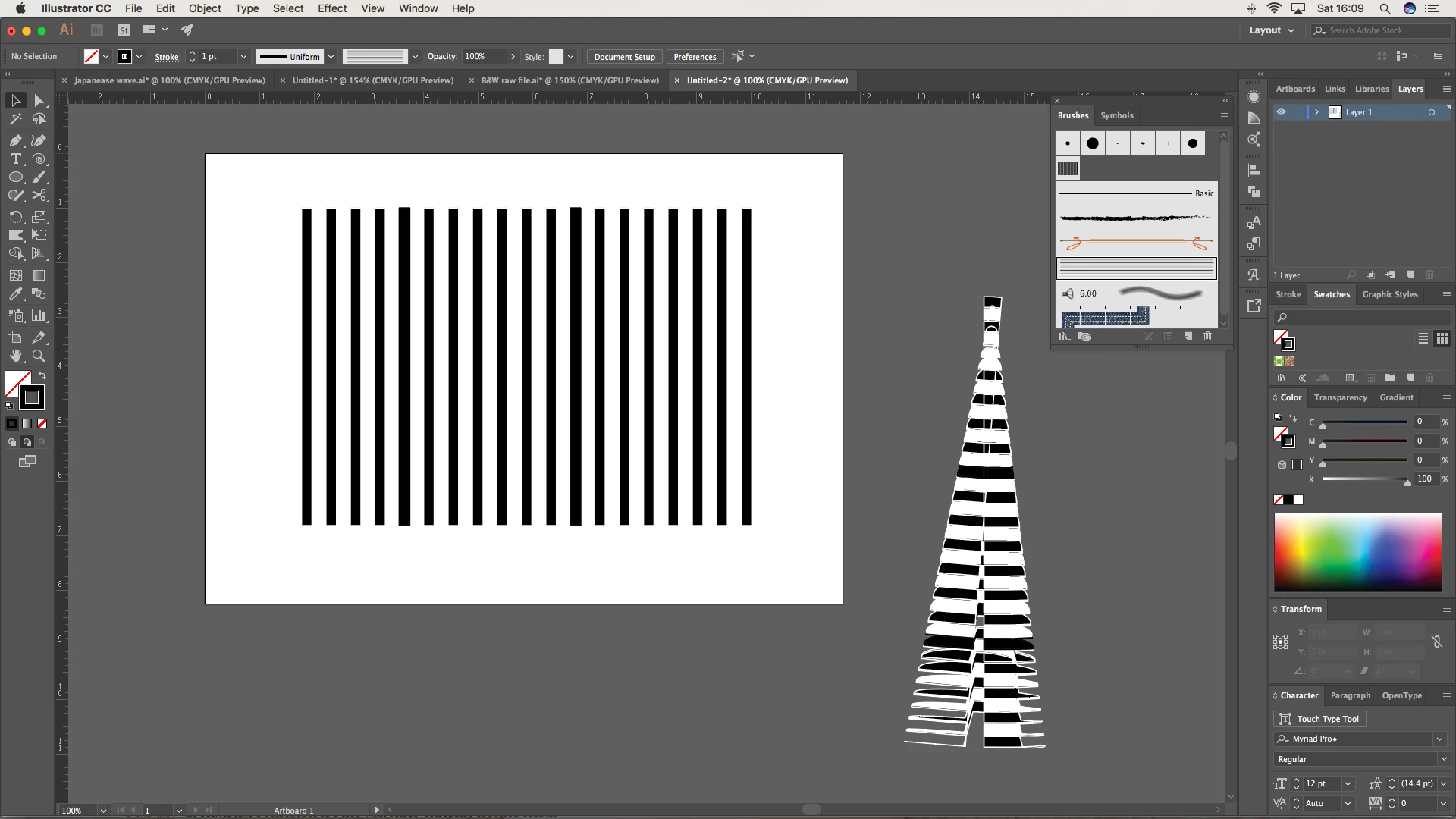
    This topic has been closed for replies.
    Correct answer Monika Gause

    Dropbox - Geometric stripe.ai

    Apologies!


    2 issues with your file:

    the path is closed and it needs to be open. Just a half circle.

    The brush is tool large compared to the circle. You need to make either the circle bigger or the stroke width smaller or the brush smaller.

    2 replies

    Ray Yorkshire
    Participating Frequently
    September 10, 2017

    In addition,

    The initial rectangle seems  to have NO stroke,  just a  fill

    Zoom in

    Use the selection Tool, select the  rectangle and

    holding the mouse down, both the shift key (to constrain the movement to  level)

    and Alt key to make a copy

    Drag  right until the smart guides show intersect

    release, you have 2 side by side

    Then to easily repeat

    use the command Object > Transform  > Transform Again

       or keyboard shortcut Crtl +D

    Keep it simple at first,  eg make 3 and give the middle one say a white fill and no stroke

    Drag into the brush panel

    Make an Art Brush

    Click Ok

    Draw a circle

    Give it just a Stroke ie  the new brush

    The circle only has 4 anchor  points, to get 8, to easily make a  quarter circle-

    select the circle and Object > Path > Add Anchor points

    maybe copy the circle

    Use the direct selection tool (white arrow)  to select and next  delete anchor points to make the 3/4 circle etc

    philippaw43340443
    Participating Frequently
    September 10, 2017

    GREAT! Thanks very much!

    Monika Gause
    Community Expert
    Community Expert
    September 9, 2017

    Please upload that file somewhere and post a link.

    Dropbox will be fine.

    philippaw43340443
    Participating Frequently
    September 9, 2017
    Monika Gause
    Community Expert
    Community Expert
    September 9, 2017

    Please upload the AI file.