Participant
November 7, 2020
Répondu

Cant modify an imported PDF vector file

Hi !

I grabbed this program a day or two ago and its mostly very user friendly and great.  Understandably i won't get everything perfect and i am having a struggle trying to modify an imported PDF vector file.  I originally created a 3D file in Fusion then created a DWG file from that in Fusion, but the DWG wouldn't upload into Illustrator.  So i then created a PDF in Fusion and imported it into Illustrator, and then created other stuff in Illustrator.  I find i am able to scale the entire PDF component, but not use 'Fill' or move elements within the drawing relative to each other.  I am creating a logo so i don't want to rasterise it, and when i tried 'Image Trace' the quality wasn't quite good enough. 
Ce sujet a été fermé aux réponses.
Meilleure réponse par Anna Lander

Your imported PDF is in Clipping mask (this happens often when you import non-native vectors in AI). So, you can release it (Ctrl/Cmd+Alt/Opt+7, repeate until all the objects will have their own edges highlighted), ungroup (Ctrl/Cmd + Shift+G) and delete all unnecessary objects.

But there is a sad news for you: each segment of each your object is a separate line, so you need to join them.

there are 2 ways to continue.

1 — connect all segments point by point (I'm not sure thai it's a good way for this case but it might be useful in some further projects):

1. Using Direct Selection Tool (White Arrow) select 2 endpoints from different segments

2. Click Ctrl/Cmd+Alt/Opt+J > Both to place the points at the same place

3. Click Ctrl/Cmd+J to join the segments.

Repeat it for all points. 

This way is long and boring but safe and well-controllable.


2 — follow Mylenium's advice and create a Live Paint Group:

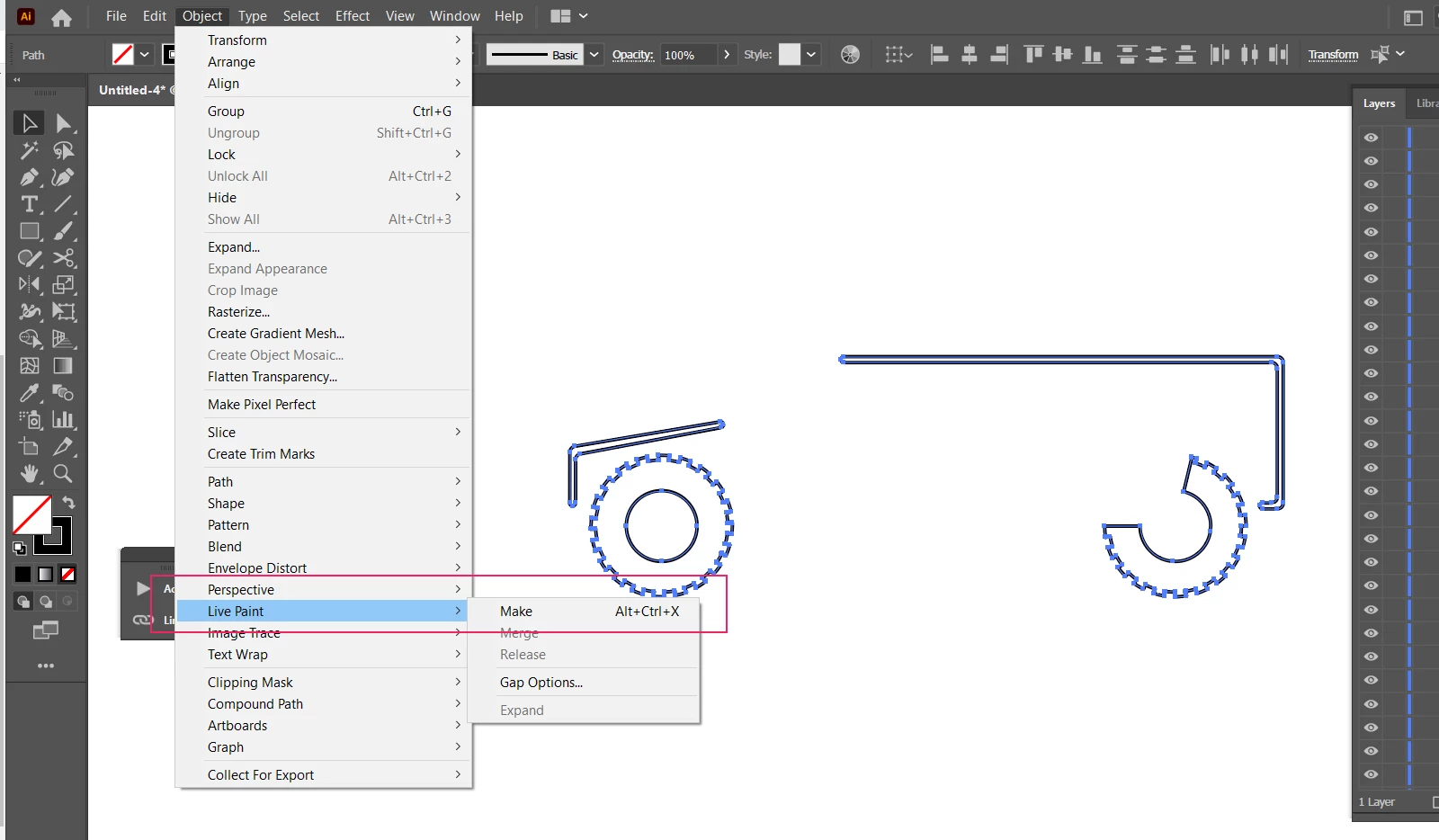
1. Select all the elements of your logo and go to Object > Live Paint > Make

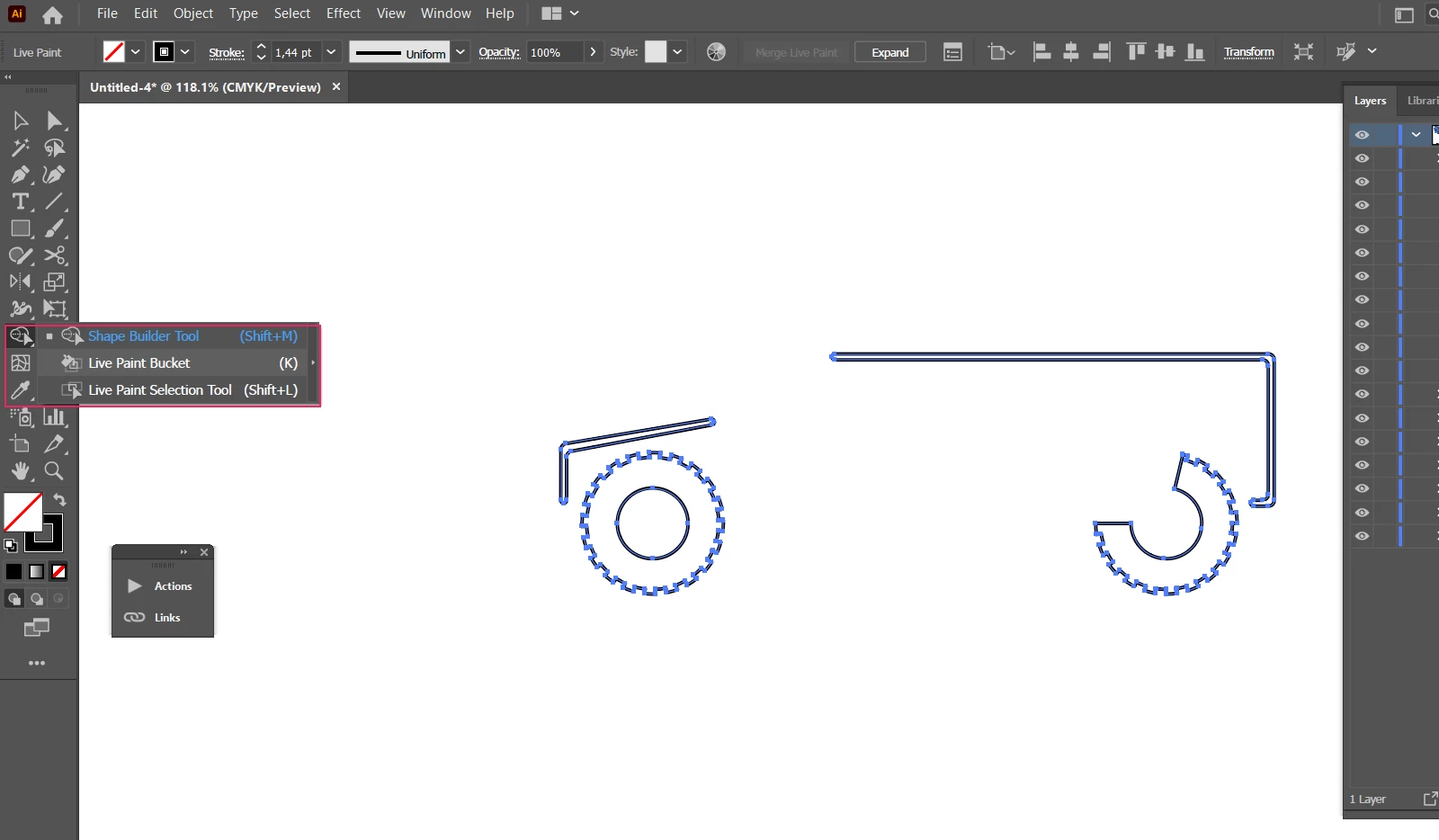
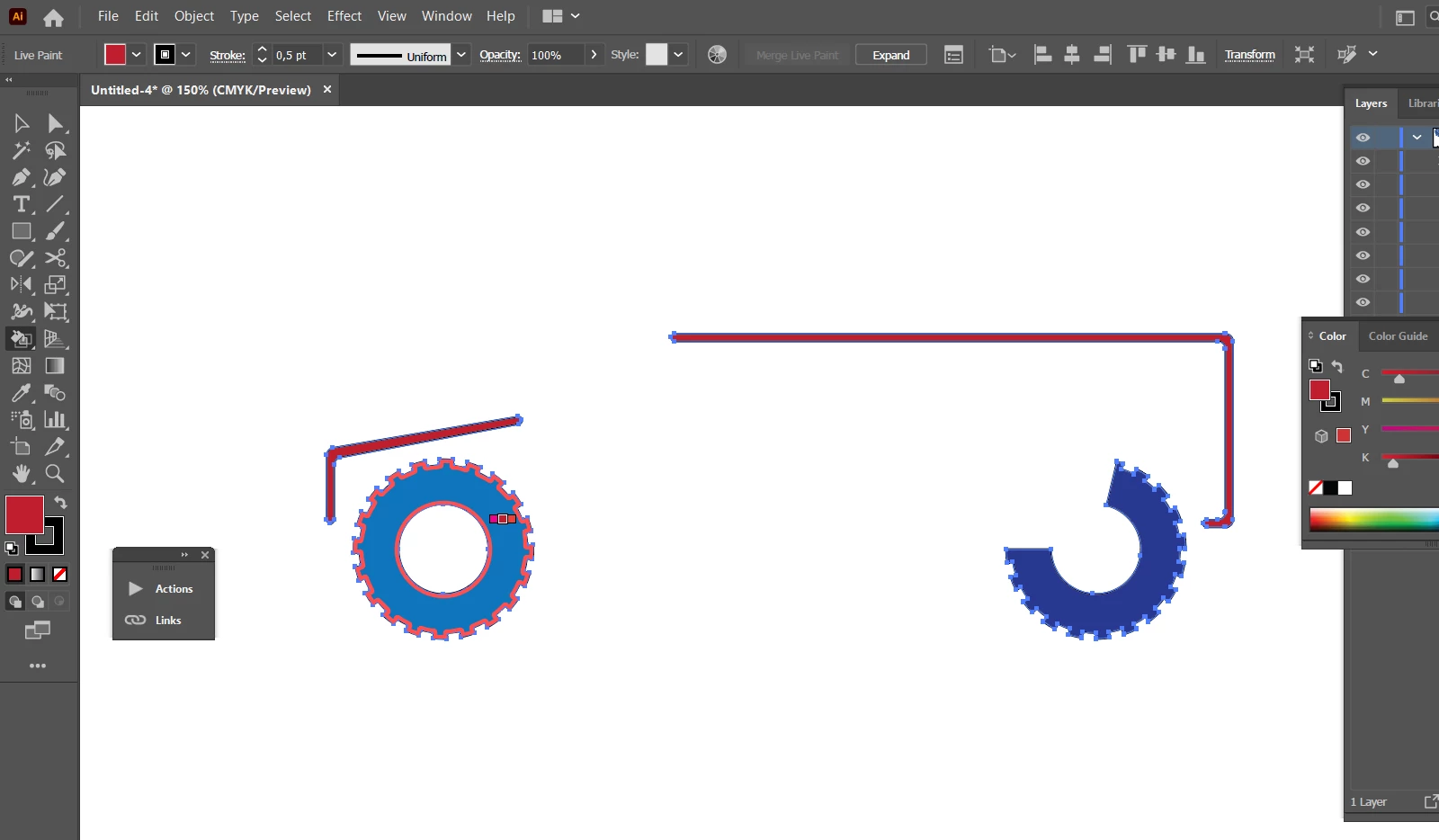
2. Using Live Paint Bucket fill the objects like you wish. Change the Stroke settings if needed.

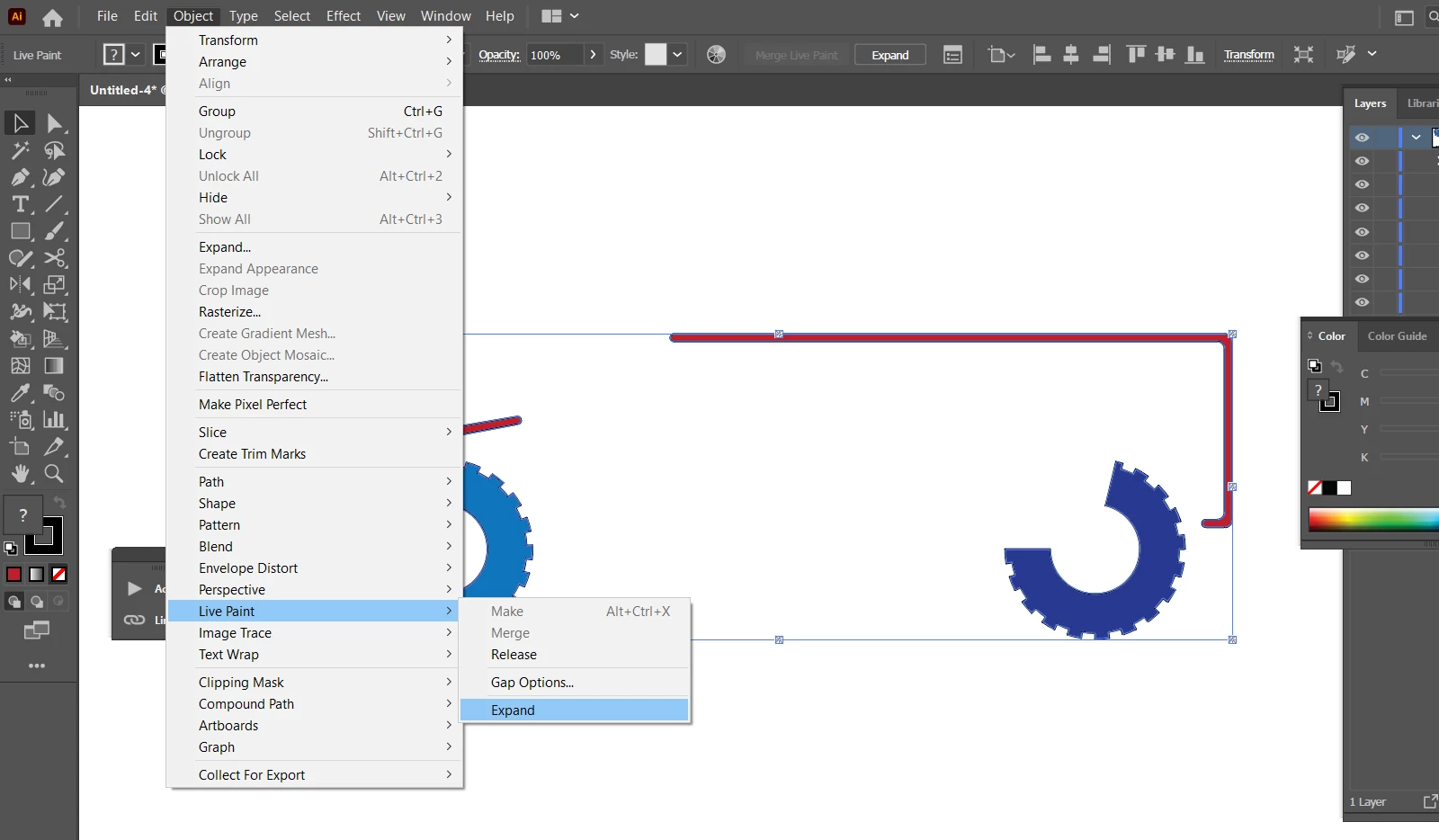
3. Finally Expand the Live Painting group to get separate editable objects for further work.


4 commentaires

Anna Lander
Inspiring
November 11, 2020

did you open the PDF or place it?
If place, open Links panel, select the PDF and in panel menu choose Embed command. This will make the PDF editable.

Participant
November 11, 2020

I opened the PDF.  I can't find the "Embed" command.

Anna Lander
Inspiring
November 11, 2020

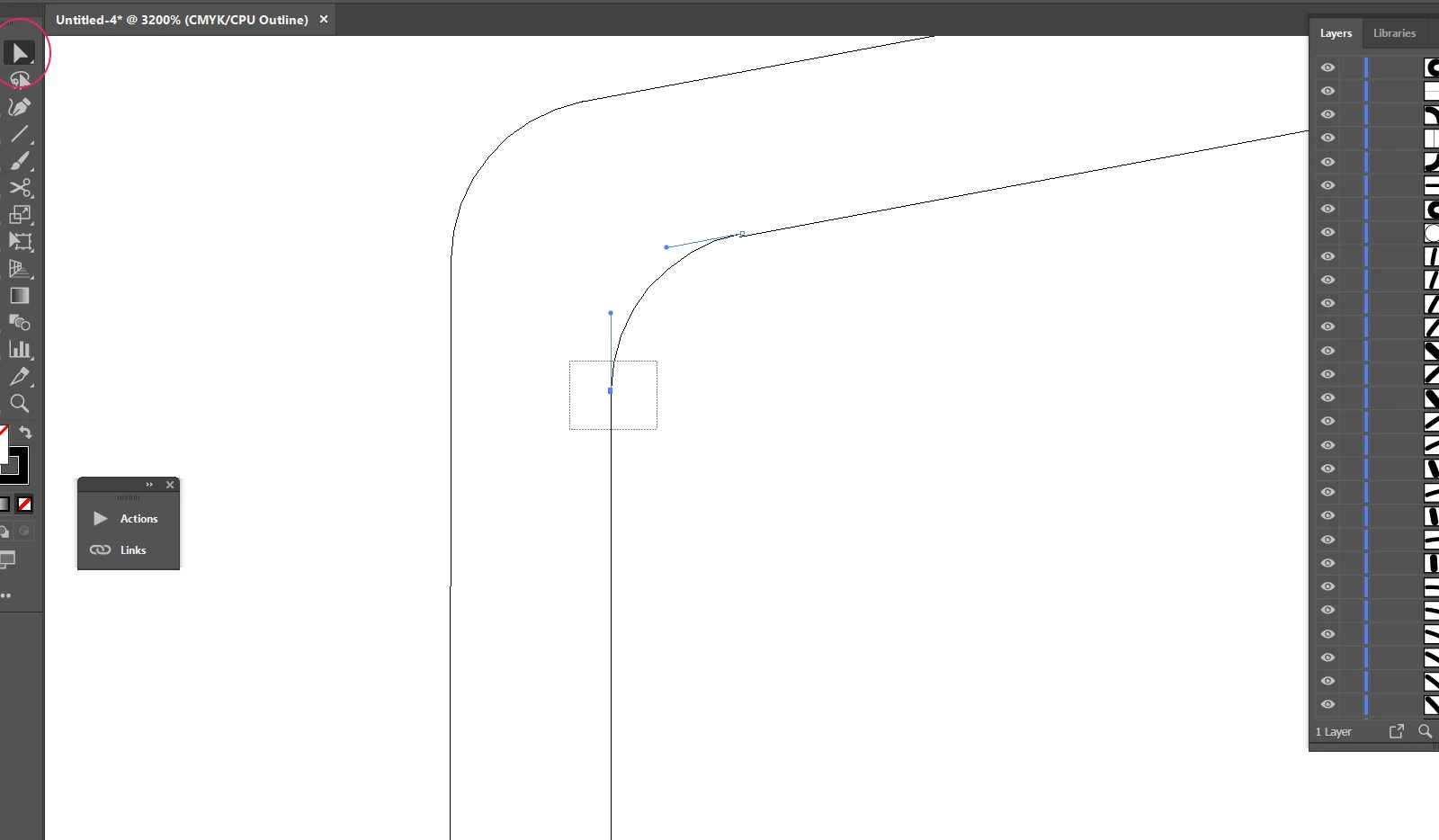
please, show the screenshot of your original PDF file when it's just opened and with all the content selected.

Yes, when you open PDF, you can't see the "Embed" command, its for placed content only.

Legend
November 7, 2020

Key point: you may get great results, I hope so, but Illustrator is not made or sold as a general PDF editor. Your mileage may vary wildly. It does a perfect job of editing only the PDFs that Illustrator made itself, and which were saved with "preserve editing".

Anna Lander
Anna LanderRéponse
Inspiring
November 7, 2020

Your imported PDF is in Clipping mask (this happens often when you import non-native vectors in AI). So, you can release it (Ctrl/Cmd+Alt/Opt+7, repeate until all the objects will have their own edges highlighted), ungroup (Ctrl/Cmd + Shift+G) and delete all unnecessary objects.

But there is a sad news for you: each segment of each your object is a separate line, so you need to join them.

there are 2 ways to continue.

1 — connect all segments point by point (I'm not sure thai it's a good way for this case but it might be useful in some further projects):

1. Using Direct Selection Tool (White Arrow) select 2 endpoints from different segments

2. Click Ctrl/Cmd+Alt/Opt+J > Both to place the points at the same place

3. Click Ctrl/Cmd+J to join the segments.

Repeat it for all points. 

This way is long and boring but safe and well-controllable.


2 — follow Mylenium's advice and create a Live Paint Group:

1. Select all the elements of your logo and go to Object > Live Paint > Make

2. Using Live Paint Bucket fill the objects like you wish. Change the Stroke settings if needed.

3. Finally Expand the Live Painting group to get separate editable objects for further work.


Participant
November 7, 2020

Thanks very much.  I will work on this and report back.

Mylenium
Legend
November 7, 2020

It's probably a whole mess of infinitely nested groups, separate path segements and compound paths. that happens a lot when exporting CAD data. Dig into the layers palette, dissolve the groups and so on, then re-group sensibly in the AI sense. For filling it may be simpler to convert the group to a Live Paint group and fill the areas instead of trying to mend and join the paths the hard way by hand...


Mylenium