Participant
April 7, 2022
Answered

CC Logo appears instead of graphic thumbnail in Library

  • April 7, 2022
  • 2 replies
  • 1682 views

Hi, I'm experiencing a couple of frustrating issues. 


My task is to take a bank of icons from an illustrator file which have been created on 147 artboards within that file, and add them all as individual pieces of artwork to a CC library. This has to be repeated for each separate colourway we use. At the moment, I can't find any way of adding all the artboards as individual graphics to the library other than selecting each one individually then dragging (or right clicking and gong through the menu) to the library panel. As I have 14 colourways to add, this adds up to over 2000 individual graphics, resulting in a task which is incredibly tedious! 


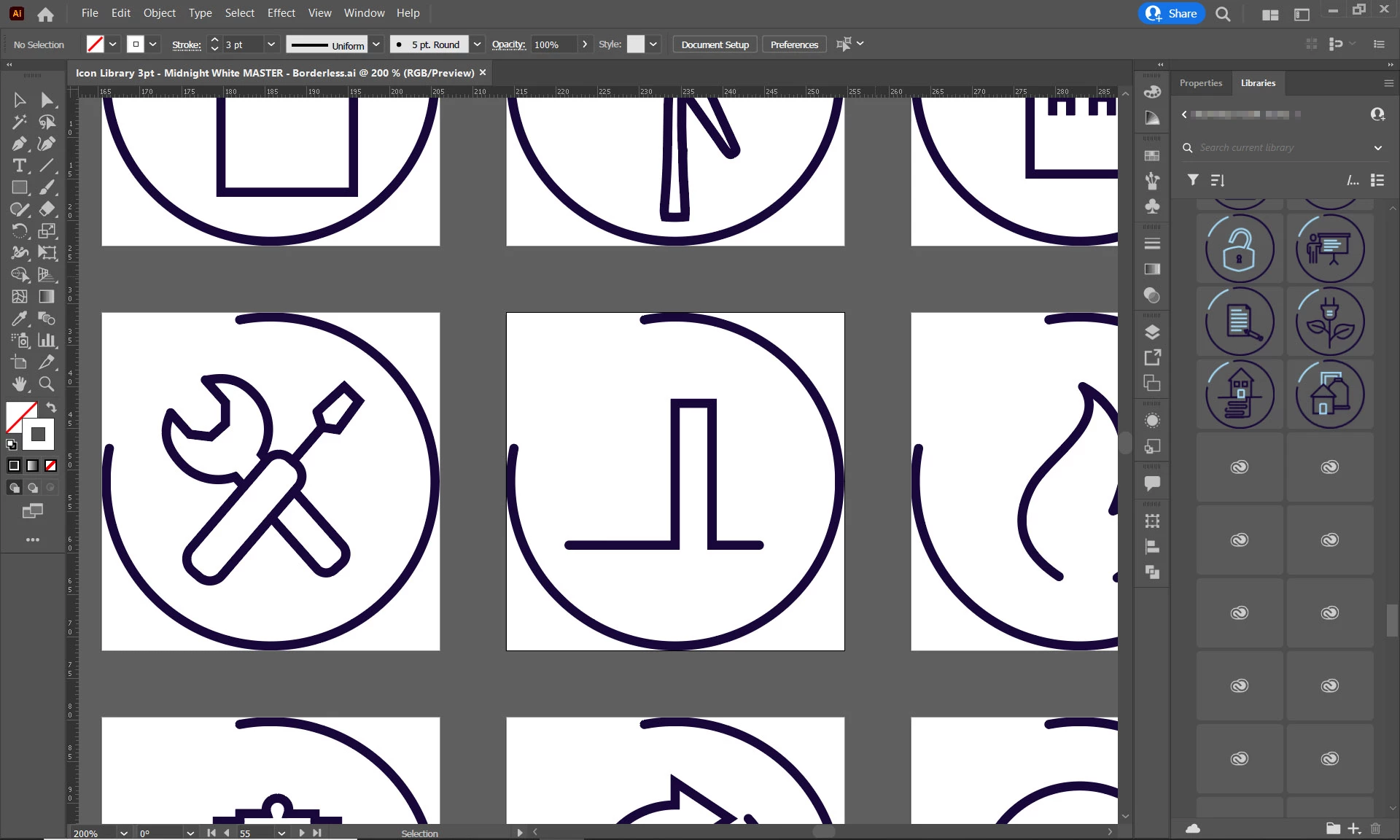
Even so, after adding my 200th icon, the library started to display just the CC logo rather than a preview of the artwork itself, as all the previous ones had - as expected and indeed necessary. There is no use to the library if it does not display the artwork stored there. Screenshot below.


Can anyone help?


Thanks
 

This topic has been closed for replies.
Correct answer Ton Frederiks

Thanks Ton, I appreciate your help so far. Your suggestion presents some of its own problems, however:


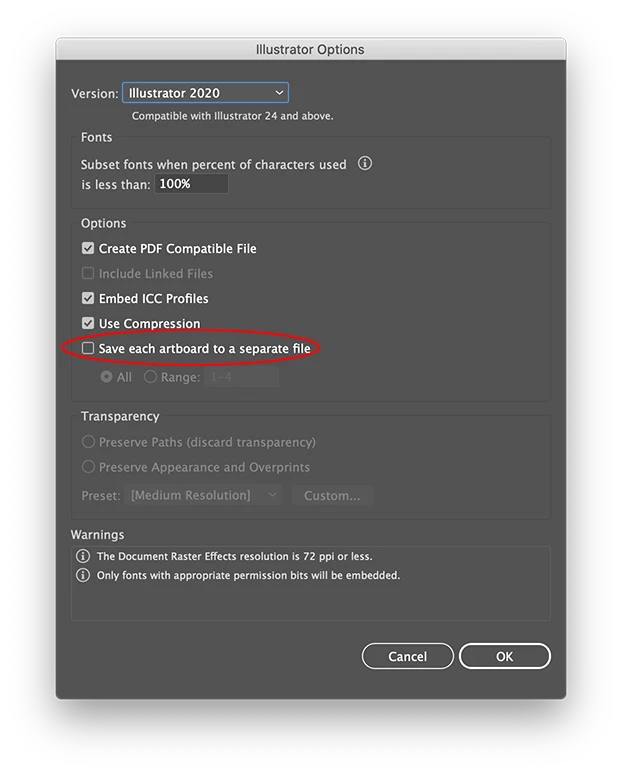
It won't let me save as separate .ai files, as the artboards option in the save window is greyed out. 

It will let me save as separate.eps files, but these are not accepted within a CC library.

It will let me save as .psd files, but these are rasterised, defeating the point.

It will let me save as artboards to a .pdf file, but these are saved as pages within one single file.

It will let me save as .svg files, which appear to be my only option to retain a vector which I'll be able to add to a CC library.


Is .svg my only option here?


It will let you save as separate file, you have to click Save to get to that option.

2 replies

Adobe Employee
May 19, 2022

@Ton Frederiks @DecoDeco 


Hello everyone, thank you for your patience as we have been working on fixing this issue. Please follow the following steps 

1. Download the latest Creative Cloud Libraries installer from the link below in Step 1, and double-click the file to begin the installation.

https://helpx.adobe.com/creative-cloud/kb/libraries-panel-not-working.html


2. Then remove the contents of the renditions folder at the two following locations in your file explorer:

  • %appdata%\Adobe\Creative Cloud Libraries\LIBS\<userID>\collaborated\renditions
  • %appdata%\Adobe\Creative Cloud Libraries\LIBS\<userID>\creative_cloud\renditions

For example: the final path will be something like C:\Users\<username>\AppData\Roaming\Adobe\Creative Cloud Libraries\LIBS\88F71D2E6239FBCC0A666666_3b796a535f99c1570a4666666\creative_cloud\renditions\. 


Note: you may have only one of these folders, depending on if you have libraries both libraries that have been shared with you, or if just have private libraries. This is fine!  


3. Finally, kill CCLibrary Process from Task Manager and restart all Adobe products such Photoshop, Illustrator, etc


This should repair all the thumbnails back to their previous state.

Known Participant
May 19, 2022

This doesn't work. The steps in the above direction don't match with the steps on the link you provided. So which one should we do? I did both and none of this worked. I am on a PC.

Ton Frederiks
Community Expert
Community Expert
April 7, 2022

Have not seen this. Does it look the same in Photoshop?

If so it is not Illustrator specific and suggest to post it here:

https://community.adobe.com/t5/creative-cloud-services/ct-p/ct-cc-services?page=1&sort=latest_replies&filter=all&lang=all&tabid=discussions

DecoDecoAuthor
Participant
April 7, 2022

Hi Ton, yes, it's the same across all Adobe apps. I've added a screenshot below of what it looks like in the CC app - just blank squares, not even the CC logo.


I suppose the thing that is unique to Illustrator is the first half of my post - am I missing something here, or does a way to export all artboards as separate graphics to a CC library not exist?


Thanks.


Ton Frederiks
Community Expert
Ton FrederiksCommunity ExpertCorrect answer
Community Expert
April 7, 2022

Thanks Ton, I appreciate your help so far. Your suggestion presents some of its own problems, however:


It won't let me save as separate .ai files, as the artboards option in the save window is greyed out. 

It will let me save as separate.eps files, but these are not accepted within a CC library.

It will let me save as .psd files, but these are rasterised, defeating the point.

It will let me save as artboards to a .pdf file, but these are saved as pages within one single file.

It will let me save as .svg files, which appear to be my only option to retain a vector which I'll be able to add to a CC library.


Is .svg my only option here?


It will let you save as separate file, you have to click Save to get to that option.