
gloriad64706371
Known Participant
February 14, 2019
Answered

Centering text in grid box

  • February 14, 2019
  • 7 replies
  • 5745 views

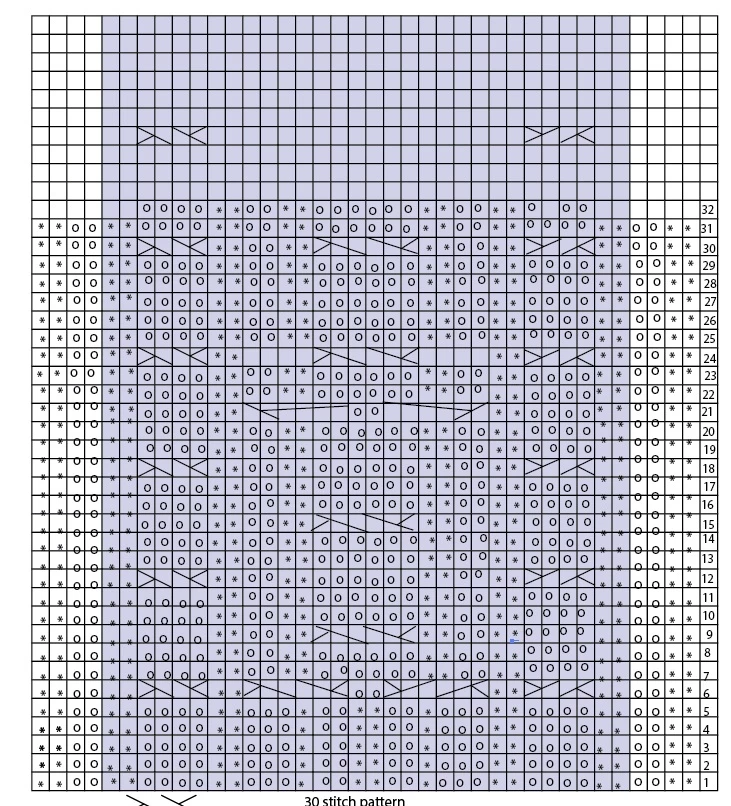
I've created a grid to design a knitting pattern.

Using text "*" and "o" designating knits and purls.

Is there an easy way to get the text items centered within each box in the grid so it's very precise and neat?

This topic has been closed for replies.
Correct answer maxwithdax

Yes. But by column.

1. Lock down your grid object

2. In first column, center the top icon in the top grid box

3. In the first column, center your last icon in the bottom grid box

4. Select all objects in the column and choose ALIGN > VERTICAL DISTRIBUTE CENTER
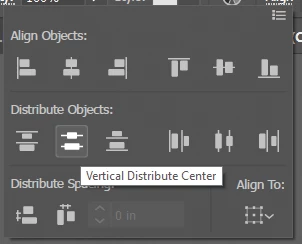
This will vertically center all the icons in that column. Now just repeat for all other columns.

-Dax

7 replies

gloriad64706371
Known Participant
February 18, 2019

Thanks for all the responses.

Simply emphasizes how much i have to learn.

I'm very close to having this finished.

Doug A Roberts
Community Expert
Community Expert
February 18, 2019

Here's a possibly silly idea: make it a live paint group.

Make a set of pattern swatches inside no stroke/no fill rectangles the same size as your grid squares. Make as many as you need icons for. Make your grid into a live paint group and use the swatches to fill in the grid:

rcraighead
Legend
February 18, 2019

Creative solution. That makea me think, you could also make a set of Symbols, build a grid with one and swap as needed. This may take longer than the pattern approach though.

edit: of course you could option select all the ones that need changing and do them in one step.

Doug A Roberts
Community Expert
Community Expert
February 19, 2019

Symbols were my first thought too. I like this problem. I need an excuse to make knitting patterns now.

Ton Frederiks
Community Expert
Community Expert
February 17, 2019

I can see a reason to use text objects, you can use Tabs and Leading to align the characters.

I used the Windings2 font for horizontally aligned characters.

JETalmage
Inspiring
February 17, 2019

Is there some reason you are using text objects for this?

JET

gloriad64706371
Known Participant
February 17, 2019

I started this project in excel, thinking I could import them. I can, but not as sharp looking.

I'm open to any suggestions.

I am almost done with all 8. I'm just trying to perfect them.

Ton Frederiks
Community Expert
Community Expert
February 17, 2019

You can export your Excel file as .csv and tab delimited and copy and paste the result into Illustrator.

Make sure that you have character and paragraph styles defined.

maxwithdax
Community Expert
maxwithdaxCommunity ExpertCorrect answer
Community Expert
February 15, 2019

Yes. But by column.

1. Lock down your grid object

2. In first column, center the top icon in the top grid box

3. In the first column, center your last icon in the bottom grid box

4. Select all objects in the column and choose ALIGN > VERTICAL DISTRIBUTE CENTER

This will vertically center all the icons in that column. Now just repeat for all other columns.

-Dax

sharp_hands16B8
Community Expert
Community Expert
February 15, 2019

Dax is spot on. Draw your grid. Align to the top square and farthest away square. Now you can either blend, or distribute, a number of objects between those.

Luke Jennings
Inspiring
February 14, 2019

If you are comfortable with InDesign, you can create a small text box and add a place holder character, setting the alignment to center and text box option to center, add an outside .5 pt stroke, then step and repeat to create a perfect grid. Alternately, you can make an InDesign table, which might be a bit easier to edit. (Table> create table).

Kurt Gold
Community Expert
Community Expert
February 14, 2019

That mainly depends on how your grid is constructed and how you set up the type objects.

Can you share this sample .ai file?

Also, which version of Illustrator are you using?

gloriad64706371
Known Participant
February 14, 2019

23.0.1

I made my main rectangle.  Object> Path > Split into grid

Designated the number of rows and columns.

I did all the text objects singularly, trying to move them into place.


I created the graph in Excel first, made a jpg and placed it on the page to follow along.

Love to know it there's a simpler way to achieve the same end result.

Not sure how to share the file right now. I'll figure it out.

Kurt Gold
Community Expert
Community Expert
February 14, 2019

In order to share the file you can use one of the various file sharing provider (Google Drive, for example).

Apart from that, I think the task would be better done in an application that offers genuine tables. Illustrator currently does not offer tables. InDesign does provide them. There are other applications as well.