tara8421
Participant
June 25, 2018
Answered

Change logo made in photoshop to a vector image

  • June 25, 2018
  • 7 replies
  • 2376 views

I am 100% new to Illustrator and have not the faintest clue as to how to use it.  I am however fairly familiar with Photoshop.  I have created a logo for myself in photoshop, but am seeing that the recommendation is to create a logo as a vector in illustrator in order to save it as a larger file and be able to scale up or down to fit any media.  My Photoshop logo is basically layers of text and objects, png's from outside sources.  I do not know how to "create, or draw" my own designs so I use a lot of clip art from the web (just stating this so you know I am not a pro at photoshop- more advanced than a beginner, but not pro).  Is there a way for me to somehow convert the photoshop image into a vector image without having to start over completely?  I am unsure as to how to even begin making a logo in Illustrator.  Any advice would be greatly appreciated.
This topic has been closed for replies.
Correct answer Jose M. Ramos

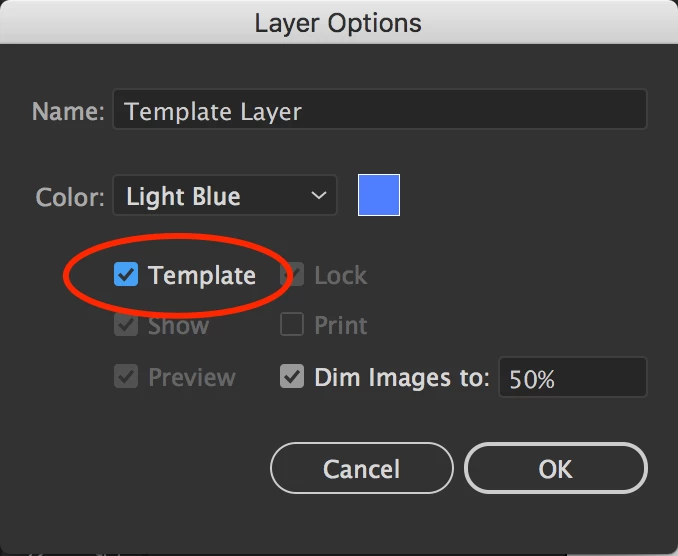
Copyright issues aside, this is completely doable! The first thing you'll want to do is turn the sample art layer into a template. You do so by double clicking the empty space to the right of the layer 1. Then, you'll want to turn on "Template" and name the layer.

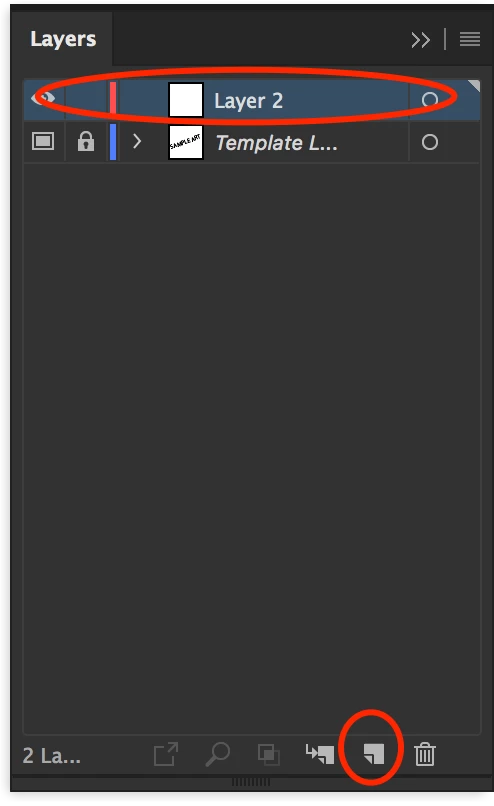
Next, you'll create a new "working" layer, like so:

With the basic setup out of the way you can now start to create your vectors:

For the typography (numbers and text), simply choose the font that best matches your sample image and scale and distort as needed. You can trace the key object by stacking primitive objects (circles, polygons, etc), and then you can use the Shape Builder tool to merge them all into a single shape. And finally for the star shape, you might as well just use the pen tool and trace away. This is pretty simple. Hope this helps!

7 replies

KShinabery212
Community Expert
Community Expert
June 26, 2018

To be honest.  I would just use the photo as template and rebuild the graphic in Illustrator.  I know that sounds like a hassle.... but in the end that is the simplest thing to do.  And the graphic above does not look so complex.  I know I could build that up in less than hour, maybe even under 30 minutes. 

But I also do complex characters using vector graphics so I can work fast when it comes to building shapes.

I think rebuilding it in Illustrator is your solution.  Then you get the look you want... you can even tweak it the original feel as well.  Maybe you do not like a curve or a line and you want to get FANCY or CREATIVE.... rebuilding it enables that opportunity!

Cheers and happy creating.

Let's connect on LinkedIn. https://www.linkedin.com/in/kshinabery/
tara8421
tara8421Author
Participant
June 26, 2018

I don't know how to "build graphics" in illustrator, that is my problem... I am just doing this for personal use and learning how to do that in illustrator seems very daunting to me.  I was looking for an easier solution than trying to figure out how to draw and build in AI... the stuff you all do on here is amazing and seems way out of my league.

tara8421
tara8421Author
Participant
June 26, 2018

Here is an idea of what I am trying to make.  When making things like this I typically purchase "royalty free" clip art from Etsy so I am sure to not infringe on any copyright issues.  With this image, I did not do that yet, as it is simply a rough draft/idea of what I want.  I was hoping perhaps there was a quick way to import into illustrator and make it a vector image (honestly I am so unfamiliar with AI that I don't even know what a vector image is).  Everything I read says to make a logo in AI, but I only know how to use Photoshop.  I could create a very large photoshop document, but will that really be the same as making it in AI?  Until I did a google search of "what size to make a logo, I didn't even know that most were made in AI< I thought people normally did them in Photoshop:)  Thanks again for all of the advice!

sharp_hands16B8
Community Expert
Community Expert
June 25, 2018

It really depends on the source. If you can share there will be some more logical pathways to solve the problem.

Jose M. Ramos
Inspiring
June 25, 2018

Can we see the logo/image you want to convert? It would help a great deal to see it before we can offer useful suggestions.

ceyhun_akgun
Legend
June 25, 2018

In Photoshop you can use the "vector smart" function.

With Vector Smart, you can recreate your images in the sizes you want in Photoshop.

Smart Object etc. It can also work as an external file while running visuals.

You can update it at any time.

Graphic Designer Educator / PrePress Consultant
Bill Silbert
Community Expert
Community Expert
June 25, 2018

In addition to what Jacob said please be aware that if you are using photos or any other kind of continuous tone elements for your logo they will be dependent on resolution even if they become part of a logo made in Illustrator. That means that even though all of the type elements and line art created as vector in Illustrator for your logo will not be dependent on resolution (and can be enlarged or reduced to any size), any images that you might include in the logo will, in effect, "hold the size flexibility back" and make the entire logo resolution dependent. To make a logo that has complete vector flexibility only include vector objects.

Jacob Bugge
Community Expert
Community Expert
June 25, 2018

Tara,

There is no easy way to create something that is worth using as a logo.

Apart from that, a logo is supposed to be something unique, yours, so the use of bits and pieces from elsewhere sounds inadequate; and you may be infringing on copyrights.

Have you tried/considered starting with a simple sketch on paper?

If you have a rough idea, many here may give suggestions on how to proceed.

tara8421
tara8421Author
Participant
June 26, 2018

I just posted the image in reply to my original post.  I do typically purchase clip art from Etsy that is free to use in logos or other things so as not to infringe on any copyrights.  I don't know how to "design" shapes and things on my own, so I use clip art and manipulate it to what I want it to be.  Unfortunately, I am self-taught and never learned how to actually design the objects myself... so instead, I piece together the clips and text and make it that way... for personal use only- obviously I am not running a business here selling these- lol  Thanks so much for your help!

Jose M. Ramos
Jose M. RamosCorrect answer
Inspiring
June 26, 2018

Copyright issues aside, this is completely doable! The first thing you'll want to do is turn the sample art layer into a template. You do so by double clicking the empty space to the right of the layer 1. Then, you'll want to turn on "Template" and name the layer.

Next, you'll create a new "working" layer, like so:

With the basic setup out of the way you can now start to create your vectors:

For the typography (numbers and text), simply choose the font that best matches your sample image and scale and distort as needed. You can trace the key object by stacking primitive objects (circles, polygons, etc), and then you can use the Shape Builder tool to merge them all into a single shape. And finally for the star shape, you might as well just use the pen tool and trace away. This is pretty simple. Hope this helps!