New_guy1
Inspiring
December 14, 2016
Answered

Changing the Color of a Background

  • December 14, 2016
  • 3 replies
  • 6913 views

I have a one-color logo sitting on a white background.

One layer. the logo is on this one layer.

I would like to change the color of this background (not the logo).

But I can't. I tried the live paint bucket tool and it won't spill paint on my white background.

Apparently, the white background is not really a background. It may be my artboard.

I don't know. I'm new to illustrator.

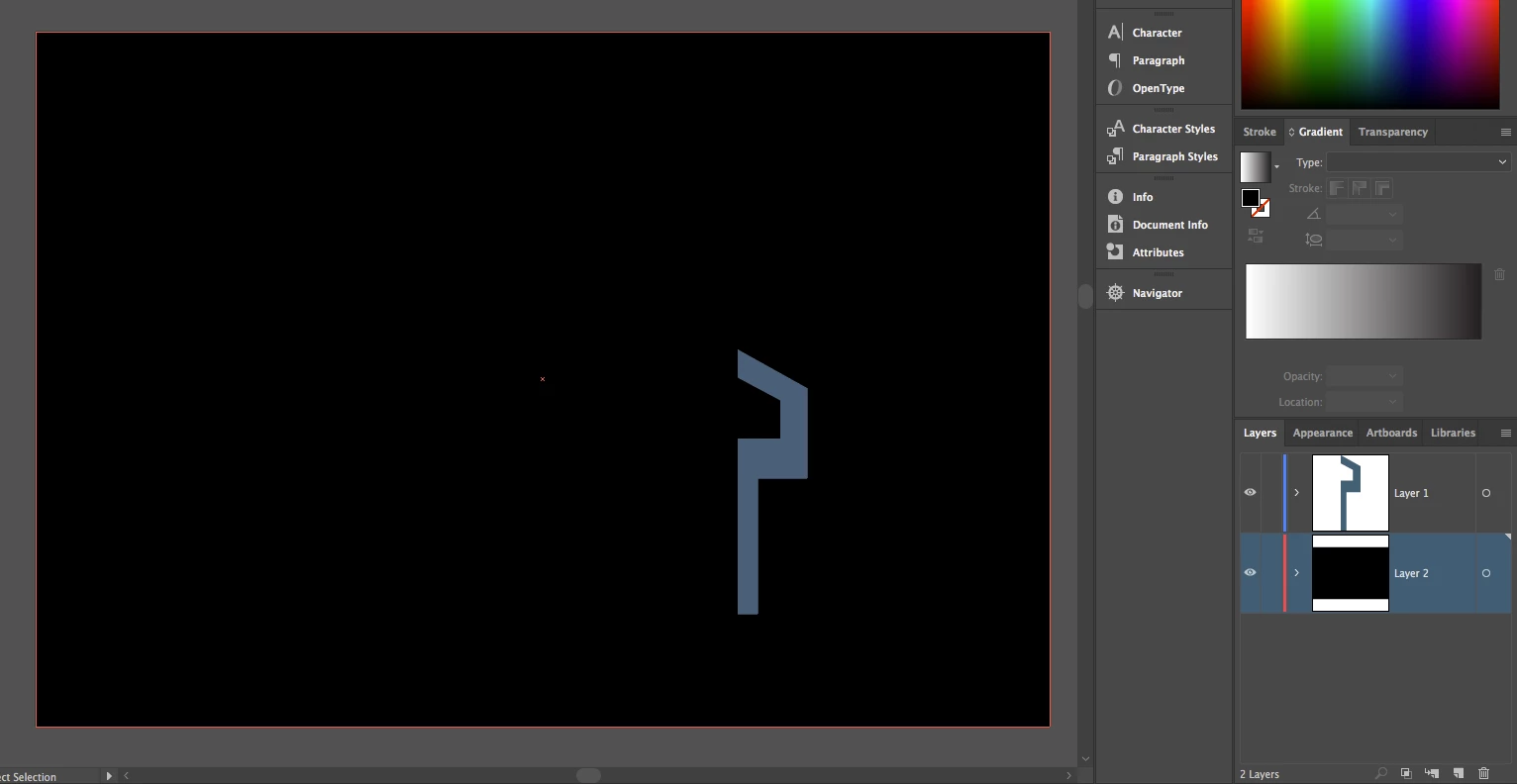
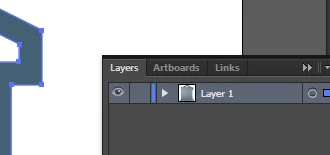
Here's a graphic of my logo and the white background and the one layer in this project:'
    This topic has been closed for replies.
    Correct answer geoffball

    Put a rectangle the size of your artboard behind the object (put it on its own layer and put that layer under layer 1 on your layers panel) and colour it however you want.

    3 replies

    Jacob Bugge
    Community Expert
    Community Expert
    December 15, 2016

    New guy,

    I believe you just want the logo and to be able to use it on whichever background, and that is what you have already.

    To see what it looks like on a (different) colour (than white), you may use Simulate Colored Paper or a temporary rectangle/other path in the background (in the latter case, make sure it is not saved/exported as part of the logo).

    goodgood magic
    Participating Frequently
    April 19, 2017

    Hi Jacob Bugge,

    Would you show me more about  "Simulate Colored Paper or a temporary rectangle rectangle/other path in the background". Where or how to make it? It would be great if a screen shot is given. Thanks.

    barbara_a7746676
    Community Expert
    Community Expert
    December 15, 2016

    That's right. The white you see is just the artboard. The way you can tell if you have white or transparent, choose View > Show Transparency Grid. You will see a checkerboard pattern that represents transparent areas. As geoffball mentioned, you need to draw an object, fill it with a color and arrange it behind the logo.

    geoffball
    geoffballCorrect answer
    Inspiring
    December 14, 2016

    Put a rectangle the size of your artboard behind the object (put it on its own layer and put that layer under layer 1 on your layers panel) and colour it however you want.