
Known Participant
December 26, 2016
Answered

Clipping Mask/Compound Path not working properly

  • December 26, 2016
  • 3 replies
  • 15581 views

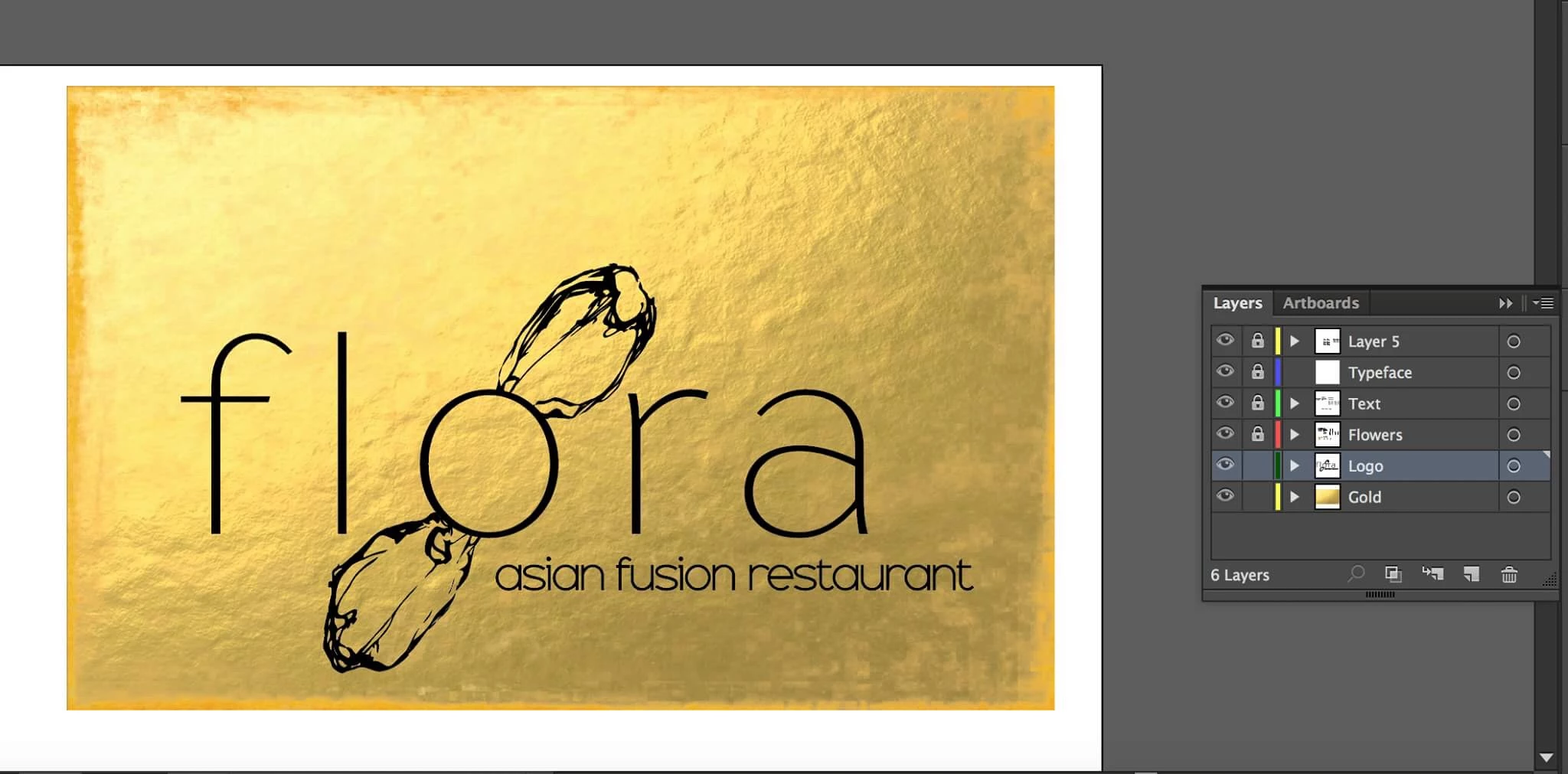
I'm trying to turn the artwork in the attached image into a clipping mask, therfore filled with the image below.

The artwork is probably too complex (they are expanded image trace and expanded typeface) so i'm either getting errors from Illustrator that I cannot make the mask, or else am getting unwanted results such as everything dissappearing.

I tried turning the artwork into a compound path before making it a clipping mask, but I get the 'All objects in a compund path must be paths...' error.

artwork is on the 'logo' layer, and image on the 'gold' layer.

any ideas how I can fix this?
    This topic has been closed for replies.
    Correct answer Jacob Bugge

    Julia,

    The complication with Clipping Masks is that you can only use one path as the Clipping Path.

    Therefore, with multiple paths you need to unite them into one (Pathfinder>Unite or something).

    Or you need to turn them into a Compound Path (which may give complications with overlapping parts becoming holes, which then have to be dealt with).

    That is the reason for the use of an Opacity Mask, which is all about appearance, and where you can have multiple paths which are just Grouped.

    In this case of black paths you may click Make Opacity Mask in the Transparency palette flyout, with both Clip and Invert Mask ticked in the main Transparency palette window.

    The last bit is opposite to the way with the white path(s).

    3 replies

    Jacob Bugge
    Community Expert
    Community Expert
    January 21, 2020

    For my part you are welcome, starjay.


    Participant
    March 22, 2022

    I am bring a photoshop image to Illustrator. The letters ATM need to show w no background. I cannot for the life of me get this to work.  A is compound.  I get the M masked and the others vanish, or the center of the A as the only mask.  Making me crazy!

    Jacob Bugge
    Community Expert
    Community Expert
    March 22, 2022

    Jonby,


    As I (mis)understand it, you have ATM as live Type or Outlined Type.


    You ought to be able to get it to work with a Clipping Mask, the safest/simplest way being to keep ATM as live Type on top of the image.


    Or turn the outlined Type into one Compound Path.


    Logotology
    Participant
    January 20, 2020

    OMG this is exactly what I was looking for.  Thanks for answering this one.  🙂

    Jacob Bugge
    Community Expert
    Jacob BuggeCommunity ExpertCorrect answer
    Community Expert
    December 26, 2016

    Julia,

    The complication with Clipping Masks is that you can only use one path as the Clipping Path.

    Therefore, with multiple paths you need to unite them into one (Pathfinder>Unite or something).

    Or you need to turn them into a Compound Path (which may give complications with overlapping parts becoming holes, which then have to be dealt with).

    That is the reason for the use of an Opacity Mask, which is all about appearance, and where you can have multiple paths which are just Grouped.

    In this case of black paths you may click Make Opacity Mask in the Transparency palette flyout, with both Clip and Invert Mask ticked in the main Transparency palette window.

    The last bit is opposite to the way with the white path(s).

    Participant
    February 23, 2023

    Oh my lanta this just saved my butt. Thanks so much!!! The Opacity Mask worked great!

    Jacob Bugge
    Community Expert
    Community Expert
    February 23, 2023

    You are welcome, defaultp.


    If you wish to change from the default screen name given (as default), you can click your avatar at the top right, then click Account settings in the dropdown and change it there.