brenth72989189
Participant
January 26, 2018
Answered

clipping mask line showing

  • January 26, 2018
  • 4 replies
  • 12105 views

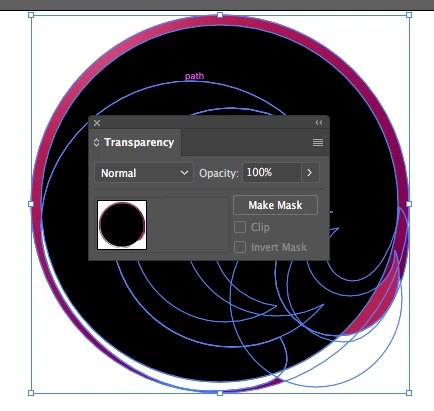
How do i get rid of my pesky circular clipping mask line, showing at the bottom of my wave. I've saved it as .pdf and .png and still shows. I've scaled it up and down multiple times and still wont go away. i don't recall this every happening before with clipping masks. so weird and frustrating. AI file download if you want to try playing around with it.

Thanks!
Correct answer Mike_Gondek10189183

That is an anomaly with clipping masks.

You can use the transparency palette instead if that really bothers you, but the thin line will not print or export to bitmapped format.

  1. release clipping mask
  2. fill path with black
  3. groups colored items underneath if needed
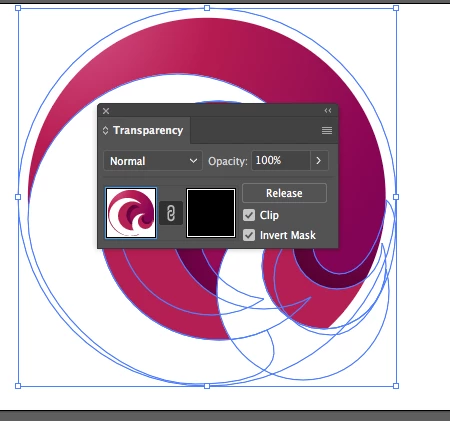
  4. select both your graphics, and your mask. In transparency palette >> make mask
  5. then check both checkmarks in transparency palette

4 replies

Participant
May 19, 2022

I had the same issue with a round flag for the website. I used Trim on the pathfinder and all super good.

Mike_Gondek10189183
Community Expert
Mike_Gondek10189183Community ExpertCorrect answer
Community Expert
January 26, 2018

That is an anomaly with clipping masks.

You can use the transparency palette instead if that really bothers you, but the thin line will not print or export to bitmapped format.

  1. release clipping mask
  2. fill path with black
  3. groups colored items underneath if needed
  4. select both your graphics, and your mask. In transparency palette >> make mask
  5. then check both checkmarks in transparency palette

MysticKnight
Known Participant
October 16, 2019

First, thanks Mike for providing a workaround to the problem. It really shouldn't be necessary to go through these steps, but it's better than anything else I've heard or seen and that includes 4 hours through Adobe tech support chat (those guys don't have a clue).


Why on earth do people keep calling this a display issue? If I can see it, it's a problem.


And please people, try not to give advice that goes against everything designers are trying to do. What I mean by that is we're trying not to be destructive and we want the image to be flexible so we can move elements around freely. Flatten, crop, delete goes against that strategy.

Kurt Gold
Community Expert
Community Expert
January 26, 2018

Although it is just a display issue, it may be a bit irritating.

There are a couple of ways to hide it, for example:

  • Apply a white stroke to the clipping path (1 pt should be sufficient). Of course, that may not be desired if the clipping group is on top of other filled objects.
  • Or: Apply Pathfinder Crop to the entire clipping group, but not in the Pathfinder palette. Use the Pathfinder Crop effect in the Effect menu. That way no (probably undesired) flattening will happen.
  • Or: Use the Rasterize effect temporarily (see Effect menu).
Monika Gause
Community Expert
Community Expert
January 26, 2018

This has alway happened.

You can try and flatten it using the pathfinder "Crop" and then delete everything you don't need.

MysticKnight
Known Participant
October 16, 2019
Flatten, crop and delete is not a good suggestion. It's simply too convoluted and destructive to the image for it to be a good solution.