
Inspiring
May 25, 2025
Answered

Clipping mask making verything dissapear

  • May 25, 2025
  • 3 replies
  • 1004 views

Hello,

i have a simple clipping mask made of a compound path from 4 lines (object, compound), and an image below in the layers:
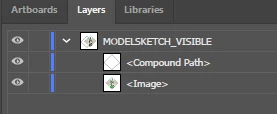
But when i select both and "make clipping path", the only thing left is a small sliver of the image that corresponds to the line of the path, everything else dissapears

At this point i'm lost on what's going on

Correct answer Eliminateur

i managed to make it work somehow by moving the path outside teh "line", then i joined the paths


That was apparently what was needed tomake it work, i have no idea why the DXF import puts a path as a subordinate of a line

3 replies

barbara_a7746676
Community Expert
Community Expert
May 25, 2025

Starting with your design. I am using a simple shapes to represent your design:

If your design consists of multiple shapes like my example, then Group all of the shapes.


Draw the shape that you want to use for the clipping mask. The shape must be a closed path.


Position the clipping shape over your design. The clipping shape must be on top of the shapes being clipped.

Select everything -- the design and the clipping shape.


Then choose Object > Clipping Mask > Make.

Inspiring
May 25, 2025

that's how it should work, but it wasn't working, since i need dimensional accuracy i could not make the mask in AI had to make it in onshape

Jacob Bugge
Community Expert
Community Expert
May 26, 2025

i came upon the solution in one of the previous responses, did not consider using trace


Eliminateur,


When you can make it in OnShape or whatever, you must have other information than the lengths of the sides.


So surely you can make it at full accuracy with the help of Illy (job description Adobe Illustrator). She is very good at it and always eager to help. Just one angle will do.


Below is shown a way to do it when you know the lengths of the four sides and the angle between two of them, Smart Guides being your friends, colours to enhance and discern:


1) The set to create it from: the two black paths being the the sides at the angle, and two red circles, each with diameters twice the lengths of the other sides, all placed loosely, with one of the sides at the angle set at the

desired angle relative to the Artboard if any (otherwise you can just create it horizontally or vertically), and the the other side at the angle set at the same angle;

2) Move the other side from 1) to snap to the left end of the first one, then switch to the Rotate Tool and rotate it round the left end by the known angle (Alt/OptionClick the left end and insert the angle);

Now you have the two sides placed with the known angle between them;

3) Position the two circles with their centres at the other ends of the paths from 2);

4) With the Line Segment Tool ClickDrag between each of the ends/centres and the intersection of the two circles, or similarly by Clicking with the Pen Tool (click P in between to start a new path);

5) Hide the circles and join the sides (you can copy the sides and hide the originals); this is not shown.


When done, you can delete the circles.


What have you to start with? It can be easier depending on what you have. With two known angles (wherever they are) you need no circles.


Click to get closer, Click again to get closer still

Inspiring
May 25, 2025

if it's of any use, the lines are composed of a path, if i release the gorup i get this:

the path is an imported dxf because i need dimensional accuracyfar beyond what the basic line tool/vector editing AI has

Jacob Bugge
Community Expert
Community Expert
May 25, 2025

Eliminateur,


What happens if you selct all the LINE objects and Ctrl/Cmd+Shift+G to Ungroup them, then Join the Paths with Ctrl/Cmd+J?


Or make and expand a Live Paint Group?


EliminateurAuthorCorrect answer
Inspiring
May 25, 2025

i managed to make it work somehow by moving the path outside teh "line", then i joined the paths


That was apparently what was needed tomake it work, i have no idea why the DXF import puts a path as a subordinate of a line

Monika Gause
Community Expert
Community Expert
May 25, 2025

You want to have a mask that is basically a square?


Then it will be best to take the rectangle tool, draw the suqare, rotate it if necessary and then use it as a mask.


If there are just 4 lines, then you would need to join them instad of making a  compound path.

Inspiring
May 25, 2025

it's not a square, it's a irregular romboid that each segment is different length that i cannot precisely make into AI itself