Participant
March 21, 2020
Question

Clipping mask not working

  • March 21, 2020
  • 3 replies
  • 698 views

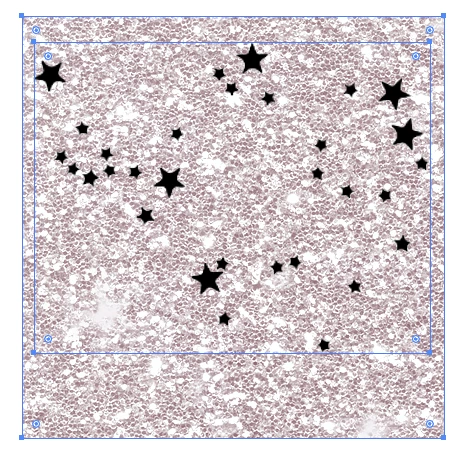
Hi, I am wanting to place the glitter inside a custom shape (the stars). When I use the clipping mask nothing happens?

This topic has been closed for replies.

3 replies

Grant H
Community Expert
Community Expert
March 23, 2020

As you probably know by now, the Clipping mask requires vector shapes not images.

/G

キィィ─!!!
Participating Frequently
March 21, 2020

Another option is to use an opacity mask.

https://helpx.adobe.com/illustrator/using/transparency-blending-modes.html

If the stars in your image are bitmap images rather than paths, using an opacity mask may be faster.

Participant
March 23, 2020

Hello, thank you for replying. The stars are a .PNG and so is the glitter background. I'd like to put the glitter inside the stars. 

キィィ─!!!
Participating Frequently
March 23, 2020

Select two images and press the [Create Mask] button on the Transparency panel.
Check "Invert mask".

Sorry for the Japanese version of the image.
Please note that the name may be different from the actual name because it is translated into English with Google Translate, but please forgive me.

tromboniator
Community Expert
Community Expert
March 21, 2020

Before making the Clipping Mask, select all the stars and make a Compound Path (Object menu > Compound Path > Make). Be sure that the Compound Path (stars) is in front, as you appear to have done in your attempt.


Peter

Participant
March 23, 2020

Hi, thank you for replying. When I clicked on the stars then to Object then Compound Path, it was greyed out and I cannot click it.