
Participating Frequently
January 24, 2019
Question

Clipping Mask?

  • January 24, 2019
  • 4 replies
  • 1331 views

Hello,

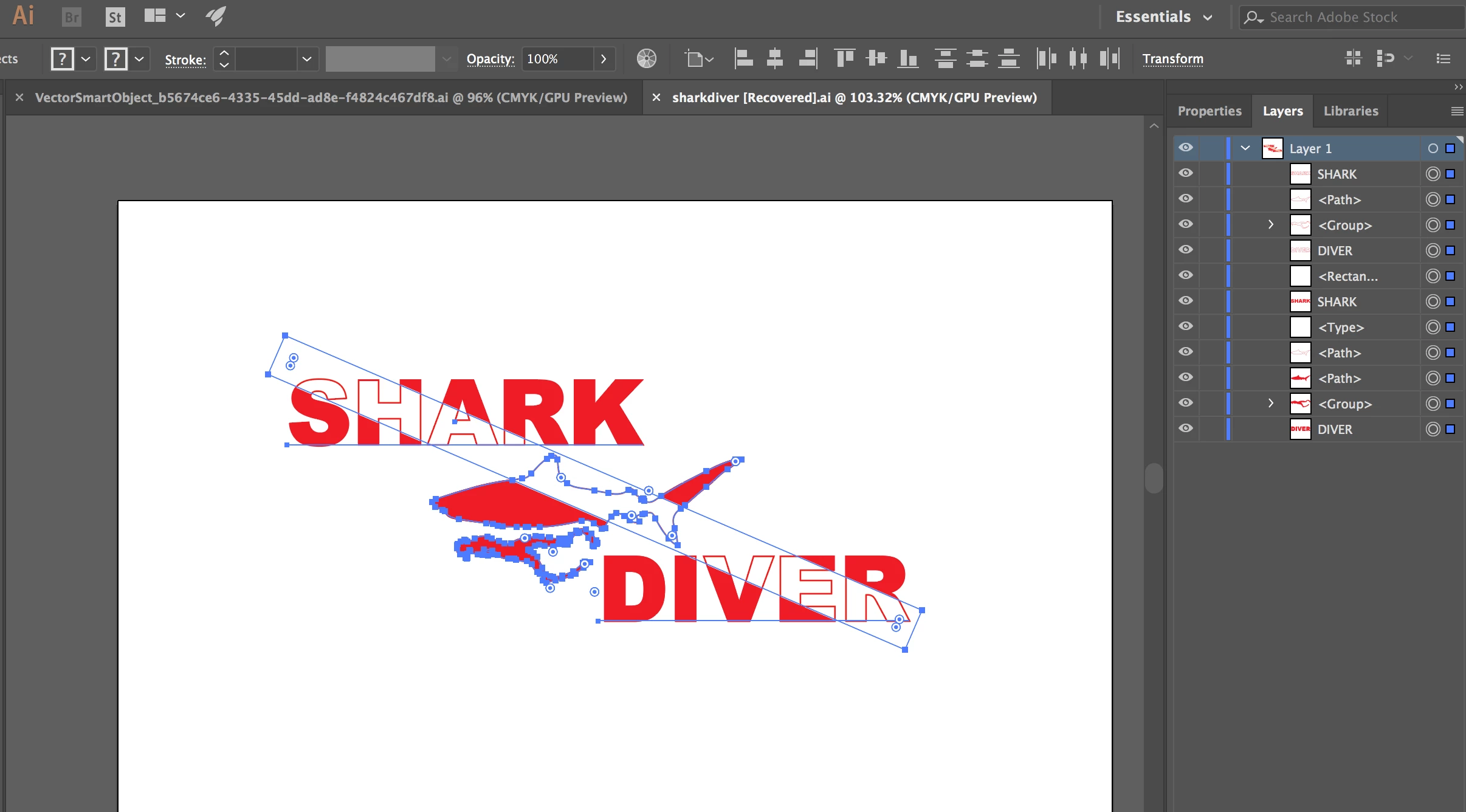
I have a design that I am trying to create but I am having trouble doing it. The design I am trying to create a design that resembles a dive flag. That being said, I can't figure out how to get the text and the shark to have a white streak overlay on them. When I export this design the white rectangle that I have placed over the design is being exported as well. How do I clip the design so that when I export it the rectangle will not show.
This topic has been closed for replies.

4 replies

Ray Yorkshire
Participating Frequently
January 26, 2019

Partrick

Can you share the  Ai file here?

upload it to Dropbox,  Google drive, Adobe Cloud etc

and give the link

Maybe someone  here can better see any problems

Participating Frequently
January 26, 2019

Hey Ray,

Please find a link to the design here - Dropbox - sharkdiver [Recovered].ai

Ray Yorkshire
Participating Frequently
January 26, 2019

Ray Craighead's method looks the best.

Anyway here's my method

Hide the stuff  Rectangle and below - turn off eye icons

Select and make a group for the visible objects above,  I named it 'outline '

Do the same for below,

I called that group 'fill'

next

Duplicate the fill layer

click on 3 stripes top right in layers panel, etc

Hide visibility of duplicate ''fill''

Select rectangle + fill

Open transparency  panel

Windows > transparency

Click Make Mask

these settings

Make all the layers visible

and change the fill colour of the bottom fill sub layer to another colour for the stripe,

Ray Yorkshire
Participating Frequently
January 24, 2019

Another way using an opacity mask.

Make a group of the text, shark and diver

Edit > Copy

Add a  white filled  rectangle  above, no stroke

Select group and white rectangle

open Transparency panel

Make Mask

Use - Invert mask ticked , clip off, or whatever combination works.

That will knock out white rectangle.

Then above paste the group back in

Edit > Paste in Front      give that just a red outline no fill

Edit > Paste in Back        and change the fill colour

so basically you have 3 layers

top - outline

middle - with  removed rectangle

  bottom-   fill

rcraighead
Legend
January 24, 2019
  1. Select all of the objects
  2. Make them a "Compound Shape" using the Pathfinder Panel
  3. Create a simple pattern with a white line and red background
  4. Fill Compound Shape with Pattern
  5. Rotate/Scale pattern ONLY by holder "~" while using any of the transform tools.

Participating Frequently
January 24, 2019

When I export the file, I get the white shape through it but I don't want the white shape. I want the letters and the shark to have the line running through it but keep the red outline that is present below. I have listed the layers that I am working with below.

rcraighead
Legend
January 24, 2019

Have you tried the method I described?

jane-e
Community Expert
Community Expert
January 24, 2019

Hi Patrick,

When you create a clipping mask, Illustrator will clip everything to the top object. For you, that’s the Shark. Anything outside the shark with disappear.

If thats not what you want, then first move the object you want to be at the top of the stack. Then select everything as you have and choose Object > Clipping Mask > Make. You will only see the parts of the images through that shape.

Use Isolation Mode to make edits.

Is that what you are trying to do?

Jane

Participating Frequently
January 24, 2019

Hey Jane,

When I export the file, I get the white shape through it but I don't want the white shape. I want the letters and the shark to have the line running through it but keep the red outline that is present below.

jane-e
Community Expert
Community Expert
January 24, 2019

Hi Patrick

If the illustration that rcraighead showed is what you are looking for, then I would tweak it just a bit.

  • Select all the red shapes and make a compound path (Object > Compound Path > Make)
  • Keep the compound path selected and change the drawing mode to Draw Inside (Tools panel)
  • Select the white shapes > Cut > Paste (The white shapes will go inside the red compound path)
  • Change the drawing mode back to normal (important!)
  • Edit the clipping group with isolation mode and the Layers panel. Double-click with the Selection tool to get into isolation mode; press Escape to get out.