Hi @grafik2_5837, I've written a quick script to do this. Give it a try and let me know if it works for your case. I've configured the `adjustCMYKColor` function to match your logic. You can set the `cellCount`, `gap` and `colorStep` values.
- Mark
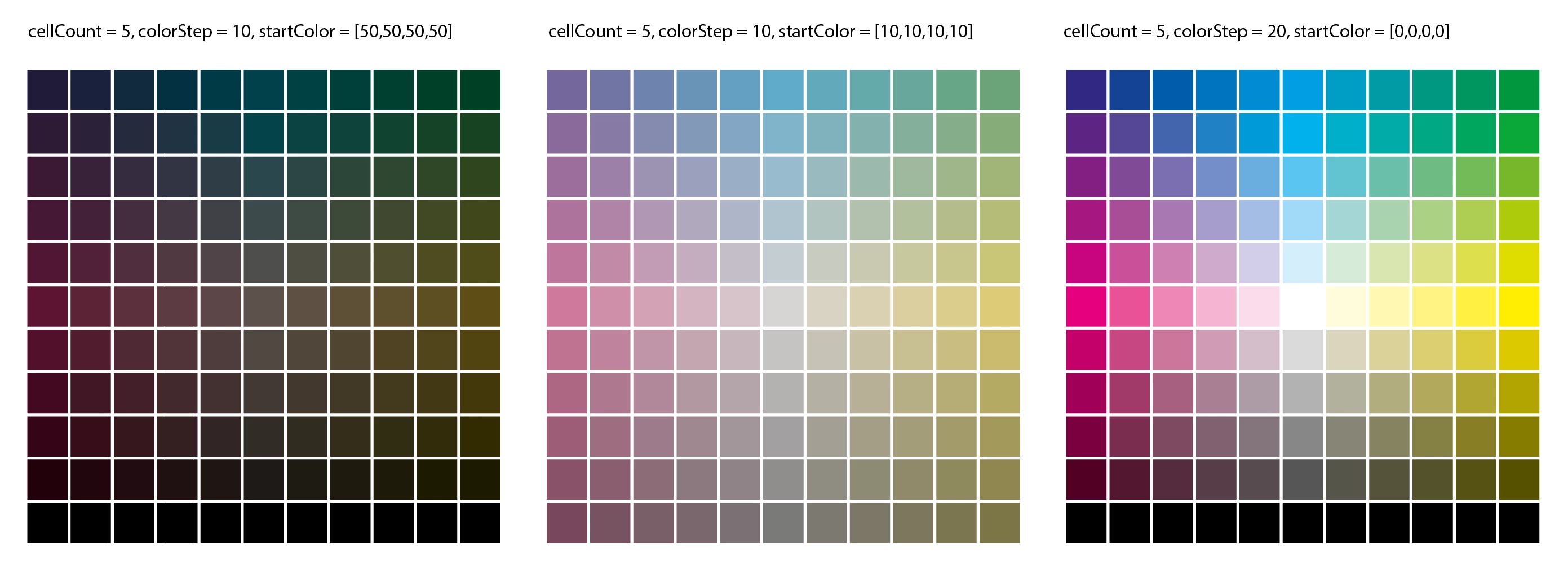
/**
 * @file Make Color Grid CMYK.js
 *
 * Usage:
 *   1. Draw a square in Illustrator, the size you want the color grid.
 *   2. Color the square (in CMYK for this example).
 *   3. Run script.
 *
 * Draws a grid squares over the selected square, with the original color
 * in the center, and with colors radiating out with modified values.
 *
 * Color values are modified by the `colorFunction`, eg. the example `increaseColorValues`.
 *
 * @author m1b
 * @version 2025-05-30
 * @discussion https://community.adobe.com/t5/illustrator-discussions/cmyk-table-with-vary-by-value-k/m-p/14888873
 */
(function () {

    var settings = {
        autoSteps: true,
        cellCount: 5,
        gap: 2,
        colorStep: 2,
        showUI: true,
    };

    var doc = app.activeDocument,
        item = doc.selection[0];

    if (
        !item
        || !item.hasOwnProperty('fillColor')
        || !item.hasOwnProperty('geometricBounds')
    )
        return alert('Please select a colored square and try again.');

    settings.centralColor = item.fillColor;

    if (settings.showUI) {

        var result = ui(settings);

        if (2 === result)
            // user cancelled
            return;

    }

    // calculate the step for each channel (if auto) or use the settings value for all channels
    var cyanStep = settings.autoSteps ? (100 - settings.centralColor.cyan) / settings.cellCount : settings.colorStep;
    var magentaStep = settings.autoSteps ? (100 - settings.centralColor.magenta) / settings.cellCount : settings.colorStep;
    var yellowStep = settings.autoSteps ? (100 - settings.centralColor.yellow) / settings.cellCount : settings.colorStep;
    var blackStep = settings.autoSteps ? (100 - settings.centralColor.black) / settings.cellCount : settings.colorStep;

    // make the color grid!
    makeColorGrid(doc, item, settings.cellCount, settings.gap, increaseColorValues);

    // or here is an example of using a custom `drawCellFunction`:
    // makeColorGrid(doc, item, settings.cellCount, settings.gap, increaseColorValues, drawCellWithDarkerCells);

    // ------------------- end of demo script ------------------------------------

    /**
     * Use as a `colorFunction` parameter with `makeColorGrid`.
     *
     * Returns a new color, by increasing the color values
     * as the grid location is further from the center.
     * @param {Number} x - the x coordinate of the grid.
     * @param {Number} y - the y coordinate of the grid.
     * @returns {Color}
     */
    function increaseColorValues(x, y) {

        var cyan = settings.centralColor.cyan,
            magenta = settings.centralColor.magenta,
            yellow = settings.centralColor.yellow,
            black = settings.centralColor.black;

        if (x < 0)
            magenta -= x * magentaStep;
        else if (x > 0)
            yellow += x * yellowStep;

        if (y < 0)
            cyan -= y * cyanStep;
        else if (y > 0)
            black += y * blackStep;

        return makeColor([
            Math.min(cyan, 100),
            Math.min(magenta, 100),
            Math.min(yellow, 100),
            Math.min(black, 100),
        ]);

    };

    /**
     * Use as a `drawCellFunction` parameter with `makeColorGrid`.
     *
     * Draws a color cell with smaller, darker, cells embedded.
     * @param {Document} doc - an Illustrator Document.
     * @param {Array<Number>} rect - [L, T, W, H].
     * @param {Color} color - the color of the cell.
     * @param {*} container - the location (parent) of the drawn cell.
     * @returns {GroupItem} - the main cell grouped with the small cells.
     */
    function drawCellWithDarkerCells(doc, rect, color, container) {

        // keep the cells in a group
        var group = container.groupItems.add();

        // draw the main cell
        drawRectangle(doc, rect, undefined, group, { fillColor: color });

        // darker colors
        var darker = [
            makeColor([color.cyan, color.magenta, color.yellow, Math.min(color.black + 25, 100)]),
            makeColor([color.cyan, color.magenta, color.yellow, Math.min(color.black + 50, 100)]),
            makeColor([color.cyan, color.magenta, color.yellow, Math.min(color.black + 75, 100)]),
        ];

        var smallCellSize = rect[2] / darker.length;

        // draw the smaller cells
        for (var i = 0, b; i < darker.length; i++) {

            b = [
                rect[0] + smallCellSize * i,
                rect[1] + rect[2] - smallCellSize,
                smallCellSize,
                smallCellSize,
            ];

            drawRectangle(doc, b, undefined, group, { fillColor: darker[i] });

        }

        return group;

    };


})();

/**
 * Divides a square into smaller squares
 * such that there will be a central square,
 * and `stepCount` squares along x and y axes.
 * The squares can be colored using a provided
 * function.
 * @author m1b
 * @version 2024-10-01
 * @param {Document} doc - an Illustrator Document.
 * @param {PageItem} item - a page item used for position and size (will be removed).
 * @param {Number} cellCount - the number of squares out from the central square.
 * @param {Number} [gap] - the gap between squares, in points (default: 0).
 * @param {Function} colorFunction - a function that, given cell coordinates, returns a color.
 * @param {Function} drawCellFunction - a function that, given cell bounds and color, draws the cell.
 */
function makeColorGrid(doc, item, cellCount, gap, colorFunction, drawCellFunction) {

    gap = gap || 0;
    drawCellFunction = drawCellFunction || basicDrawCellFunction;

    // calculate size of everything
    var center = centerOfBounds(item.geometricBounds),
        width = item.geometricBounds[2] - item.geometricBounds[0],
        allSteps = (cellCount * 2) + 1,
        cellSize = (width - (gap * (allSteps - 1))) / allSteps;

    // offset to the corner of the cell
    center[0] -= cellSize / 2;
    center[1] -= cellSize / 2;

    // draw the grid
    for (var u = -cellCount, cellRect, x, y, c; u <= cellCount; u++) {

        for (var v = -cellCount; v <= cellCount; v++) {

            x = center[0] + (u * (cellSize + gap));
            y = center[1] + (v * (cellSize + gap));
            cellRect = [x, y, cellSize, cellSize];
            c = colorFunction(u, v);

            drawCellFunction(doc, cellRect, c, item.parent);

        }

    }

    // remove the original square
    item.remove();

    /**
     * Basic function to draw the cell.
     * @param {Document} doc
     * @param {Array<Number>} cellRect
     * @param {Color} color
     * @param {Document|Layer|GroupItem} container
     */
    function basicDrawCellFunction(doc, cellRect, color, container) {
        return drawRectangle(doc, cellRect, undefined, container, { fillColor: color });
    };

};

/**
 * Draws a rectangle in the container.
 * Takes Large Scale Documents into account.
 * @author m1b
 * @version 2024-09-26
 * @param {Document} doc - an Illustrator document.
 * @param {Array<Number>} rect - the rectangle dimensions [left, top, width, height].
 * @param {Number} [unitFactor] - eg. 72 to convert to inches. All values will be scaled by this (default: 1).
 * @param {Document|Layer|GroupItem} [container] - an Illustrator page item container (default: doc).
 * @param {Object} [props] - properties to assign to the rectangle (default: none).
 * @return {PathItem}
 */
function drawRectangle(doc, rect, unitFactor, container, properties) {

    properties = properties || {};
    unitFactor = unitFactor || 1;
    container = container || doc;

    var sf = 1 / doc.scaleFactor * unitFactor;
    var rectangle = container.pathItems.rectangle(-rect[1] * sf, rect[0] * sf, rect[2] * sf, rect[3] * sf); // T,L,W,H

    // defaults
    rectangle.filled = true;
    rectangle.stroked = false;

    // apply properties
    for (var key in properties)
        if (
            properties.hasOwnProperty(key)
            && undefined != properties[key]
        )
            rectangle[key] = properties[key];

    return rectangle;

};

/**
 * Returns point at center of bounds.
 * Works with Illustrator or Indesign bounds.
 * @author m1b
 * @version 2024-09-14
 * @param {Array} bounds - a bounds array.
 * @returns {Array} - point array [x, y].
 */
function centerOfBounds(bounds) {

    return [
        bounds[0] + (bounds[2] - bounds[0]) / 2,
        -bounds[1] - (bounds[3] - bounds[1]) / 2
    ];

};


/**
 * Makes a color from a array of color values;
 * @author m1b
 * @version 2022-10-03
 * @param {Array<Number>} breakdown - the color values.
 * @returns {GrayColor|RGBColor|CMYKColor}
 */
function makeColor(breakdown) {

    var c;

    if (breakdown.length == 1) {

        c = new GrayColor();
        c.gray = Math.min(breakdown[0], 100);

    }

    else if (breakdown.length == 3) {

        c = new RGBColor();
        c.red = Math.min(breakdown[0], 255);
        c.green = Math.min(breakdown[1], 255);
        c.blue = Math.min(breakdown[2], 255);

    }

    else if (breakdown.length == 4) {

        c = new CMYKColor();
        c.cyan = Math.min(breakdown[0], 100);
        c.magenta = Math.min(breakdown[1], 100);
        c.yellow = Math.min(breakdown[2], 100);
        c.black = Math.min(breakdown[3], 100);

    }

    return c;

};

/**
 * Rounds a number to `places` decimal places.
 * @author m1b
 * @version 2022-08-02
 * @param {Number} num - the Number to round.
 * @param {Number} [places] - round to this many decimal places.
 * @return {Number} - the rounded Number.
 */
function round(num, places) {

    places = Math.pow(10, places || 1);
    return Math.round(num * places) / places;

};

/**
 * UI for "Make Color Grid".
 * @param {Object} settings - an object accessed by the UI.
 * @returns {Number} - 1 == success, 2 == user cancelled.
 */
function ui(settings) {

    var w = new Window("dialog", 'Make Color Grid'),
        columns = w.add('group {orientation:"row", alignment:["fill","fill"], alignChildren: ["fill","top"], margins:[0,0,0,0] }'),
        column1 = columns.add('group {orientation:"column", alignment:["fill","top"], alignChildren: ["fill","top"], margins:[10,10,10,20] }'),
        column2 = columns.add('group {orientation:"column", alignment:["fill","top"], alignChildren: ["fill","top"], margins:[10,10,10,20] }'),

        colorLabel = column1.add("statictext { text: 'Central Color:', alignment: ['left','top'] }"),
        cyanGroup = column1.add('group {orientation:"row", alignment:["fill","fill"], alignChildren: ["fill","center"], margins:[0,0,0,0] }'),
        cyanLabel = cyanGroup.add("statictext { text: 'C', alignment: ['left','center'], preferredSize:[12,-1] }"),
        cyanField = cyanGroup.add("edittext { text: '', preferredSize: [50,-1], alignment:['left','center']  }"),
        magentaGroup = column1.add('group {orientation:"row", alignment:["fill","fill"], alignChildren: ["fill","center"], margins:[0,0,0,0] }'),
        magentaLabel = magentaGroup.add("statictext { text: 'M', alignment: ['left','center'], preferredSize:[12,-1] }"),
        magentaField = magentaGroup.add("edittext { text: '', preferredSize: [50,-1], alignment:['left','center']  }"),
        yellowGroup = column1.add('group {orientation:"row", alignment:["fill","fill"], alignChildren: ["fill","center"], margins:[0,0,0,0] }'),
        yellowLabel = yellowGroup.add("statictext { text: 'Y', alignment: ['left','center'], preferredSize:[12,-1] }"),
        yellowField = yellowGroup.add("edittext { text: '', preferredSize: [50,-1], alignment:['left','center']  }"),
        blackGroup = column1.add('group {orientation:"row", alignment:["fill","fill"], alignChildren: ["fill","center"], margins:[0,0,0,0] }'),
        blackLabel = blackGroup.add("statictext { text: 'K', alignment: ['left','center'], preferredSize:[12,-1] }"),
        blackField = blackGroup.add("edittext { text: '', preferredSize: [50,-1], alignment:['left','center']  }"),

        cellCountGroup = column2.add('group {orientation:"row", alignment:["right","fill"], alignChildren: ["right","center"], margins:[0,0,0,0] }'),
        cellCountLabel = cellCountGroup.add("statictext { text: 'Cell count:', justify:'right', alignment: ['right','center'], preferredSize:[95,-1] }"),
        cellCountField = cellCountGroup.add("edittext { text: '', preferredSize: [50,-1], alignment:['left','center']  }"),
        gapGroup = column2.add('group {orientation:"row", alignment:["fill","fill"], alignChildren: ["fill","center"], margins:[0,0,0,0] }'),
        gapLabel = gapGroup.add("statictext { text: 'Gap:', justify:'right', alignment: ['right','center'], preferredSize:[95,-1] }"),
        gapField = gapGroup.add("edittext { text: '', preferredSize: [50,-1], alignment:['left','center']  }"),
        autoStepsCheckBox = column2.add("checkBox { text: 'Auto step', value: false, alignment:['right','top'] }"),
        colorStepGroup = column2.add('group {orientation:"row", alignment:["fill","fill"], alignChildren: ["fill","center"], margins:[0,0,0,0], visible: true }'),
        colorStepLabel = colorStepGroup.add("statictext { text: 'Colour step %:', justify:'right', alignment: ['right','center'], preferredSize:[95,-1] }"),
        colorStepField = colorStepGroup.add("edittext { text: '', preferredSize: [50,-1], alignment:['left','center']  }"),

        buttons = w.add("Group {orientation:'row', alignment:['right','top'] }"),
        cancelButton = buttons.add('button', undefined, 'Cancel', { name: 'cancel' }),
        applyButton = buttons.add('button', undefined, 'Apply', { name: 'ok' });

    applyButton.onClick = apply;
    autoStepsCheckBox.onClick = refreshUI;

    function refreshUI() {
        colorStepGroup.visible = !autoStepsCheckBox.value;
    };

    updateUI();

    w.center();
    return w.show();

    function updateUI() {

        // update the SUI controls from settings
        cyanField.text = round(settings.centralColor.cyan, 1);
        magentaField.text = round(settings.centralColor.magenta, 1);
        yellowField.text = round(settings.centralColor.yellow, 1);
        blackField.text = round(settings.centralColor.black, 1);
        cellCountField.text = settings.cellCount;
        gapField.text = settings.gap;
        colorStepField.text = settings.colorStep;
        autoStepsCheckBox.value = settings.autoSteps;

        refreshUI();

    };

    function apply() {

        // update settings from SUI controls
        settings.centralColor.cyan = Number(cyanField.text);
        settings.centralColor.magenta = Number(magentaField.text);
        settings.centralColor.yellow = Number(yellowField.text);
        settings.centralColor.black = Number(blackField.text);
        settings.cellCount = Number(cellCountField.text);
        settings.gap = Number(gapField.text);
        settings.colorStep = Number(colorStepField.text);
        settings.autoSteps = autoStepsCheckBox.value;

        // return approval code
        w.close(1);

    };

};
Edit 2024-10-01: oops, forgot to add screenshot.
Edit 2024-10-01: added UI.
Edit 2025-05-30: fixed bad bug—a typo—that I must have introduced during the last update that ruined the whole script (it's been broken for 7 months! Sorry!) Also added a "AutoStep" settings and UI. AutoStep means it calculates the step amount for a color such that the outer grid square always is 100% of that color. Turn this off if you want exact control. I also included an example custom drawCellFunction that draws the main cell plus three smaller, darker cells over it. This example is currently commented out.

 AdChoices