royGvisuals
Participating Frequently
December 3, 2016
Answered

Color darkens when exporting to PNG in RGB setting.

  • December 3, 2016
  • 2 replies
  • 18370 views

I am using Adobe Illustrator 2017. I have a project using a certain shade of purple (# 9900cc). When I export to PNG it becomes darker. My document is set up in RGB color mode and I am only exporting for screens/web so I am not concerned about any other mediums.  I am able to get the proper color in a screen shot but I can't seem to export it properly from Illustrator. 
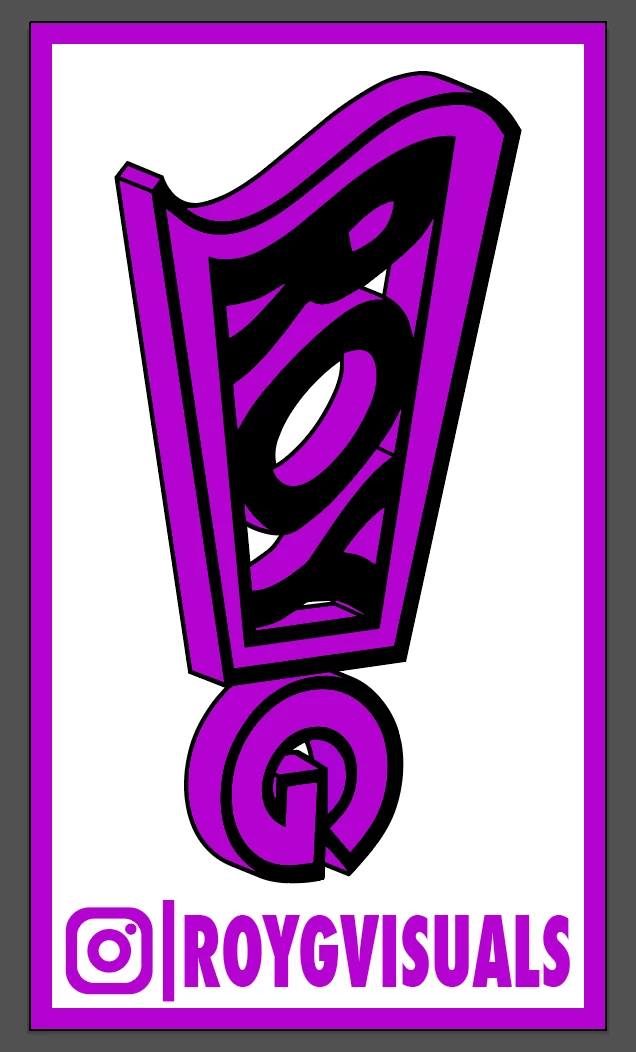
The first picture shows the project in Illustrator and the color picker shows the color I am trying to use. The last picture on the right is the exported PNG. I did notice the triangle with the exclamation point, which says "Out of Gamut Warning", but if this has anything to do with my issue then I would like to know how to obtain my color regardless. If it can show up in illustrator and keep the color in a JPEG screen shot then there's got to be a way. Please Help!

This topic has been closed for replies.
Correct answer Ton Frederiks

Unfortunately Illustrator does not have a Convert to Profile, like Photoshop does.

Assign profile will not give you the result you want because it will use the same color values, but in a different RGB space resulting in a different color.

I would suggest this:

Change your RGB Color Settings to sRGB: Edit > Color Settings > use Generic or Web settings as long as the RGB Working Space is sRGB.

Copy your current (Adobe RGB profiled) artwork.

Create a new RGB document (this will have the sRGB working space) and paste the artwork.

This will convert the colors between Adobe RGB and sRGB while keeping the appearance (but change the numbers).

2 replies

Ton Frederiks
Community Expert
Community Expert
December 3, 2016

Your RGB document has probably the Adobe RGB working space.

You can check that in Edit > Assign Profile

If that is the case, you found the reason for the color difference.

Web graphics use the sRGB working space.

Make sure that in your Edit > Color Settings the RGB working space is sRGB when you create documents for web use.

royGvisuals
Participating Frequently
December 3, 2016

I was able to switch it from Adobe RGB to sRGB but that changes the color to the darker version in the project. I need the output to be the lighter version. Which is all good if I can use the color picker and somehow find another color code that matches my intended color but I use this color across so many projects that it would be a lot to convert.

I would ideally like to adjust the output settings so it exports exactly what I see in the project regardless off what color profile I use. Is that possible?

Ton Frederiks
Community Expert
Ton FrederiksCommunity ExpertCorrect answer
Community Expert
December 3, 2016

Unfortunately Illustrator does not have a Convert to Profile, like Photoshop does.

Assign profile will not give you the result you want because it will use the same color values, but in a different RGB space resulting in a different color.

I would suggest this:

Change your RGB Color Settings to sRGB: Edit > Color Settings > use Generic or Web settings as long as the RGB Working Space is sRGB.

Copy your current (Adobe RGB profiled) artwork.

Create a new RGB document (this will have the sRGB working space) and paste the artwork.

This will convert the colors between Adobe RGB and sRGB while keeping the appearance (but change the numbers).

Monika Gause
Community Expert
Community Expert
December 3, 2016

How is color management set up?

Which color profile for RGB space?

Which export function do you use?

How is it set up?

How do you measure the color value in the exported file?

royGvisuals
Participating Frequently
December 3, 2016

The document color mode is set to RGB and below are my current color settings

To export I go to File>Export>Export as... and then I chose the png setting from the format menu. When I look at the exported PNG file it appears dark but if I were to open the exported file back into Illustrator and select "don't color manage" it opens as my original color (the one I want). If I go to upload that same image to a site it stays dark. I played around with the "Save for Web" export option choosing between PNG-8, PNG-24, JPEG, and GIF but the options they gave me appeared to actually make the purple lighter.

I am still relatively new to the more complex settings so maybe its just something simple that I need to set. As far as how I measure the color value in the exported file, I don't know how I would measure it other than by eye.

Monika Gause
Community Expert
Community Expert
December 3, 2016

ocond70 schrieb:

When I look at the exported PNG file it appears dark

Use sRGB color profile when doing web stuff.

You can't just look at a file. Which app do you use to look at it? Which app do you use to measure the color values?

Everything system related might measure through some color mangement layer. Use Photoshop to measure your color.