Participating Frequently
March 10, 2021
Answered

Color profile

  • March 10, 2021
  • 3 replies
  • 2985 views

I designed an illustrator file and want to have it printed on canvas. On the screen it looks great. How can I know how it will look on the canvas after the printing?

This topic has been closed for replies.
Correct answer Conrad_C

The standard way to simulate on screen how colors will print is to “soft-proof.” The process is similar across Illustrator, Photoshop, InDesign, and Lightroom Classic.


To do it in Illustrator:

1. Make sure your own display is profiled using a hardware device such as the i1 Display (just an example, there are others). That helps ensure that your display is a reliable color reference. (If it's a more expensive display that supports hardware calibration, do that instead.)

2. Ask the printer for an ICC color profile of the canvas process. It will give your computer the information needed to simulate the print. If they cannot provide one, it can’t be done so you’d have to stop here.

3. Install the color profile on your computer. Both macOS and Windows provide a standard folder where color profiles are made available to any application that uses them.

4. In Illustrator, choose View > Proof Setup > Customize.

5. From the Device to Simulate menu, choose the profile provided for the canvas print.
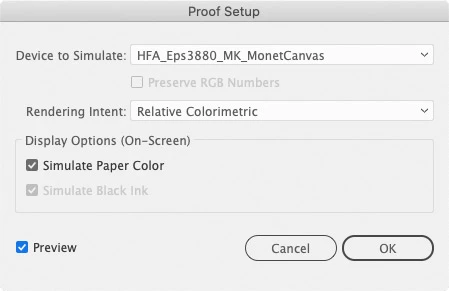


6. If the printer is at all competent and provided a profile, they should be able to tell you how to set the other options in the Proof Setup dialog box to match their process. If not, try the settings shown.

7. Click OK.


As long as the Proof Setup dialog box is set up right, you can always choose View > Proof Colors to turn the print color simulation on and off. Unfortunately, if you close the document, the next time you open it you have to set up Proof Colors all over again, because Illustrator is one of those frustrating Adobe applications that does not remember the settings and does not let you save the print simulation settings as a preset. (Photoshop and Lightroom Classic let you save multiple soft-proof presets so you can quickly see what it looks like under different printing conditions.)


So it might seem kind of complicated, but once you’re familiar with the basics, you’ll understand how to simulate output in many pro applications, both by Adobe and other companies.

3 replies

Conrad_C
Community Expert
Conrad_CCommunity ExpertCorrect answer
Community Expert
March 11, 2021

The standard way to simulate on screen how colors will print is to “soft-proof.” The process is similar across Illustrator, Photoshop, InDesign, and Lightroom Classic.


To do it in Illustrator:

1. Make sure your own display is profiled using a hardware device such as the i1 Display (just an example, there are others). That helps ensure that your display is a reliable color reference. (If it's a more expensive display that supports hardware calibration, do that instead.)

2. Ask the printer for an ICC color profile of the canvas process. It will give your computer the information needed to simulate the print. If they cannot provide one, it can’t be done so you’d have to stop here.

3. Install the color profile on your computer. Both macOS and Windows provide a standard folder where color profiles are made available to any application that uses them.

4. In Illustrator, choose View > Proof Setup > Customize.

5. From the Device to Simulate menu, choose the profile provided for the canvas print.


6. If the printer is at all competent and provided a profile, they should be able to tell you how to set the other options in the Proof Setup dialog box to match their process. If not, try the settings shown.

7. Click OK.


As long as the Proof Setup dialog box is set up right, you can always choose View > Proof Colors to turn the print color simulation on and off. Unfortunately, if you close the document, the next time you open it you have to set up Proof Colors all over again, because Illustrator is one of those frustrating Adobe applications that does not remember the settings and does not let you save the print simulation settings as a preset. (Photoshop and Lightroom Classic let you save multiple soft-proof presets so you can quickly see what it looks like under different printing conditions.)


So it might seem kind of complicated, but once you’re familiar with the basics, you’ll understand how to simulate output in many pro applications, both by Adobe and other companies.

Legend
March 11, 2021

Also, you need to ask yourself- Are the colours on screen accurate? Did you calibrate your monitor? On a system without proper colour, it's easy to get the colours you want, there on screen, but they will be different for everyone else.

Doug A Roberts
Community Expert
Community Expert
March 10, 2021

What does the printer advise?

ElishevaHAuthor
Participating Frequently
March 11, 2021

Something about choosing the setting "canvas". I don't quite understand what he means and where to find that setting. 

Doug A Roberts
Community Expert
Community Expert
March 11, 2021

Try asking them for the name of a specific colour profile.