Known Participant
November 4, 2023
Answered

coloring inside a line?

  • November 4, 2023
  • 2 replies
  • 1029 views

hello, im trying to teach myself to use AI but ive already messed up lol.

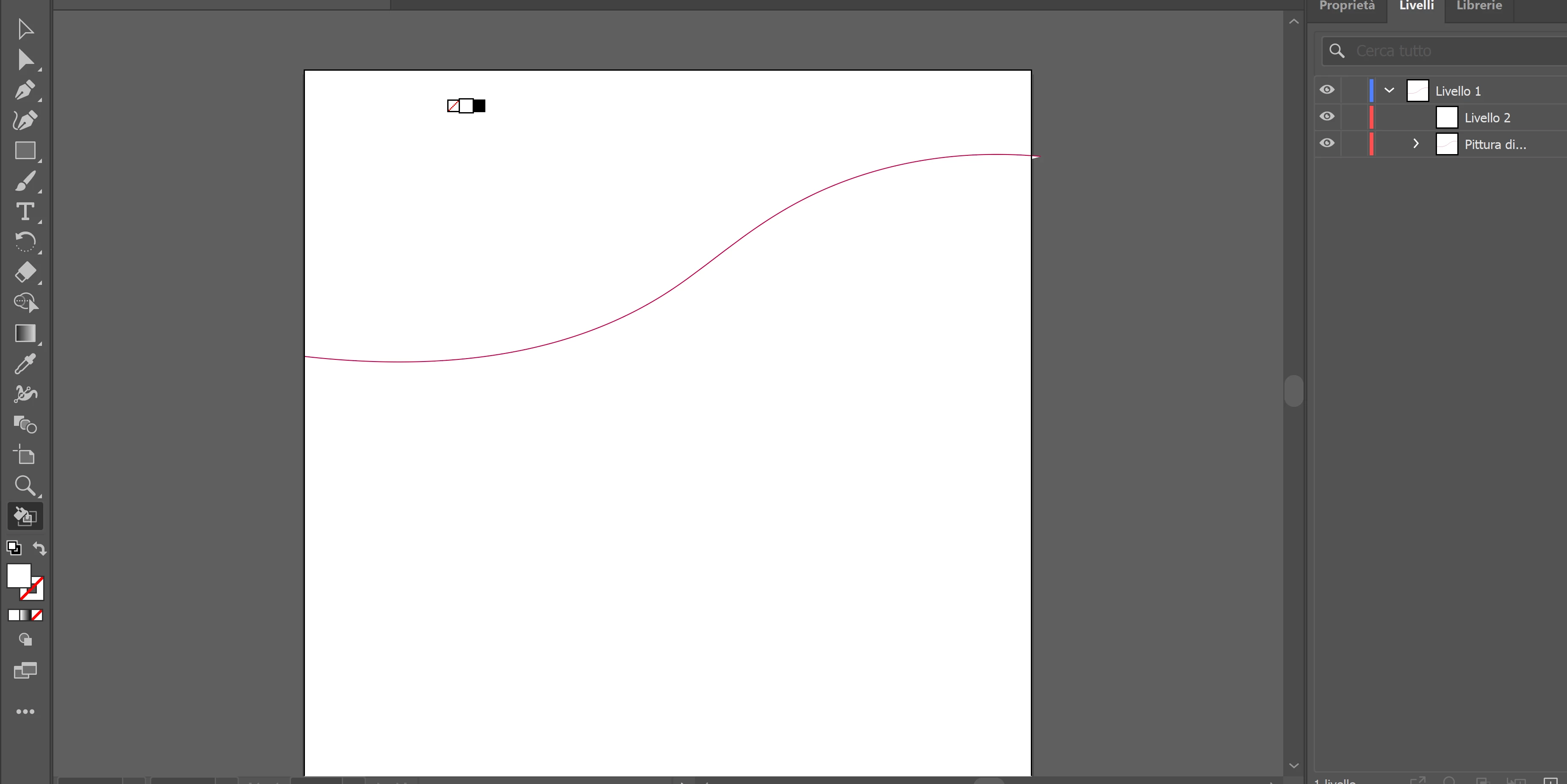
i made a curved line using the pen and id like to color everything beneath the line in red and leave the space above white.

couldn't find a normal bucket tool, googled around, people say to use "live painting bucket". i transformed my line into a live object (or whatever, i dont remember the exact term, the instructions i found were in my native language) but it just colors the "curves" of the line and leaves the rest of the space blank.

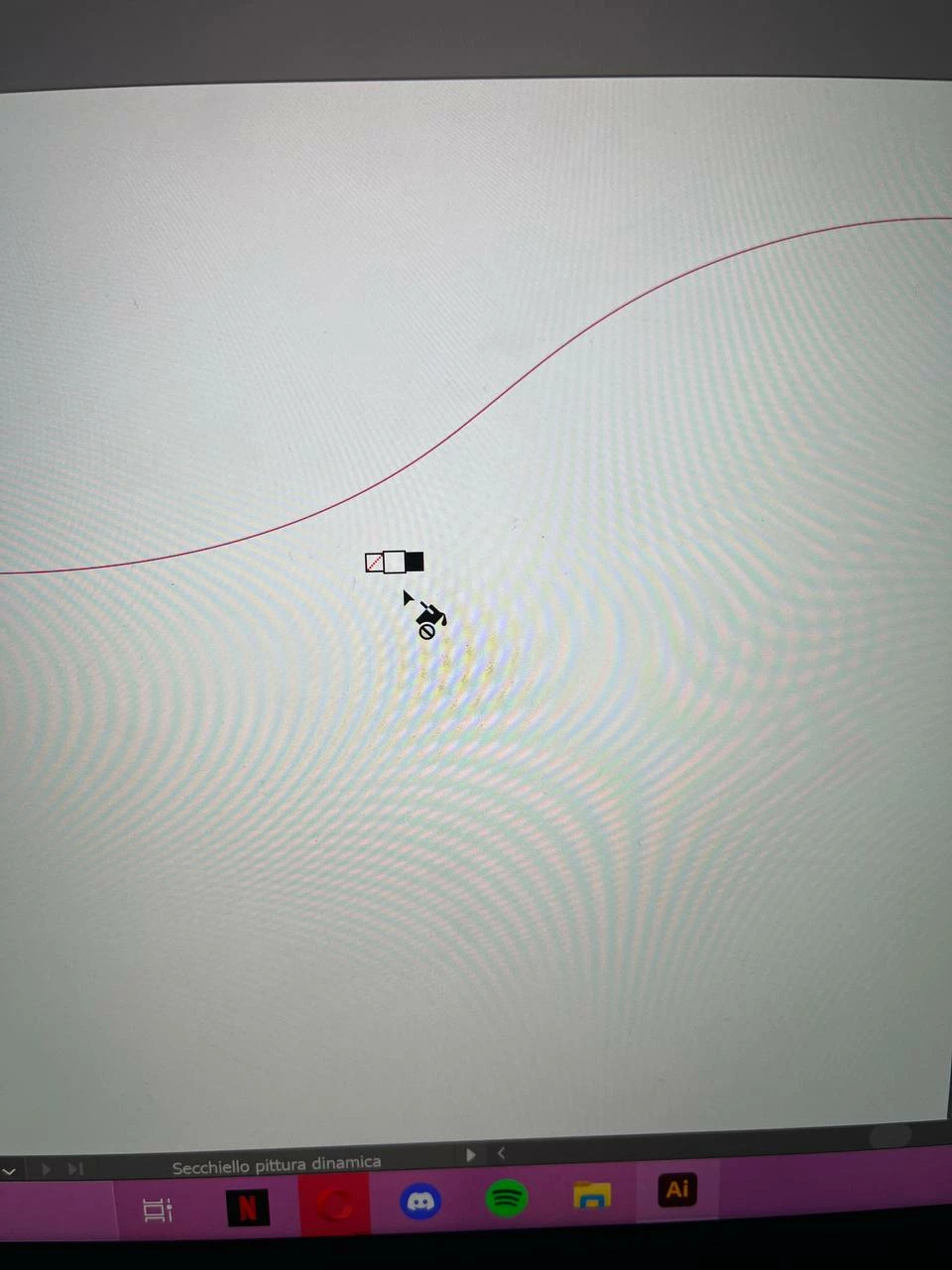
when i try to use LPB a little forbidden sign appears sometimes as well (had to take a photo with my phone since the capture tool wouldnt capture the cursor, sorry).

i tried to solve this by making colorful squares and arranging them in different layers but obviously that wont work either since theyre... well, square, so they dont color perfectly to the bounds of the curved line so i end up covering up the line either with the red below or with the white above.

there has to be a solution to this right? i mean this is something i could do in ms paint in elementary school.
 

i know this is probably a really stupid question, sorry
This topic has been closed for replies.
Correct answer defaultsgjp1vsm108j

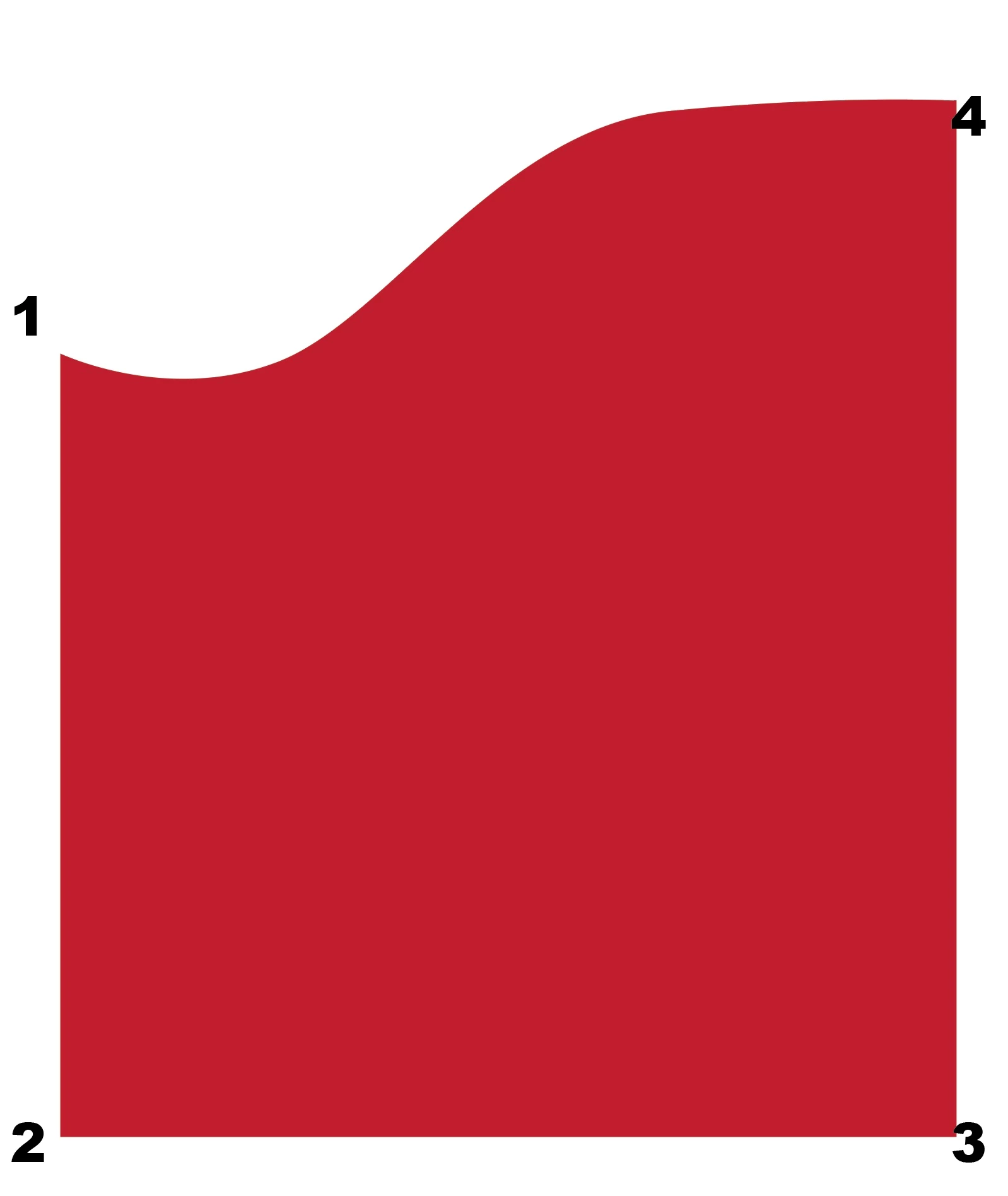
You need to close your path, and help Illustratot know how far you want the fill to go.


Hit P for pen tool

Hover over 1 and click when your cursor changes to the appropriate mode of the tool (looks like forward slash)

do the same for the remaining 3 points

fill the closed shape


2 replies

Jacob Bugge
Community Expert
Community Expert
November 4, 2023

Alice,


You can:


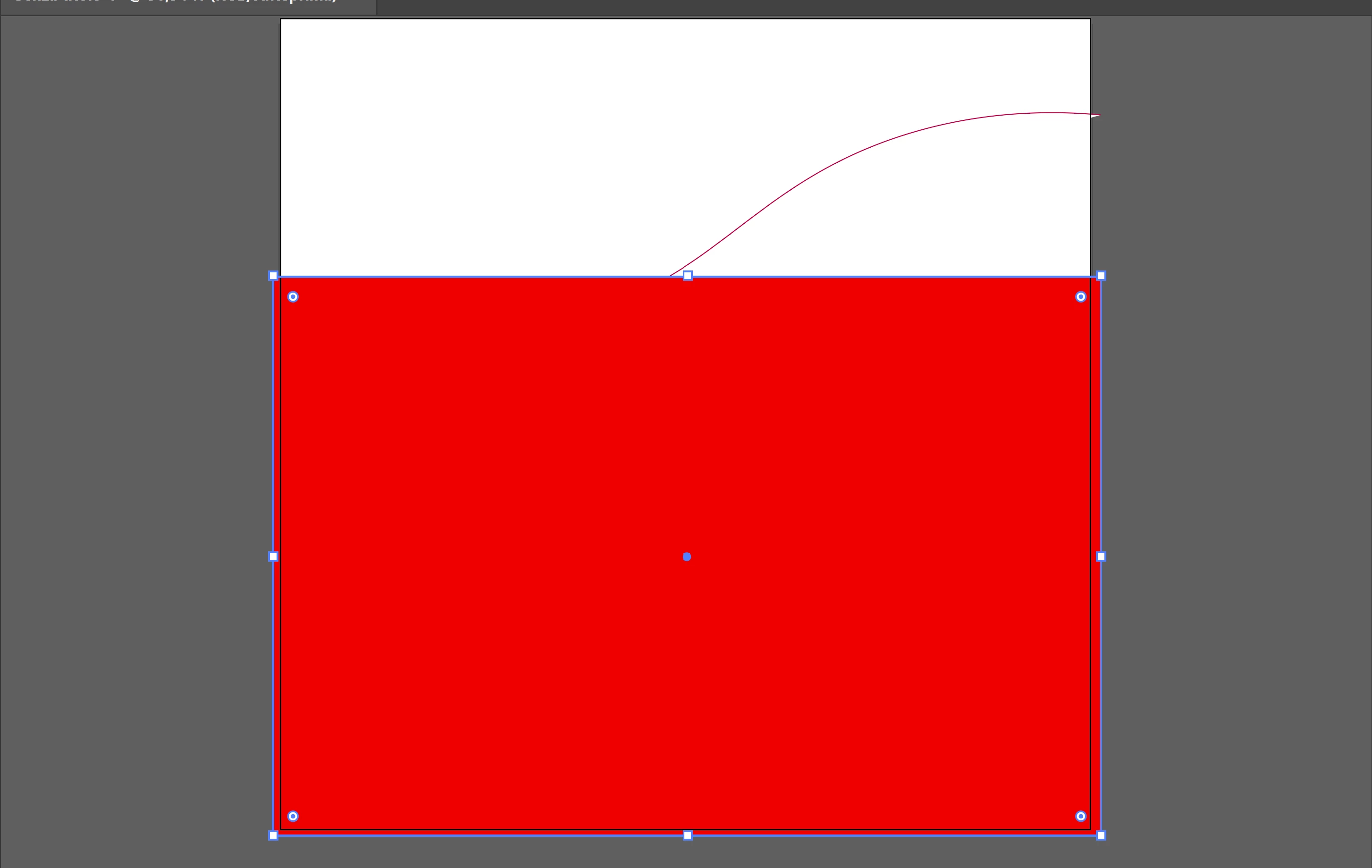
1) create a rectangle corresponding to the total area to be coloured, then hold Ctrl/Cmd and press X and then B (Ctrl/Cmd+X+B) to bring it to the back beneath your curved path;

2) Select the curved path, then in the Object dropdown click Path and then Divide Objects below, (Object>Path>Divide Objects Below);

3) Select each of the new paths and give them the desired Fill Colors.


You can fill the whole Artboard with the colours by ClickDragging with the Rectangle Tool from one corner to the opposite one with Smart Guides to tell you when you are within snapping distance.


Known Participant
November 4, 2023

thank you so much! ^_^

Jacob Bugge
Community Expert
Community Expert
November 4, 2023

For my part you are welcome, Alice.


Known Participant
November 4, 2023

here's what it looks like when i manage to color with LPB

defaultsgjp1vsm108jCorrect answer
Participant
November 4, 2023

You need to close your path, and help Illustratot know how far you want the fill to go.


Hit P for pen tool

Hover over 1 and click when your cursor changes to the appropriate mode of the tool (looks like forward slash)

do the same for the remaining 3 points

fill the closed shape


Known Participant
November 4, 2023

thank you very much! 🙂