
Participant
February 20, 2019
Answered

Colours look very washed out

  • February 20, 2019
  • 11 replies
  • 18090 views

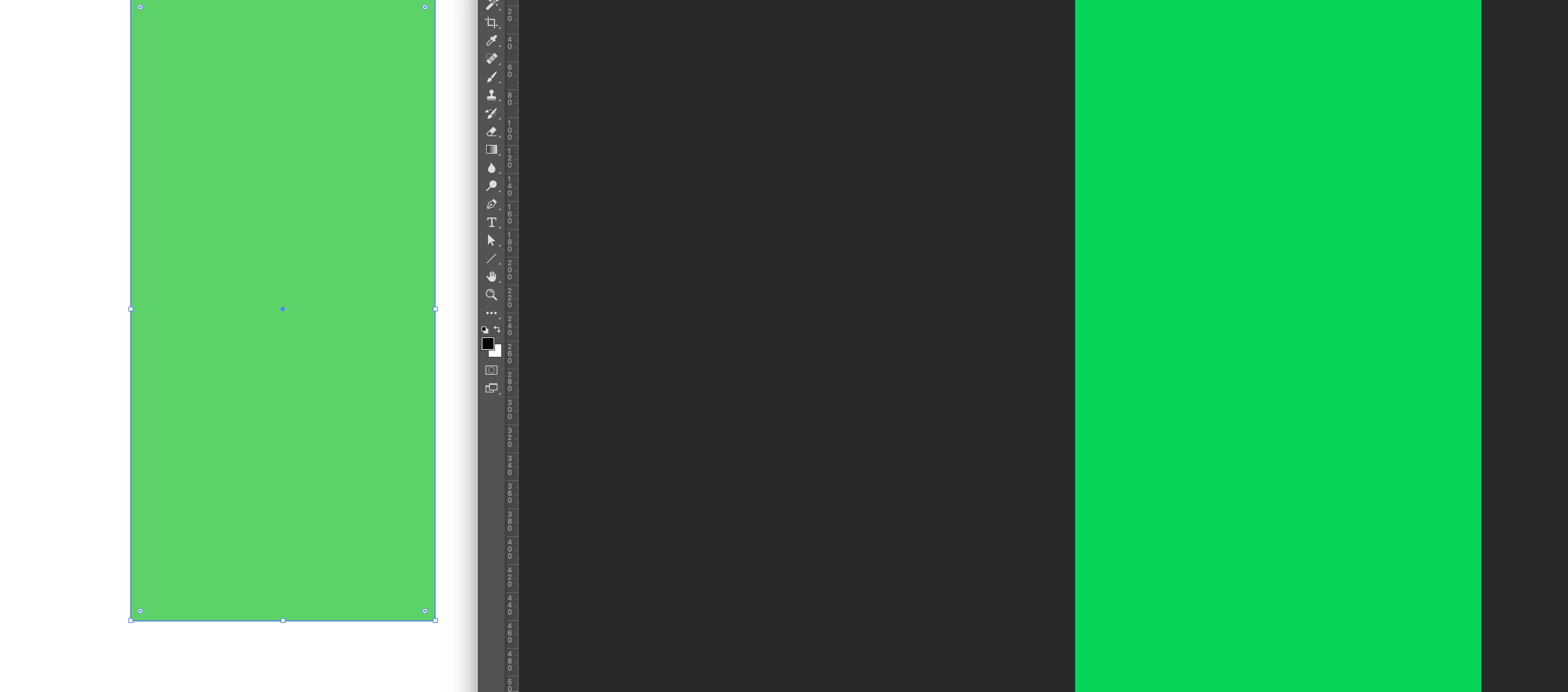
Since some weeks, my RGB colours in Illustrator look very washed out. When I copy and paste them in -for example- photoshop or keynote, the colours are much more vibrant. It's not the proof colours option.

See the screenshot below: left is a green rectangle in illustrator, right is the same rectangle pasted in photoshop. Anyone has an idea how  to fix this? Thanks!
This topic has been closed for replies.
Correct answer Julio César Mercado

Hello. Had the same issue and no recomendation worked for me. Finally I solved it opening Adobe Bridge -> Edit > Color Settings > Monitor Color > Apply. Hope it works for you too.

11 replies

Julio César MercadoCorrect answer
Participant
August 9, 2022

Hello. Had the same issue and no recomendation worked for me. Finally I solved it opening Adobe Bridge -> Edit > Color Settings > Monitor Color > Apply. Hope it works for you too.

Anubhav M
Community Manager
Community Manager
August 12, 2022

Hello @Julio César Mercado,


Glad to hear that the problem was solved, and thank you for sharing the suggestions. Feel free to reach out if you need further assistance in the future. We'd be happy to help.


Thanks,

Anubhav

Participant
November 19, 2021

The solve for me was:

View > View using CPU
View > Proof Setup > Monitor RGB

Participant
April 28, 2021

View > CPU also fixed this problem for me!

Participant
April 9, 2021

Go to View > Select Pixel Preview

Participant
March 19, 2020

Hey - I was having the same problem. I think I found an answer. Under "View" > Proof Setup, select "Monitor RGB". Mine was set to CMYK. Switched to monitor RGB view and all the colors brightened up to vibrant RBG. Hope that helps.


Known Participant
April 24, 2021

I had the same problem too and this solved it for me! Thanks for your comment 🙂


Ton Frederiks
Community Expert
Community Expert
February 20, 2019

Are the RGB color values the same in Illustrator and Photoshop?

And is Illustrators Document Color Profile the same as in Photoshop?

Community Expert
February 20, 2019

Do you callibrate your monitor?

lambiloon
Community Expert
Community Expert
February 20, 2019

Hi all change is due change in color mode all depends on need of your final product....Thanks

Ali Sajjad / Graphic Design Trainer / Freelancer / Adobe Certified Professional
Simmer1
Community Expert
Community Expert
February 20, 2019

Hi,

Like kennethkawamoto2 said having the same colour setting as in Photoshop should help.

In Photoshop go Edit > Colour setting to fid out the RGB colour setting.

Then back in Adobe Illustrator open up you file and go Edit > Assign Profile.

Kind regards,

Sim

Participant
February 20, 2019

Unfortunately that didn't help... colour settings are the same

Simmer1
Community Expert
Community Expert
February 20, 2019

Here are a few more things you can try:

Is you Colour palette in illustrator set to CMYK or RGB. if it is currently set to CMYK then set it to RGB.

Also you could take a screenshot or the vibrant Green in Photoshop on a Mac the shortcut is shift+Cmd+4, open the screenshot in Illustrator and then use the Eyedropper Tool to get an accurate colour sample.

I hope this helps,

Sim

Community Expert
February 20, 2019

Is Illustrator's Colour Settings the same as Photoshop's Colour Settings?