
Exit
  • Global community
    • Language:
      • Deutsch
      • English
      • Español
      • Français
      • Português
  • 日本語コミュニティ
  • 한국 커뮤니티
0

Compound path problem

New Here ,
Jul 06, 2019 Jul 06, 2019

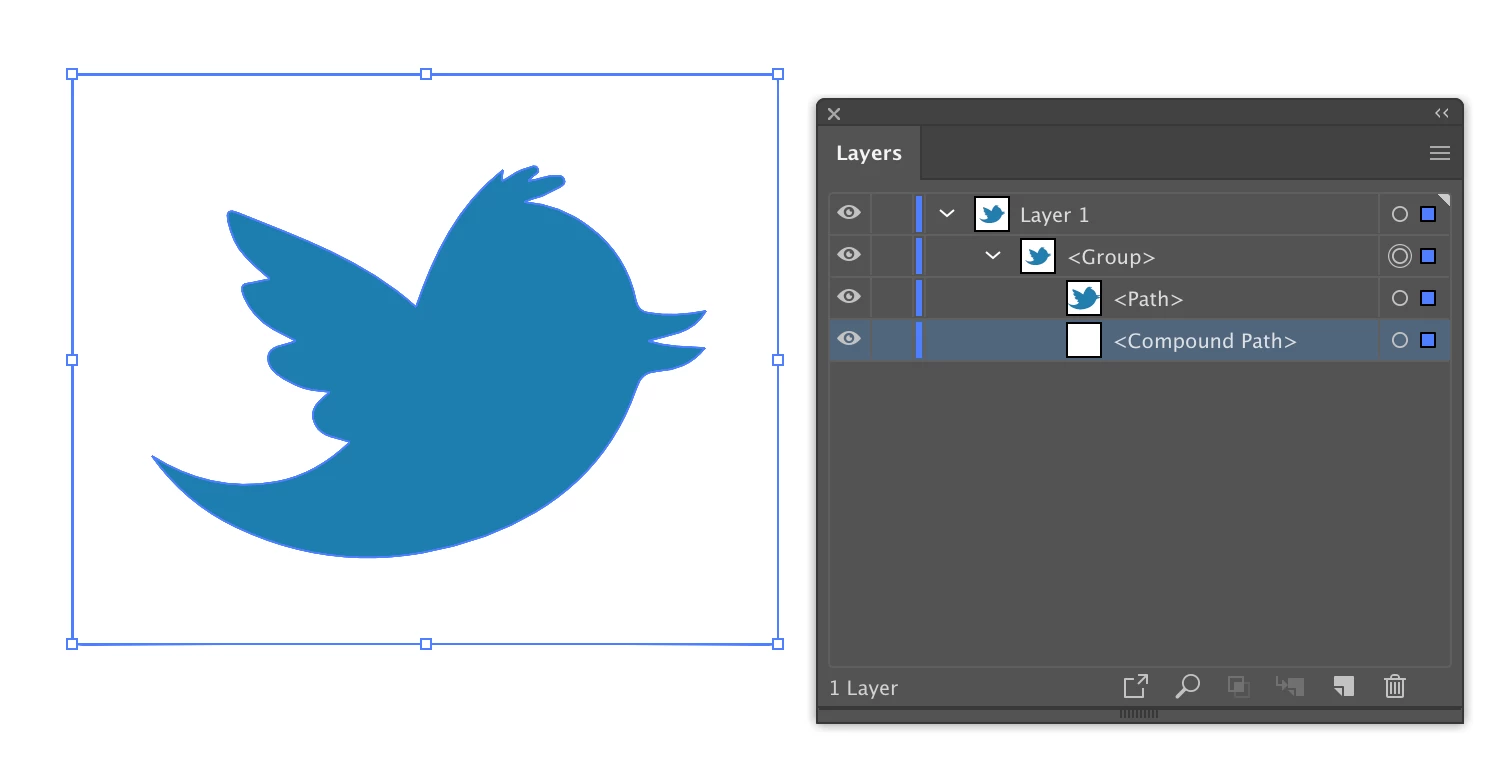
Hi, everyone! I'm new to Illustrator so this might be a silly question. I have a scanned sketch that I Image traced as a black&white logo (checked Ignore white option as well). What I need is to turn that image into anchor points and lines. I know that I have to expand it but it seems like nothing happens after I do (no visible anchor points like I believe it should be). There is compound path 'attached" to it and I can't get rid of it so I could ungroup the image and have separate objects to work with. Does anyone know how to 'delete' compound path? I hope my explanation makes sense. I have Adobe CC 2018. Thanks!
4.9K
Translate
Report
Community guidelines
Be kind and respectful, give credit to the original source of content, and search for duplicates before posting. Learn more
community guidelines

correct answers 1 Correct answer

Community Expert , Jul 06, 2019 Jul 06, 2019

It may be as simple as this:

(1) Open the Layers panel and expand it. Typically there is an extra compound path which surrounds the artwork:

Screen Shot 2019-07-06 at 9.25.44 PM.png

(2) Drag the Compound Path element to the Trash can icon on the Layers panel to delete it.

(3) Then, if necessary, ungroup the path.

If that's not it, make a screen capture of your expanded Layer panel window to show us.

Translate
Adobe
Community Expert ,
Jul 06, 2019 Jul 06, 2019

Moving to Illustrator Forum

Translate
Report
Community guidelines
Be kind and respectful, give credit to the original source of content, and search for duplicates before posting. Learn more
community guidelines
Community Expert ,
Jul 06, 2019 Jul 06, 2019

It may be as simple as this:

(1) Open the Layers panel and expand it. Typically there is an extra compound path which surrounds the artwork:

Screen Shot 2019-07-06 at 9.25.44 PM.png

(2) Drag the Compound Path element to the Trash can icon on the Layers panel to delete it.

(3) Then, if necessary, ungroup the path.

If that's not it, make a screen capture of your expanded Layer panel window to show us.

Translate
Report
Community guidelines
Be kind and respectful, give credit to the original source of content, and search for duplicates before posting. Learn more
community guidelines
Community Expert ,
Jul 07, 2019 Jul 07, 2019

a,

Alt+Shift+Ctrl+8 or Option+Shift+Cmd+8, or Object>Compound Path>Release.

Translate
Report
Community guidelines
Be kind and respectful, give credit to the original source of content, and search for duplicates before posting. Learn more
community guidelines
New Here ,
Jul 08, 2019 Jul 08, 2019

Thank you but this does not solve my problem. I believe I explained it wrong in the first place.

Translate
Report
Community guidelines
Be kind and respectful, give credit to the original source of content, and search for duplicates before posting. Learn more
community guidelines
Community Expert ,
Jul 09, 2019 Jul 09, 2019
LATEST

In Preferences, is this option checked?

show anchors.png

Translate
Report
Community guidelines
Be kind and respectful, give credit to the original source of content, and search for duplicates before posting. Learn more
community guidelines
Community Expert ,
Jul 07, 2019 Jul 07, 2019

If my answer solved your problem, please return to the forum thread and mark it as Correct.

Translate
Report
Community guidelines
Be kind and respectful, give credit to the original source of content, and search for duplicates before posting. Learn more
community guidelines
New Here ,
Jul 08, 2019 Jul 08, 2019

I believe that I actually explained it wrong. It is hard to me cause I'm just trying to learn to work in Illustrator so I apologize. I think the problem is Expanding the sketch after image trace. I should get the sketch in lines and anchor points but that doesn't happen. And I don't understand why the fill changes to black after expanding? I'm posting screenshots.Capture.PNG

This is how it looks like after expanding.

Capture_should look like this.PNGThis is how it should look like after expanding (this screenshot is from an online course and she is working in CS6 version).

Translate
Report
Community guidelines
Be kind and respectful, give credit to the original source of content, and search for duplicates before posting. Learn more
community guidelines