
Known Participant
May 15, 2017
Answered

Converting flat flags to look like they are hanging

  • May 15, 2017
  • 3 replies
  • 3477 views

I have vector images of flags that are flat and rectangle.  I want them to look like they are hanging from a flag pole.  Not really waving or anything, just hanging there.  I figure there would be a series of warps I could do to achieve this look but I cant quite get there.  Any clues on this?  I really would like to keep everything vector also.

Basically, I want to go from this...
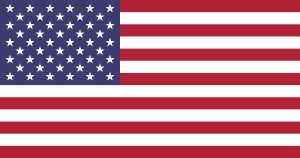
300px-Flag_of_the_United_States.svg.png

to this...

a1f7895afeeaa9c8cb305029cb6b7ad5_hanging-flag-pole-how-to-hanging-american-flag-clipart_1800-1800.jpeg

    This topic has been closed for replies.
    Correct answer rcraighead

    Mike has a good solution.

    If you need to keep it in AI you can:

    1. Save the flag art as a Static Symbol (since Dynamic Symbols will expand blends).
    2. Distort the Smart Object Instance using Distortion Mesh.
    3. Overlay a clipping mask on the distorted Smart Object (you can expand a copy of the distorted art and Pathfinder>Unite).
    4. Add shadows and highlights by using "Multiply" and "Screen" transparency settings (I used a custom "Fade brush" you can find here: Free Transparent Fade Brush Set for AI Users - Ray Craighead, Illustrator

    The key to effectively distorting the shape is to learn to delete the hidden "helper" vector points AI places in the distortion mesh (use the "Delete Anchor Point Tool" while the mesh is being edited with the pen tool).

    This video will introduce you to mesh distortion:

    Mesh Distortion with Envelope - Ray Craighead, Illustrator

    3 replies

    rcraighead
    Legend
    May 16, 2017

    This video shows how to update the distorted flag Symbol:

    rcraighead
    Legend
    May 16, 2017

    Feel free to use the AI file as a starting point if you'd like:

    Dropbox - FLAG_TUTE.ai

    rcraighead
    rcraigheadCorrect answer
    Legend
    May 15, 2017

    Mike has a good solution.

    If you need to keep it in AI you can:

    1. Save the flag art as a Static Symbol (since Dynamic Symbols will expand blends).
    2. Distort the Smart Object Instance using Distortion Mesh.
    3. Overlay a clipping mask on the distorted Smart Object (you can expand a copy of the distorted art and Pathfinder>Unite).
    4. Add shadows and highlights by using "Multiply" and "Screen" transparency settings (I used a custom "Fade brush" you can find here: Free Transparent Fade Brush Set for AI Users - Ray Craighead, Illustrator

    The key to effectively distorting the shape is to learn to delete the hidden "helper" vector points AI places in the distortion mesh (use the "Delete Anchor Point Tool" while the mesh is being edited with the pen tool).

    This video will introduce you to mesh distortion:

    Mesh Distortion with Envelope - Ray Craighead, Illustrator

    rcraighead
    Legend
    May 15, 2017

    Since I can't update my post I'll add the screen image separately:

    rcraighead
    Legend
    May 15, 2017

    Once the distortion and shadows are complete, you can replace the Symbol Instance with another flag Symbol and have a whole new flag.

    Mike_Gondek10189183
    Community Expert
    Community Expert
    May 15, 2017

    If you want hits to look great would do this in photoshop. Find a white flag and use that for a highlight shadow map. Then for the flag position you show I would make 2 masks, and put.

    This is quick with auto masks and the top blue of flag missing, but the technique is there.

    http://files.kaleidoscopechicago.com/_1Pn2-YUp8Tjs1R

    Flag.psd

    2.8 MB

    The URL will expire on June 14.